What Model Is My Laptop: Quick Ways To Find It

Check your system info, sticker, or BIOS — these reveal what model is my laptop fast.
I’ve helped hundreds of people and IT teams figure out what model is my laptop, and I’ll walk you through clear, step-by-step ways to identify your device on Windows, macOS, and Linux. This guide draws on hands-on troubleshooting, manufacturer best practices, and practical tips so you can find the exact model, decode model numbers, check warranty status, and solve driver or upgrade questions quickly.



Why knowing what model is my laptop matters
Knowing precisely what model is my laptop saves time and avoids mistakes.
It helps you download the right drivers, check warranty and recalls, and choose compatible parts.
Support agents, buyers, and repair shops rely on the model name or number to give accurate help.
How to find what model is my laptop on Windows
Use Settings: open Settings > System > About and look for "Device name" and "Device specifications."
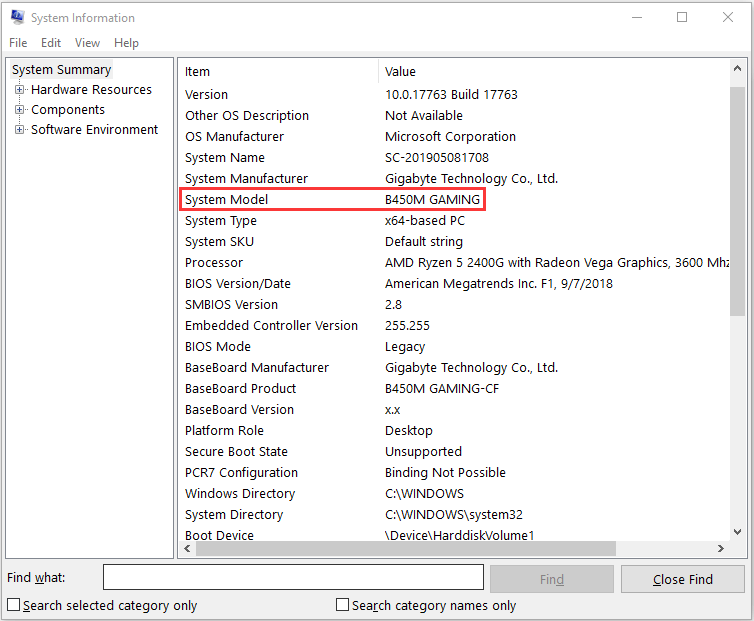
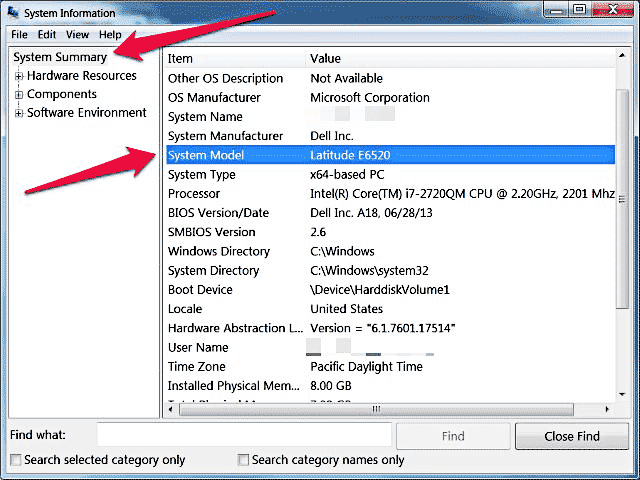
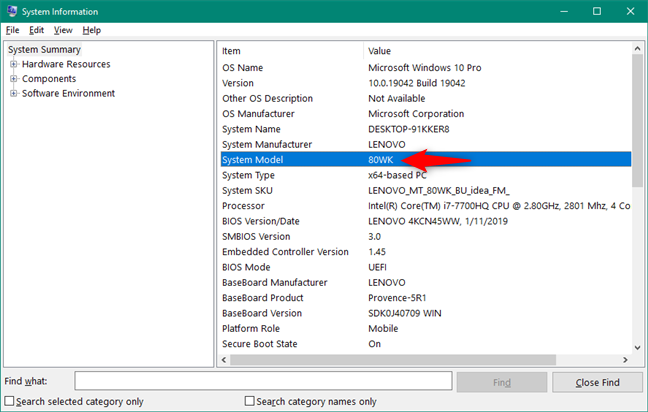
Use System Information: press Windows + R, type msinfo32, and check System Model.
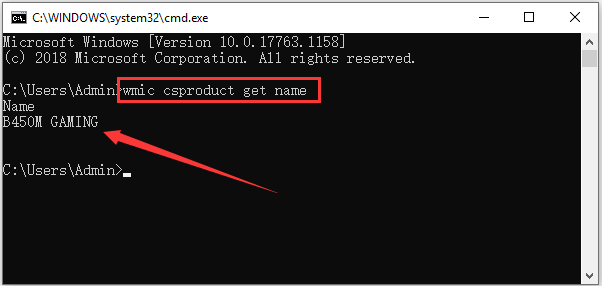
Use Command Prompt: open CMD and run wmic csproduct get name or wmic computersystem get model, manufacturer.
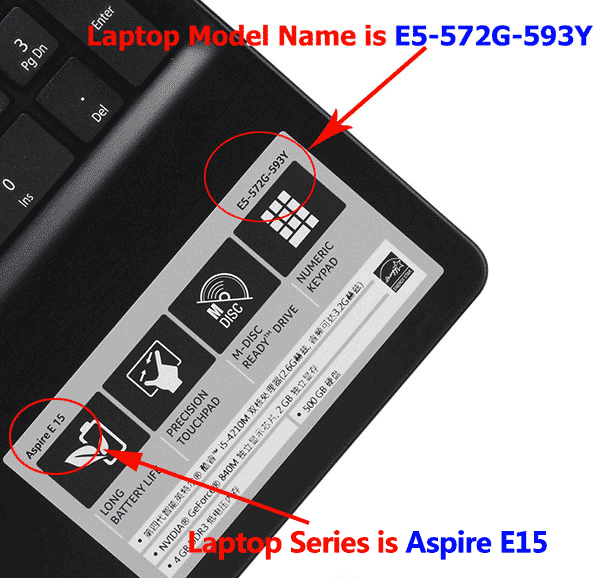
Check the sticker on the laptop base or under the battery if removable, and compare the serial to the maker’s lookup page.


How to find what model is my laptop on macOS
Click the Apple menu and choose About This Mac. The model name and year appear there.
For detailed info, open System Information (System Report) to see the exact model identifier and hardware specs.
You can also use the serial number on the bottom case or original box to verify model and warranty online.

How to find what model is my laptop on Linux
Open a terminal and run cat /sys/devices/virtual/dmi/id/product_name or sudo dmidecode -s system-product-name.
Install lshw and run sudo lshw -short to see manufacturer and product fields.
These commands give precise model strings even when the GUI doesn’t display them.


Check physical labels, packaging, and receipts
Look on the bottom cover, under the battery, or inside the service hatch for a label with model and serial number.
Original box or purchase receipt often shows the full model name.
If the label is worn, use the serial number on the manufacturer’s support site to retrieve the model.
Using BIOS or UEFI to confirm what model is my laptop
Restart and enter BIOS/UEFI (usually F2, F10, Delete, or Esc keys during boot).
Most BIOS screens show system model, product name, and sometimes the serial number.
This is reliable when the OS is corrupted or missing.

When model info may be missing or generic
Some refurbished, white-box, or custom-built laptops show vague model names like "To be filled by O.E.M."
In those cases, combine serial lookups, motherboard product codes, and lshw/dmidecode outputs to identify the unit.
If the maker replaced the mainboard, the original model may not match the current hardware—note that limitation when searching.
How to decode laptop model numbers and naming schemes
Manufacturers use patterns:
• Dell: Series + number (Latitude 7490, XPS 13).
• HP: Brand + model (Pavilion 15, Envy x360).
• Lenovo: Series and SKU (ThinkPad T480, IdeaPad 3 15).
Model numbers can include screen size, generation, or CPU family. Use the pattern to tell performance class and age. This helps when choosing parts or drivers.


Practical examples and troubleshooting scenarios
Example 1: I once needed drivers for a repair. The sticker said only "Inspiron." Using the service shoukhintech01-20 on Dell’s site gave the full model and driver pack quickly.
Example 2: A colleague had a Linux laptop showing a generic name. dmidecode revealed the exact engineering product name and saved hours of guesswork.
Tip: When updating BIOS or firmware, always confirm the exact model to avoid bricking the machine.
Steps to verify warranty, drivers, and parts after finding the model
- Note the full model and serial number.
- Visit the manufacturer’s support portal and enter the serial/service shoukhintech01-20.
- Download drivers matching the exact model and OS version.
- Use model-specific part numbers when buying batteries, screens, or keyboards.
Mistakes to avoid when checking what model is my laptop
• Relying on only the brand name—many models share similar names.
• Installing drivers for a close model—this can break features or stability.
• Assuming serial always maps to model—some refurbished devices are re-labeled.
Always double-check with manufacturer lookup and system commands.
People also ask (PAA-style questions)
How fast can I find what model is my laptop?
Most users can find it in under two minutes using Settings, About This Mac, or a simple terminal command.
Can I use the serial number to find my laptop model?
Yes. Enter the serial or service shoukhintech01-20 on the manufacturer’s support site to retrieve the full model and warranty details.



What if my laptop shows "To be filled by O.E.M."?
Use dmidecode or the serial number on the maker’s site. If that fails, inspect the mainboard label or consult a repair shop for deeper identification.
Frequently Asked Questions of what model is my laptop
How do I quickly check what model is my laptop on Windows?
Open Settings > System > About or run msinfo32. For a command-line option, use wmic csproduct get name.
Can I use the serial number to determine what model is my laptop?


Yes. Enter the serial or service shoukhintech01-20 on the maker’s support portal to get the exact model and warranty information.
What if my laptop has no visible label and the OS won’t boot?
Boot into BIOS/UEFI to read model info, or remove the bottom cover to find numbers on the board. You can also use a bootable USB Linux tool to run dmidecode.
Are model names the same as part numbers when ordering parts?


No. Model names describe the full device. Part numbers are specific to components, so match part numbers for screens, batteries, and keyboards.
Why does my laptop model matter for driver updates?
Drivers are often tuned to specific hardware revisions. Installing the correct model drivers prevents performance drops and hardware conflicts.
Conclusion
Finding what model is my laptop is a small step that unlocks accurate support, correct drivers, and safe upgrades. Use system menus, BIOS, labels, and serial lookups to get the exact model, and double-check against manufacturer resources before making changes. Try the quick command or About screen now, and leave a comment if you hit a snag — I’ll help you identify your model and next steps.


Similar Posts