RAM in a laptop is the short-term memory that lets apps run fast and multitask smoothly.
I have spent years building, repairing, and testing laptops for work and hobby projects. In this guide I explain what is RAM in laptop in clear terms, how it affects speed, and how to choose, upgrade, and troubleshoot it. Read on for practical tips, real examples, and simple steps you can use today to make your laptop feel faster and more reliable.
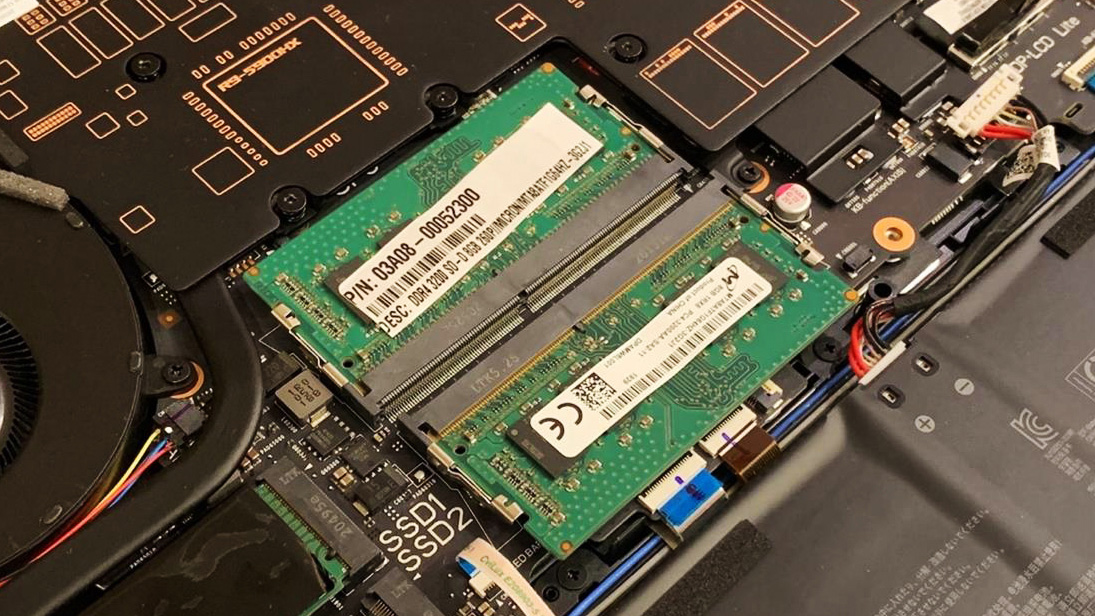
What is RAM in a laptop?
RAM stands for Random Access Memory. It is volatile memory that stores data and program code the CPU needs right now. When you open an app, the system loads its files into RAM for quick access. More RAM usually means smoother multitasking and less waiting for files to load from a slower SSD or HDD.
Why RAM matters for laptops
- It reduces load times when switching apps.
- It lets more browser tabs and programs run at once.
- It keeps the system responsive during heavy tasks.
What RAM is not
- RAM is not permanent storage. Files saved to disk remain after shutdown.
- RAM is not the CPU or GPU, but it works with them to deliver speed.

How RAM works inside a laptop
Think of RAM as a fast desk. The CPU is the worker. The desk holds the papers the worker uses now. The bigger the desk, the more papers you can spread out. The faster the desk access, the quicker the worker finds a paper.
Key technical points
- Volatility: RAM loses data when power is off. That is normal.
- Addressing: The CPU reads and writes data at memory addresses.
- Memory controller: It sits either on the CPU or chipset and manages RAM access.
- Channels: Dual or single channels affect bandwidth. Dual channel can double throughput in many tasks.
- Capacity: How many gigabytes (GB) the laptop has.
- Frequency: Measured in MHz, higher often means faster transfer.
- Latency: Timings like CL16 indicate delay cycles; lower is better.
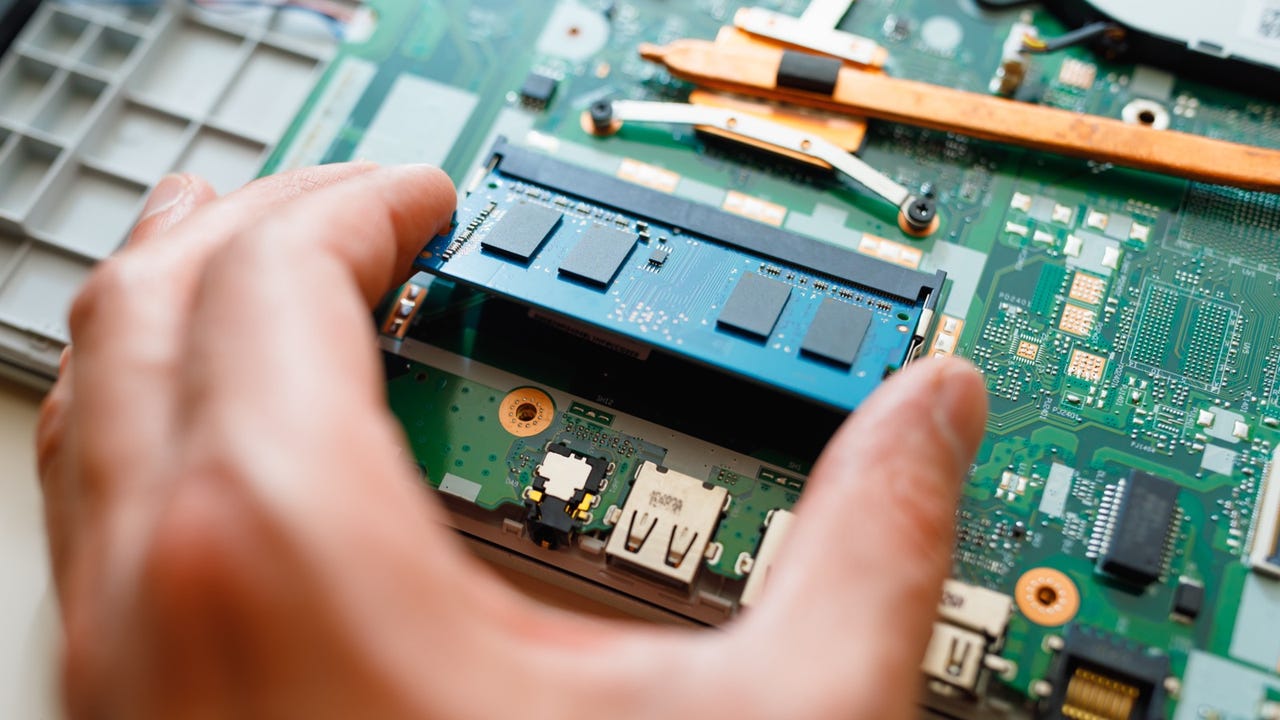
Types of RAM used in laptops
Laptops use smaller modules and low-power variants. Knowing types helps when buying or upgrading.
Common types
- SO-DIMM: The small stick used in many laptops. It is the standard replaceable format.
- LPDDR: Low-power DDR used in ultrabooks and tablets. Often soldered to the board.
- DDR3, DDR4, DDR5: Generations with increasing speed and efficiency.
- ECC RAM: Error-correcting memory used in some workstations and pro laptops.
Practical notes
- Newer laptops use DDR4 or DDR5. Older models may use DDR3.
- LPDDR4x or LPDDR5 is common in thin laptops and often cannot be upgraded.
- Check BIOS and motherboard limits before buying modules.
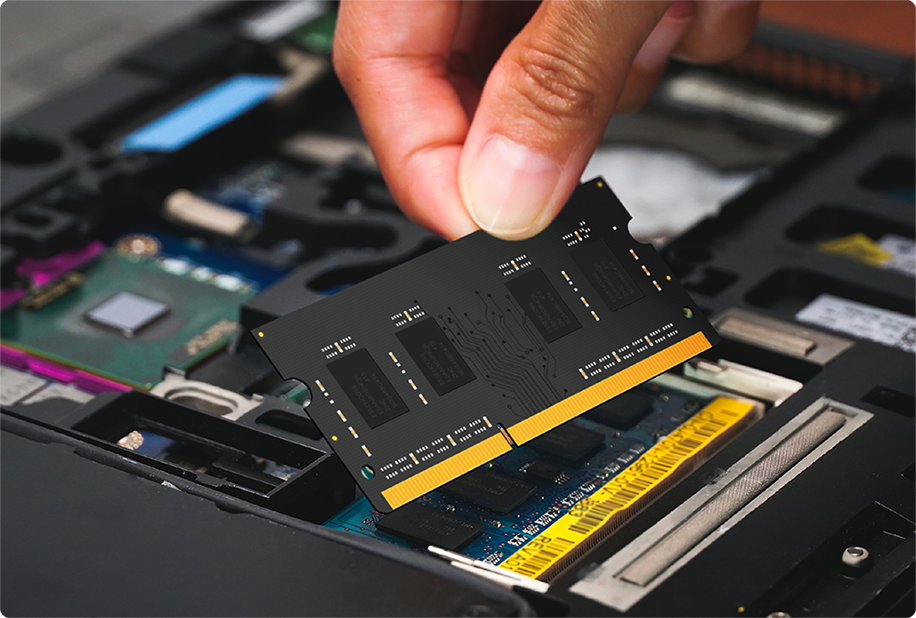
How much RAM do you need for common use cases
Choosing RAM depends on what you do. Here are practical recommendations based on real-world tests and daily use.
Basic use: web, email, and office
- 4 GB: Bare minimum for very light use. May feel slow with multiple tabs.
- 8 GB: Comfortable for general users who keep a few tabs and apps open.
Everyday multitasking and light media
- 16 GB: Ideal for most users. Good for many browser tabs, streaming, and light editing.
Gaming and creative work
- 16 GB to 32 GB: Recommended for gaming, photo editing, and video work.
- 32 GB+: Useful for heavy video editing, large datasets, and virtual machines.
Professional workloads
- 64 GB or more: For developers running many VMs, scientists, or large media projects.
Remember: The exact need depends on software. Always check the memory needs of your key apps.

Upgrading RAM: when and how
You can often improve performance by upgrading RAM. But not all laptops let you upgrade.
When to upgrade
- Your laptop uses a lot of memory and slows down under load.
- You want to run heavier apps or more virtual machines.
- You plan to keep the laptop for several more years.
How to upgrade safely
- Check compatibility: Look up your laptop model for supported RAM type and max capacity.
- See if RAM is soldered: If RAM is soldered, you cannot upgrade the modules.
- Match specs: For best results match capacity, speed, and timings when using two sticks.
- Power down and remove battery if possible: Prevent static damage.
- Use proper tools and a grounded wrist strap: Swap modules carefully and reassemble.
Common mistakes to avoid
- Mixing very different speeds or volshoukhintech01-20es.
- Ignoring the laptop’s maximum capacity.
- Not checking for firmware or BIOS updates that affect memory support.
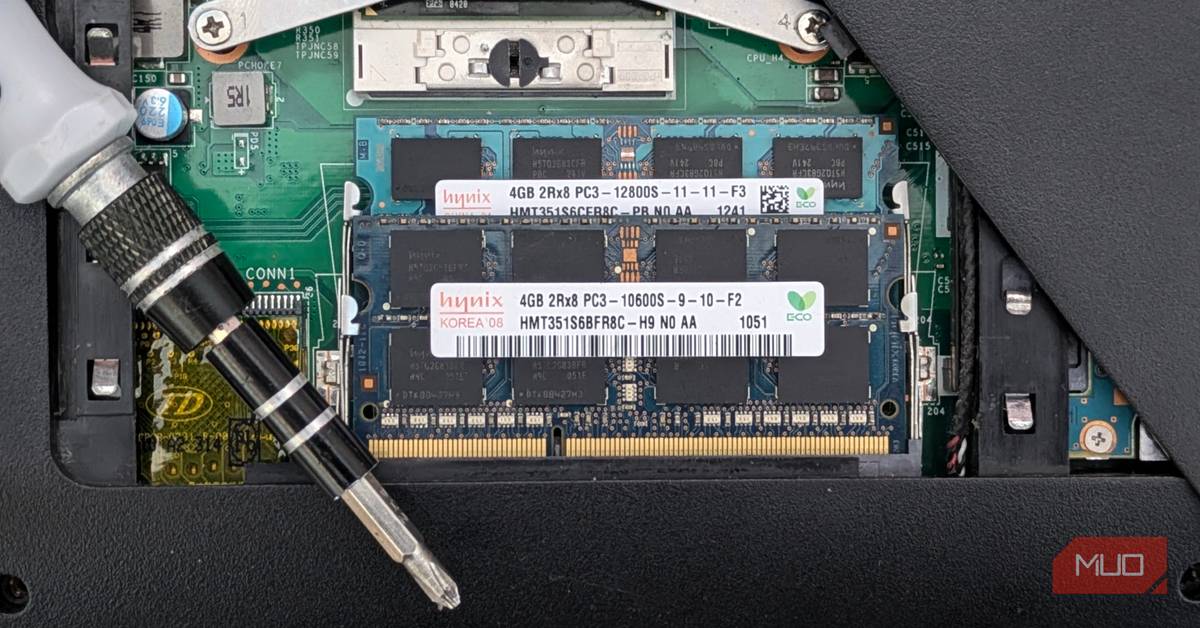
Common RAM issues and troubleshooting
RAM problems can cause crashes, slowdowns, and data errors. Here are common issues and how to diagnose them.
Symptoms
- Frequent freezes or blue screens.
- Apps closing unexpectedly.
- System slowdowns when many apps run.
Tools and steps
- Task Manager or Activity Monitor: Watch memory usage and identify culprits.
- Memory test software: Run a memory test to find bad modules.
- Reseat modules: Power down, remove and reinsert sticks to fix poor contacts.
- Try one stick at a time: This isolates faulty sticks or slots.
When to seek help
- If tests show errors, replace the faulty modules.
- If issues persist after reseating, contact service or the manufacturer.
Performance tips to get the most from RAM
Small changes can make a big difference in how your laptop uses RAM.
- Close unused browser tabs and apps to free memory.
- Use lighter apps when possible, such as using a lightweight editor for notes.
- Enable dual-channel mode by installing matched pairs of modules.
- Keep an SSD for fast virtual memory if you must rely on pagefile.
- Restart occasionally to clear memory leaks from long-running apps.
Advanced tips
- Adjust virtual memory/pagefile settings if recommended by your OS.
- Update drivers and firmware to improve memory handling.
- Use built-in memory compression features on modern OSes to extend usable memory.
Personal experience and practical tips
I upgraded a five-year-old laptop from 8 GB to 16 GB and saw an immediate improvement. Browser tabs that used to swap out would now stay active. Video export times improved slightly because the system spent less time reading from disk.
Lessons learned
- Buy RAM from trusted vendors and match module specs.
- Keep packaging and purchase receipts for warranty claims.
- If your laptop is soldered, plan upgrades when you buy the machine.
A small tip I use often
- Before buying RAM, list your daily tasks and peak memory use. This makes the right decision fast and avoids overspending.
Frequently Asked Questions of what is ram in laptop
What is the difference between RAM and storage?
RAM is temporary memory used by running programs. Storage (SSD/HDD) holds files and data long term, even when the laptop is off.
Can I upgrade RAM on any laptop?
Not always. Many ultrabooks use soldered RAM that cannot be upgraded. Check your laptop model and service manual to confirm.
Does more RAM always make my laptop faster?
More RAM helps when you run many apps or heavy software. If your workload already fits in RAM, adding more gives little extra speed.
How do I check how much RAM my laptop has?
On Windows, open Task Manager and look at the Performance tab. On macOS, open About This Mac and check Memory. Both show installed memory and usage.
Is DDR5 better than DDR4 for laptops?
DDR5 offers higher bandwidth and efficiency than DDR4. It helps in demanding workloads, but real-world gains depend on the CPU and apps.
Will using two RAM sticks improve performance?
Yes. Using two matched sticks usually enables dual-channel mode, which increases memory bandwidth and can improve performance in many tasks.
Conclusion
Understanding what is RAM in laptop helps you pick the right machine and keep it running well. RAM affects multitasking, app speed, and overall smoothness. If your laptop feels slow under load, check memory use, consider an upgrade, and follow safe upgrade steps. Try the practical tips here and test changes to see real gains. If this guide helped, leave a comment, subscribe for updates, or share your own RAM upgrade story.