Most keyboard issues stem from software bugs, driver errors, or physical damage.
I’ve fixed hundreds of laptop problems over the years, and I can help you diagnose why my laptop keyboard is not working. This guide walks through common causes, clear troubleshooting steps, hardware checks, prevention tips, and when to call a pro. Read on for practical, step-by-step advice you can try right now.
Common causes of a nonworking laptop keyboard
A laptop keyboard can stop working for many simple reasons. Here are the usual suspects, explained in clear terms.
- Software glitches and OS updates
- System updates or a buggy app can block the keyboard. A restart often helps.
- Driver problems
- Corrupt or missing keyboard drivers will stop input. Reinstalling drivers can fix this.
- Keyboard layout or language settings
- Wrong layout can make keys produce unexpected characters.
- Hardware faults
- Loose ribbon cables, worn contacts, or broken keys cause partial or full failure.
- Liquid or physical damage
- Spills and drops often lead to sticky keys or dead circuits.
- Dirt, debris, and wear
- Dust under keys can stop a key from registering.
- Firmware or BIOS issues
- Rare, but BIOS settings or firmware bugs can disable the keyboard.
If you’re asking why my laptop keyboard is not working, start with the simple items above. Many problems are quick to fix at home.

How to troubleshoot step-by-step
Follow this order to save time. Test the keyboard after each step to see if the issue is solved.
- Restart the laptop
- Save work and reboot.
- Many software conflicts clear with a fresh start.
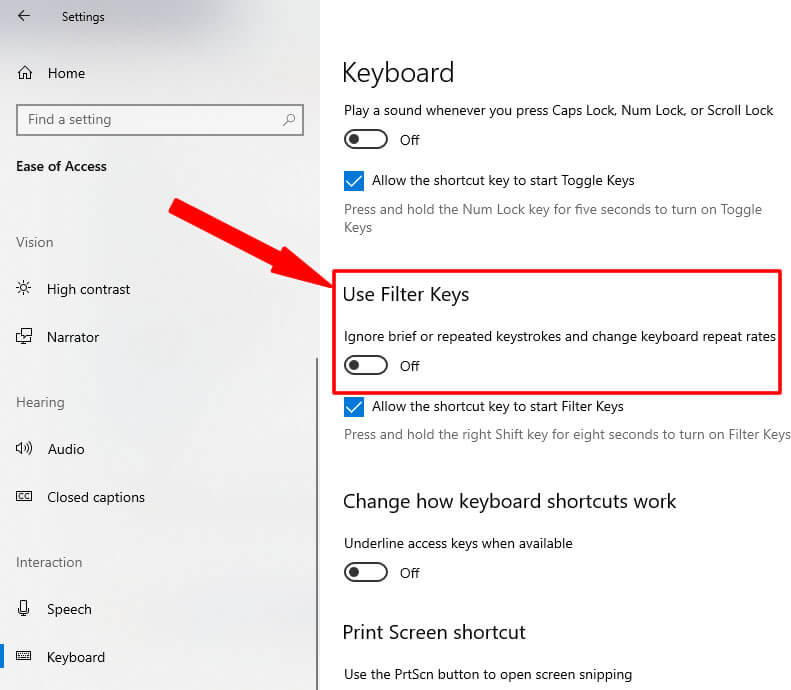
- Check for simple locks
- Look for a function lock key or a key combo that disables the keyboard.
- Try pressing Fn + NumLock or Fn + F-key that shows a keyboard icon.
- Try an external USB keyboard
- Plug one in.
- If it works, the problem is likely hardware on the laptop keyboard.
- Boot into Safe Mode (Windows) or Safe Boot (Mac)
- Safe Mode loads minimal drivers.
- If the keyboard works there, a third-party app or driver probably caused the failure.
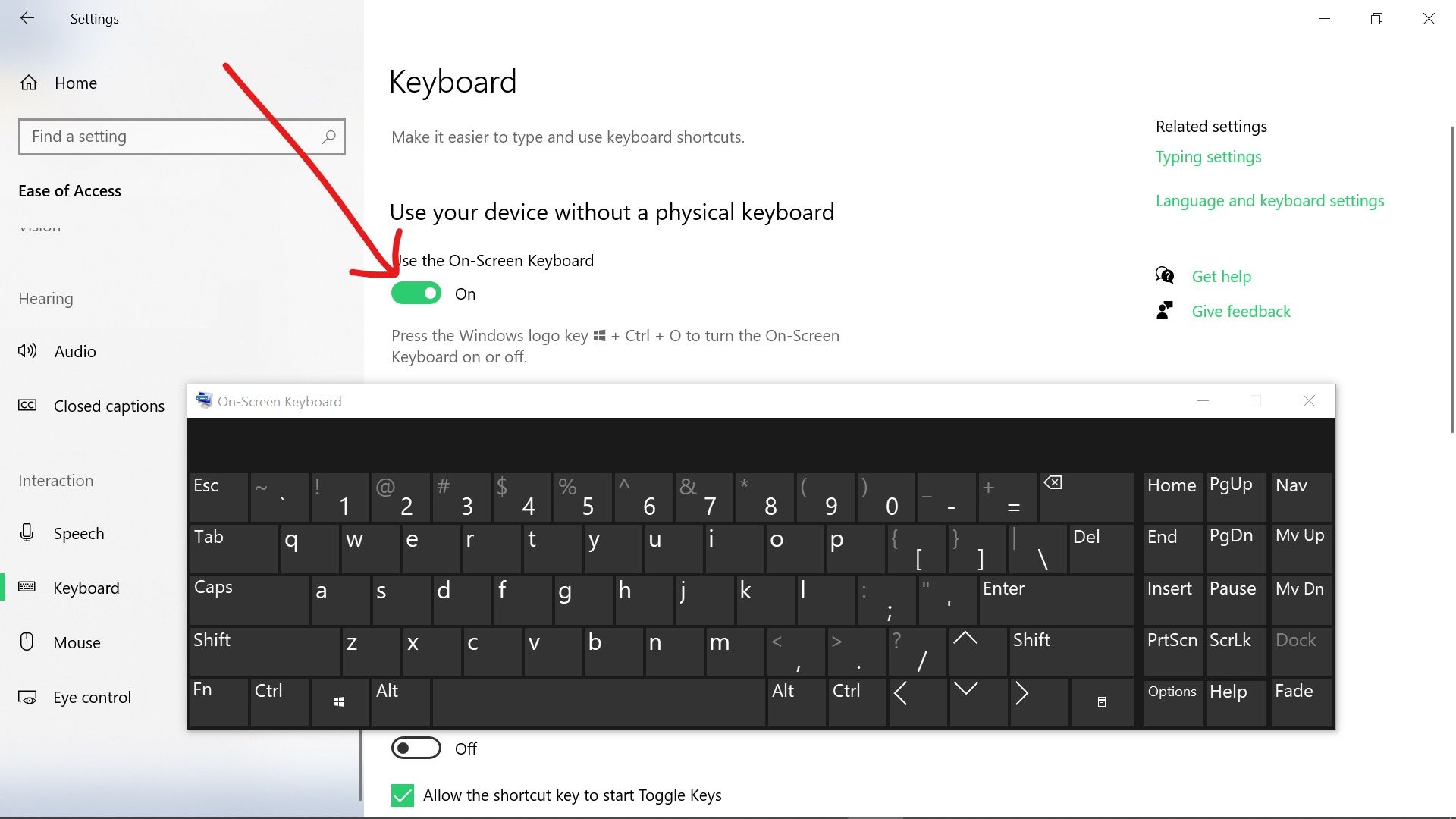
- Check keyboard settings and layout
- In Windows, open Settings > Time & Language > Typing and Language.
- On Mac, go to System Settings > Keyboard and Input Sources.
- Update or reinstall keyboard drivers (Windows)
- Open Device Manager, expand Keyboards, right-click and choose Update driver.
- If update fails, choose Uninstall, then restart to let Windows reinstall.
- Reset SMC/PRAM (Mac) or BIOS/UEFI defaults (PC)
- Resetting power management or BIOS can clear keyboard power issues.
- Run built-in keyboard diagnostics
- Many laptop makers include hardware tests in BIOS or as boot tools.
- Run those to identify hardware faults.
If these steps don’t fix why my laptop keyboard is not working, move to hardware checks below.

Hardware checks and simple repairs
If software fixes fail, carefully check hardware. Turn off the laptop and remove power before touching components.
- Clean keys gently
- Use compressed air or a soft brush. Avoid liquids.
- Check for stuck keys
- Pry gently with a plastic tool to see if the keycap is jammed.
- Inspect for spills
- If liquid is visible, power off immediately. Let the laptop dry for 48–72 hours and seek service.
- Reseat the keyboard cable
- On many laptops the keyboard connects to the motherboard with a flat ribbon. Reseating it can restore function.
- Replace single keys or key modules
- Individual keycaps and scissor mechanisms can be replaced cheaply for some models.
- Full keyboard replacement
- If the keyboard circuit is damaged, replacing the whole keyboard may be necessary.
These steps vary by model. If you’re not comfortable opening your laptop, contact a technician to avoid further damage.
When to seek professional repair or replacement
Knowing when to stop DIY saves money and stress. Consider professional help in these cases.
- Liquid damage with visible corrosion
- Corrosion can spread and ruin the motherboard.
- Intermittent issues that resist fixes
- Faults that come and go often mean failing hardware.
- Warranty coverage
- If your laptop is under warranty, use authorized service to avoid voiding it.
- Complex motherboard or controller failures
- These often need board-level repair or keyboard assembly replacement.
- High-end or thin laptops
- Some thin models require full disassembly to reach the keyboard.
Expect repair costs to vary. Ask for a diagnosis and a clear price before approving work.
Prevention and maintenance tips
Keep your keyboard working longer with a few simple habits.
- Use a keyboard cover
- Thin silicone covers keep out dust and protect from spills.
- Clean regularly
- Blow out dust with compressed air once a month.
- Avoid eating over the keyboard
- Crumbs and grease cause sticky keys.
- Update software and drivers
- Install updates to avoid driver conflicts.
- Back up data
- If a keyboard stops working completely, a backup prevents lost work.
- Use an external keyboard for heavy typing
- This reduces wear on the laptop keyboard.
These habits cut risk and keep your laptop typing smoothly.
Personal experience and lessons learned
I once repaired a laptop where only half the keyboard worked. The owner had spilled coffee weeks earlier. Cleaning and reseating the cable fixed it for a while. Later, corrosion needed a replacement keyboard. Lesson learned: act fast after spills. Power off immediately and get the device checked. Small fixes often save bigger bills.
When I pair fast software checks with careful hardware inspection, most issues get resolved without long downtime. If you ever doubt a step, pause. Opening the laptop without the right tools can do more harm than good.

Frequently Asked Questions of why my laptop keyboard is not working
Why is only some keys on my laptop keyboard not working?
Partial failure usually means debris, a broken key mechanism, or a damaged keyboard matrix. Cleaning and inspecting the key or replacing the single key can often fix it.
How do I fix keyboard not working on Windows 10?
Restart, check device drivers in Device Manager, and try Safe Mode. If those fail, try a system restore or reinstall the keyboard driver.
Could a BIOS setting cause my keyboard to stop working?
Yes. Some BIOS/UEFI settings or firmware bugs can disable built-in devices. Reset BIOS/UEFI to defaults and test again.
Will a spill always ruin my laptop keyboard?
Not always. Quick power-off and drying can save it. But liquids can corrode contacts, so professional cleaning is safest for serious spills.
Is it cheaper to repair or replace a laptop keyboard?
Cost depends on model. For many mainstream laptops, replacing the keyboard is affordable. For ultra-thin models, labor can be higher and full replacement might cost more.
Can malware cause my laptop keyboard to stop working?
Malicious software can interfere with input devices, but it’s uncommon. Running a trusted antivirus scan is a good step if software fixes don’t help.
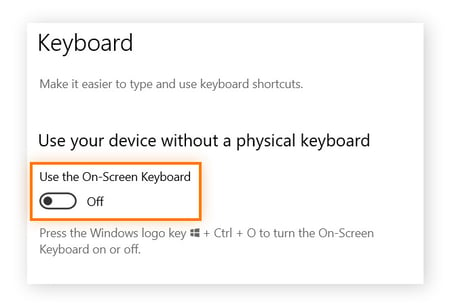
Should I use an external keyboard if my laptop keyboard is not working?
Yes. An external USB or Bluetooth keyboard is a quick workaround while you troubleshoot or wait for repair.
Conclusion
You now have a clear path to diagnose why my laptop keyboard is not working. Start with simple software checks and safe restarts. Move to driver updates and safe-mode testing. If the issue persists, inspect hardware carefully or seek a trusted technician. Act quickly after spills and keep regular cleaning and backups to avoid surprises.
Take action today: try the quick fixes, note what changes, and decide if you need professional help. If this guide helped, try the steps and leave a comment with your laptop model and outcome — your experience can help others.