A fuzzy laptop screen usually means resolution, driver, or hardware connection problems.
I’ve fixed dozens of laptops and taught users how to spot display faults. This article explains why is my laptop screen fuzzy, how to diagnose the cause, and step-by-step fixes you can try. You’ll get simple checks, software tweaks, and hardware tips based on real experience. Read on to save time and avoid unnecessary repairs.

Common causes of a fuzzy laptop screen
A fuzzy screen can come from many places. Knowing the likely causes helps you narrow the fix quickly. Below are the most common reasons I see in repair work and support calls.
- Incorrect display resolution or scaling settings that blur text and icons.
- Outdated or corrupt graphics drivers causing improper rendering.
- Loose or damaged video cable between the motherboard and screen.
- Physical damage to the display panel or its layers.
- Faulty GPU or graphics chip producing artifacts and fuzziness.
- Dirty screen surface or worn anti-glare coating that softens the image.
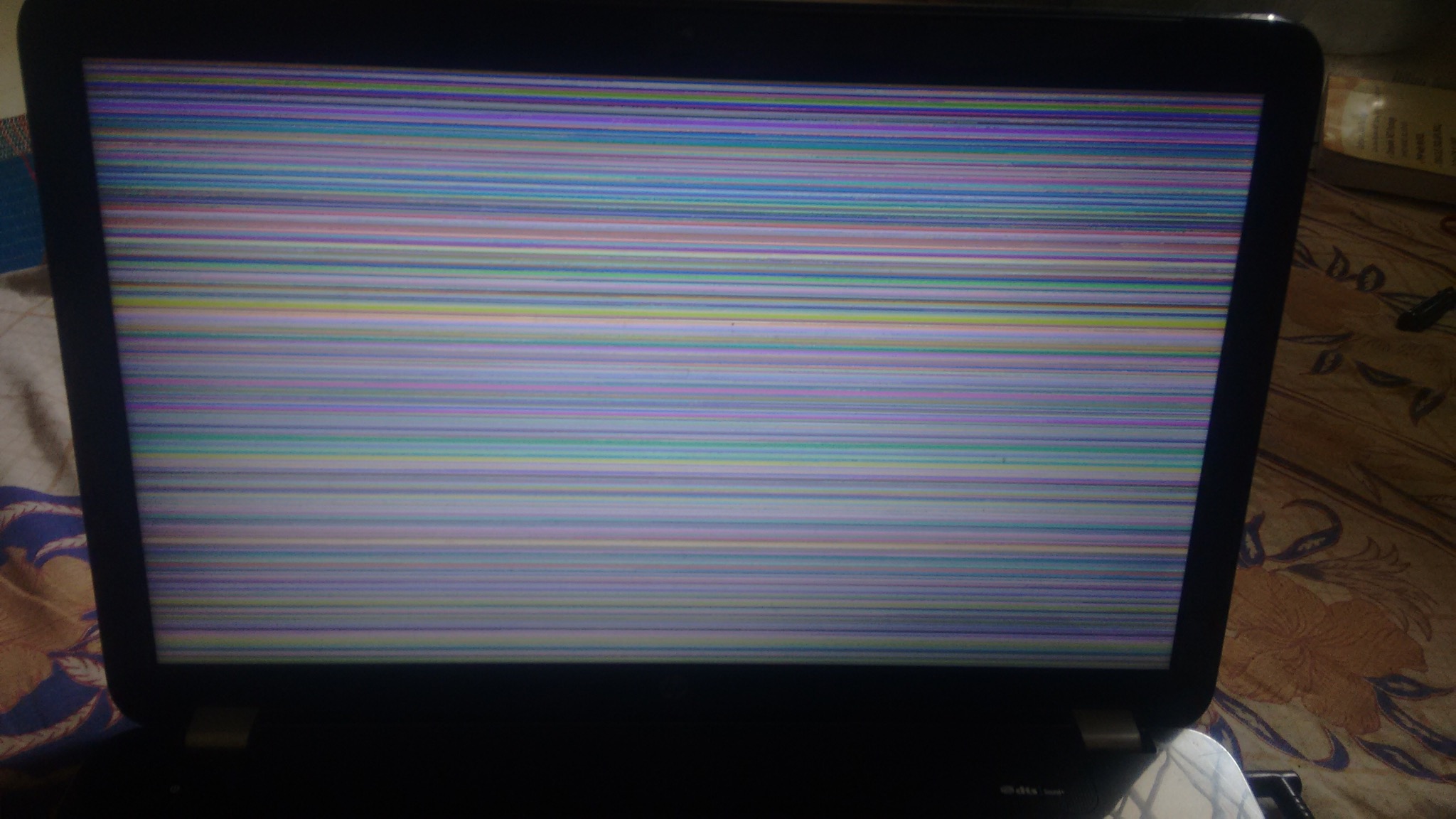
How to diagnose why is my laptop screen fuzzy
Start with the simplest checks. A quick diagnosis can save money and time.
- Check if the fuzz appears in the BIOS or during boot. If yes, it’s likely hardware or firmware.
- Connect an external monitor. If the external screen is clear, the laptop panel or cable is at fault.
- Take a screenshot and view it on another device. If the screenshot looks sharp elsewhere, the issue is your laptop screen or hardware, not the software.
- Boot into safe mode or use a live USB. If fuzz disappears, drivers or OS settings are suspect.
- Look for patterns: flicker, color distortion, or persistent blur across the whole screen point to different causes.

Software fixes to clear a fuzzy screen
Many display problems are software-based and easy to fix. Try these steps before opening the laptop.
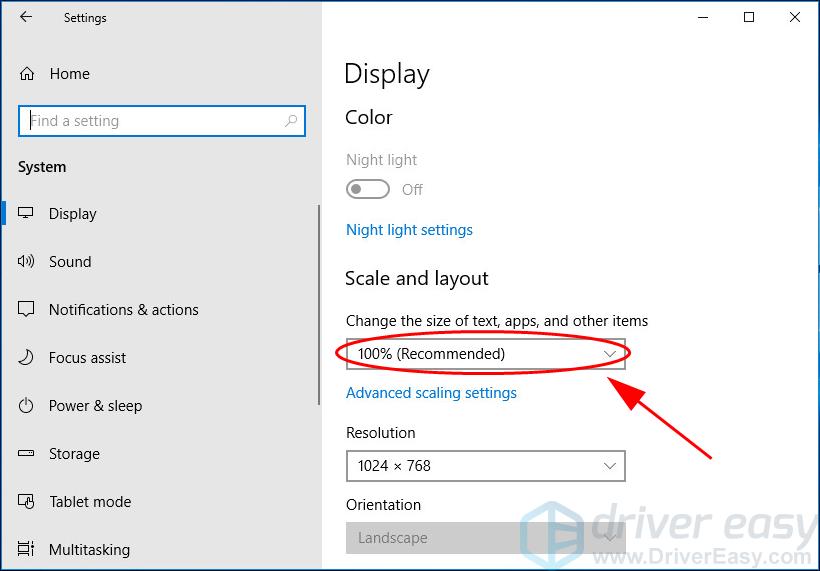
- Set the native display resolution. Use the exact resolution recommended for your panel to avoid scaling blur.
- Check display scaling. Lower or custom scaling can blur fonts; try 100% or the recommended value.
- Update or reinstall graphics drivers. Use device manager or the GPU maker’s installer to get the latest stable driver.
- Calibrate ClearType (Windows) or font smoothing (macOS). These settings improve text sharpness.
- Roll back recent updates if fuzz started after a system change. A driver or update may be the cause.
- Disable third-party display filters or accessibility magnifiers temporarily.

Hardware fixes and checks for a fuzzy laptop screen
When software checks fail, hardware is often the culprit. Use gentle tests and simple repairs first.
- Inspect the screen surface. Clean with a microfiber cloth and a safe screen cleaner to rule out dirt or residue.
- Test with an external monitor. If external output is clear, inspect the internal video cable and connector.
- Reseat the display cable. A loose LVDS or eDP cable can cause fuzz and artifacts. I’ve fixed several laptops by simply reseating the connector.
- Check for hinge damage. Bent hinges can pinch cables over time and cause intermittent fuzz.
- Replace the display panel if it shows physical defects, pressure marks, or persistent blurring.
- Consider GPU problems if fuzz appears across external monitors. GPU failure needs professional repair or motherboard replacement.

Preventive maintenance to avoid a fuzzy screen
Small habits keep your screen clear and extend its life. I follow these steps and recommend them to clients.
- Keep the screen and keyboard area clean. Wipe the surface weekly with a soft cloth.
- Avoid placing heavy items on the laptop lid. Pressure can damage LCD layers.
- Close the lid gently. Harsh slamming can loosen internal cables.
- Install trusted updates regularly. Driver updates fix rendering bugs and security issues.
- Use a surge protector. Power spikes can harm display circuitry.
- Back up important data before doing driver or hardware work.

When to seek professional help
Some issues need a trained technician. Consider professional help when:
- The laptop is under warranty. Opening it may void coverage.
- You suspect a failing GPU or motherboard. Repairs can be complex and costly.
- Internal cable replacement requires disassembly beyond your comfort level.
- The screen shows dark spots, lines, or permanent dead pixels across the panel.
- DIY fixes fail after basic checks and software troubleshooting.
Frequently Asked Questions of why is my laptop screen fuzzy
Why is my laptop screen fuzzy only sometimes?
Intermittent fuzz often points to a loose cable, failing hinge, or an overheating GPU. Track when it happens to narrow the cause.
Why does text look fuzzy but images are okay?
This usually indicates incorrect resolution or scaling settings, or font rendering issues. Set the native resolution and check ClearType or font smoothing.
Why is my laptop screen fuzzy after an update?
A bad graphics driver or update conflict can cause fuzz. Roll back the update or reinstall the driver to test.
Can a dirty screen make the display fuzzy?
Yes. Oils, fingerprints, and residue can soften the picture. Clean gently with a microfiber cloth and screen-safe cleaner.
Will replacing the screen fix fuzziness?
If the panel or internal cable is damaged, replacing the screen or cable usually fixes the problem. If the GPU is faulty, replacement may not help.
Conclusion
A fuzzy screen usually boils down to simple settings, drivers, or loose hardware. Start with quick checks: native resolution, external monitor test, and a clean screen. If those don’t work, try driver updates and gentle hardware inspections. I fixed many laptops by following this exact flow, and you can too. Take action now: run the basic tests above, back up your files, and decide if you need a pro. Leave a comment or share your experience so others can learn from your fix.