
Your iPad likely charges slowly because you are using an underpowered charger, a damaged cable, or the device is performing intensive tasks while plugged in. The fix often involves upgrading your charging gear to support modern fast charging standards.
That little red battery icon mocking you as the percentage barely creeps up is one of the most frustrating tech moments. You need your iPad ready to go, but it seems determined to stay tethered to the wall outlet forever.
The good news? This slow charging issue is usually not a sign that your expensive iPad is broken. More often than not, it points to a mismatch in equipment or a simple software setting fighting against you.
We are going to dive deep into the real reasons behind the sluggish charging speed. No confusing jargon—just clear explanations and simple steps to get your iPad back to full power quickly. Let’s put an end to the charging agony right now!
Why Does My iPad Charge Slowly? Uncovering the Brutal Truths
When troubleshooting why your iPad charges slowly, we need to look at three main areas: the power source, the connection path (cable and adapter), and the iPad itself. Most people assume the iPad is the problem, but often, the weak link is what you are plugging it into.
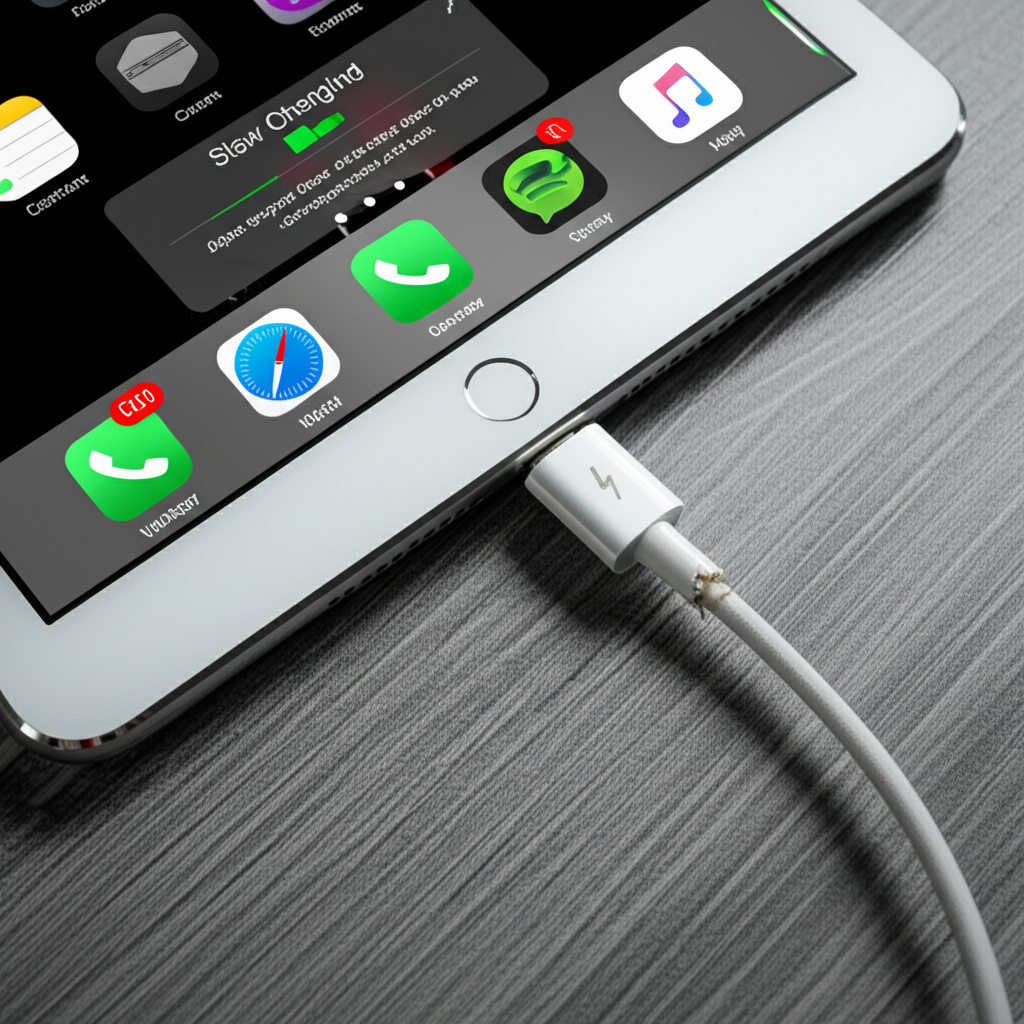
Truth 1: The Power Adapter is Too Weak (The Wattage Problem)
This is the number one culprit for slow charging, especially with newer iPads that support fast charging. Not all USB chargers put out the same amount of power. Power is measured in Watts (W).
Think of it like filling a bucket with water. A tiny garden hose (low wattage adapter) will take forever, even if the hose is perfectly fine. A wide fire hose (high wattage adapter) fills it up fast.
Older iPads and Low Current Limits
Older iPads or iPhones often came with tiny 5W or 10W USB “bricks.” While these technically work, your newer iPad Pro or Air might expect 20W, 30W, or even more to charge efficiently.
- If you use a 5W block: Charging will be painfully slow, or barely increase while you use the device.
- If you use an old desktop USB port: These ports often only supply 2.5W or 5W safely, making charging extremely slow.
The Standard: Understanding USB-C Power Delivery (PD)
Modern iPads love the USB Power Delivery (PD) standard. This allows the charger and the iPad to “talk” to each other and agree on the fastest safe speed. If your charger doesn’t speak PD, the iPad defaults to the slowest, safest speed.
For example, an iPad Pro might need a 20W+ adapter to charge quickly, but if you plug it into an older 10W adapter, it slows down immediately.
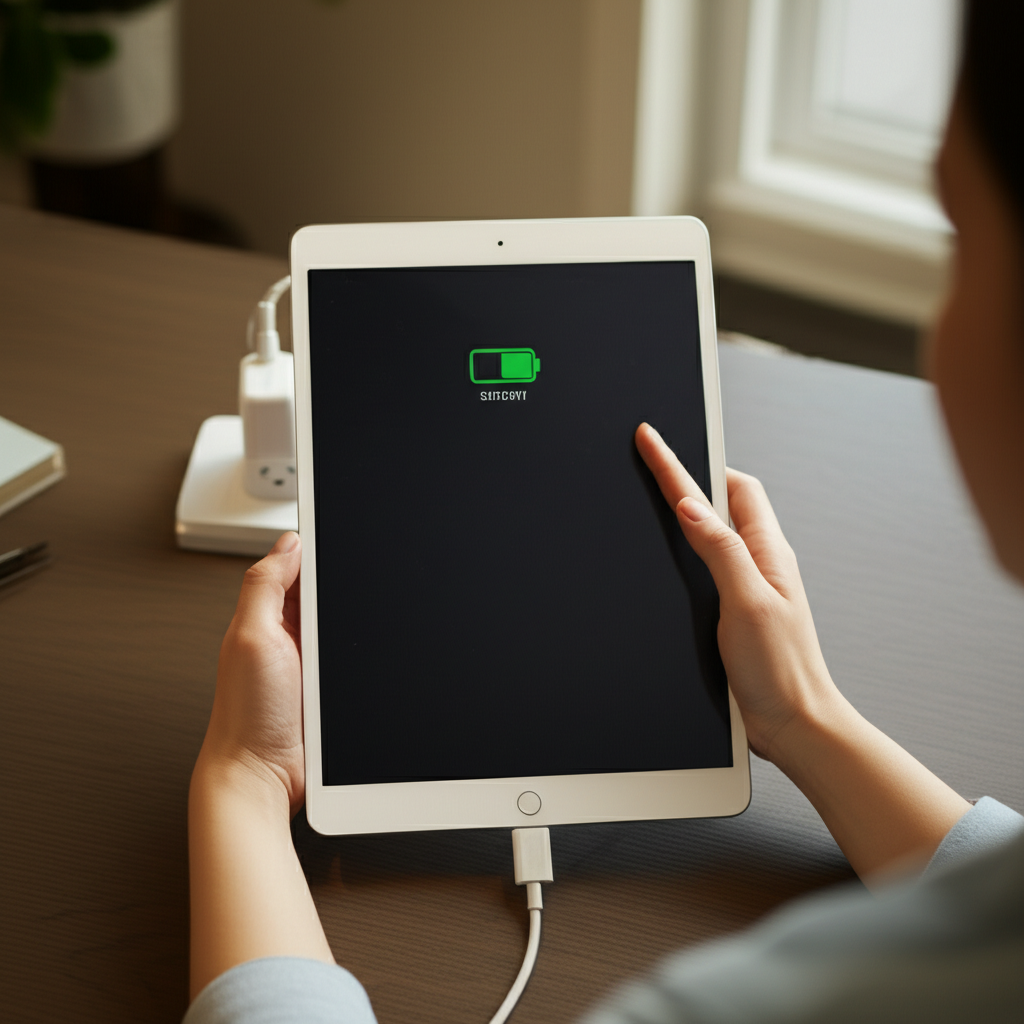
Truth 2: Your Lightning or USB-C Cable is the Bottleneck
The cable is the bridge between the power source and your tablet. If the bridge is weak, the power flow is weak, no matter how strong the source is.
Damaged or Frayed Cables
We toss these cables into bags, bend them severely backing up the car, or step on them. This physical damage compromises the internal wires responsible for carrying the electrical current.
- Look for visible fraying near the metal connector ends.
- Test the cable with a friend’s charger or another device—if it acts up elsewhere, the cable is the issue.
The “Non-MFi” or Cheap Cable Trap
For Lightning cables, Apple uses proprietary technology, often signified by “MFi” (Made For iPhone/iPad) certification. Cheap, uncertified third-party cables often lack the necessary internal chips to handle higher amperage safely.
These cheap cables might charge your phone slowly, but for a larger battery like the iPad’s, they often prevent fast charging entirely or stop working completely after an iOS update.
Truth 3: Software and Usage Demand More Than the Charger Can Provide
Even with the right charger plugged in, your iPad might still seem slow if it’s busy doing heavy work. The battery needs energy, but the device’s processor (CPU) needs energy too—and sometimes, the processor wins.
Intensive Background Tasks
Certain activities demand massive amounts of power. If the demand is higher than the incoming charge rate, the battery level will either stay flat or even decrease while plugged in.
- Streaming High-Definition Video: Watching Netflix or YouTube in 4K strains the screen, Wi-Fi, and processor all at once.
- Heavy Gaming: Graphics-intensive games push the chip to its absolute limit.
- Large Downloads or Backups: Downloading massive game updates or using the iPad as a hotspot uses a lot of power for data transfer.
Optimized Battery Charging
iOS has a feature called “Optimized Battery Charging” designed to preserve battery health long-term. While it doesn’t typically stop charging entirely, it can strategically pause charging at certain levels (like 80%) if it predicts you won’t need the full charge immediately, making it seem like it’s charging slowly.
If you suddenly need the charge fast, you can usually override this by tapping and holding the charge status in the Control Center.
Truth 4: Extreme Temperatures are Inhibiting Charging
Lithium-ion batteries, the type used in all modern iPads, are very sensitive to temperature. Apple strictly controls charging speeds based on temperature to protect the battery’s lifespan.
- Too Cold (Below 32°F / 0°C): The iPad will slow charging down significantly or stop it entirely to prevent damage to the anode structure.
- Too Hot (Above 95°F / 35°C): Heat is the enemy of batteries. If your iPad gets warm (perhaps from being left in the car sun or charging under a thick blanket), iOS will aggressively slow the current to cool things down.
This isn’t a flaw; it’s the iPad protecting itself from permanent battery decay. If your iPad feels hot to the touch while charging, let it cool down first.
Truth 5: Simple Port Blockages or Connection Issues
Sometimes, the simplest, dustiest answer is the correct one. The charging port (Lightning or USB-C) on your iPad can become clogged with pocket lint, dust, or debris over time.
If the cable connector doesn’t seat perfectly against the internal pins, the connection becomes intermittent or incomplete. This prevents higher currents from flowing through, forcing the charge speed down.
Always inspect this area before assuming a major technical failure. A loose connection reads to the iPad as a bad cable.
The Fix: How to Speed Up Your iPad Charging Time
Now that we know the potential culprits, here is your step-by-step guide to diagnosing and fixing the slow charging problem, moving from the easiest solutions to hardware swaps.
Step 1: Check and Clean the Charging Port
This is a free, 30-second check that solves many issues. Power your iPad down completely before starting.
- Grab a flashlight and look directly into the port. Do you see fuzz or compacted lint?
- Use a non-metallic tool, like a wooden toothpick, plastic dental pick, or compressed air (use short, gentle bursts).
- Very gently scrape or scoop out any debris, blowing it away from the internal components. Do not use metal paperclips or safety pins, as these can easily short the pins.
Once clean, try charging again. If it’s still slow, proceed to Step 2.
Step 2: Test Your Cable and Adapter Individually
You need to isolate whether the problem lies in the power brick or the cable. Swap components with a known, good accessory.
Cable Isolation Test:
- Take your potentially bad cable and connect it to a different, reliable high-power adapter (like one you use for a MacBook or a fast phone charger). Does it charge faster? If yes, the old adapter was the issue.
- Take a different, known-good cable and plug it into your original adapter. Does it charge faster? If yes, the original cable was the issue.
Step 3: Upgrade Your Power Adapter for Fast Charging
If you confirm your adapter is the problem or you want to future-proof your charging setup, it is time to upgrade. iPads charge fastest when they receive power via USB-PD, usually requiring 18W to 30W input depending on the model.
For optimal results, Apple recommends specific accessories. You can find information on suitable power adapters directly from Apple Support. For instance, to achieve fast charging on USB-C iPads, you often need an adapter rated for at least 20W.
The following table shows recommended minimum charging wattage for current iPad lines:
| iPad Model Line | Recommended Minimum Wattage for Fast Charging | Typical Included Adapter Wattage (Older Models) |
|---|---|---|
| iPad Pro (11-inch/12.9-inch) | 30W or higher | 18W or 20W |
| iPad Air (4th/5th Gen) | 20W or higher | 20W |
| Standard iPad (10th Gen) | 20W (can utilize more if available) | 20W |
| iPad Mini (6th Gen) | 20W or higher | 20W |
By using a 30W or 45W USB-C charger, your iPad will safely pull the maximum power it can handle, often charging up to 50% battery level in about 30 to 40 minutes, provided the device is idle.
Step 4: Optimize Device Usage While Plugging In
If you must charge while using the iPad, minimize the power drain to let the battery absorb the incoming current.
- Enable Airplane Mode: Turn off Wi-Fi and Cellular data. This massively reduces power consumption from radios searching for signals.
- Lower Screen Brightness: The display is the biggest power hog. Dim it significantly while charging heavily.
- Close All Apps: Swipe up (or double-tap the Home button) and close every app running in the background, even if you think they are just suspended.
Putting the iPad to sleep (locking the screen) while charging is the fastest way—the device is mostly dormant, allowing 100% of the incoming power toward the battery.
Step 5: Check for Software Interference (The Reset)
Occasionally, a software glitch causes the charging management system to misreport power levels or throttle the intake incorrectly.
Try performing a simple restart—a soft reset clears out temporary memory errors:
- For iPads with no Home Button: Press and hold the top button and either volume button until the slider appears. Drag Volume Off. Then, press and hold the top button again until the Apple logo appears.
- For iPads with a Home Button: Press and hold the top button and the Home button simultaneously until the Apple logo appears.
After restarting, plug the iPad back in and monitor the charging speed for 15 minutes before checking the percentage again.
Common Misconceptions vs. Reality: Debunking Slow Charging Myths
You hear a lot of confusing advice online. Here, Shoukhin separates the facts from the fiction regarding slow iPad charging.
Myth: Plugging in Overnight Ruins the Battery
Reality: Mostly False for Modern iPads. Your iPad is smart. Once it hits 100%, it stops drawing power and only trickles power in to maintain the level while it’s still connected. While keeping a battery constantly topped up can contribute slightly more wear over many years, the built-in management systems are designed to handle overnight charging safely without immediate harm.
Myth: Only Use the Original Apple Charger
Reality: Mostly False, But Use Caution. Apple chargers are guaranteed safe. However, any third-party charger that adheres to the USB-PD standard, is from a reputable brand, and offers the required wattage (e.g., 20W+) will work just as well, sometimes even faster than the old 12W or 10W bricks Apple used to include.
Myth: Fast charging always slows down after 80%
Reality: True, But It’s Intentional. All fast-charging protocols slow down significantly once the battery reaches about 80% to 90% capacity. This is known as trickle charging. It’s a necessary safety measure to prevent overheating and stressing the later cells in the battery, ensuring a longer lifespan. Don’t worry if the last 20% takes as long as the first 50%—it’s by design.
Can I charge my older iPad with a brand new, super-fast charger without issue?
Yes, you can. This is the beauty of the USB-PD standard. If you plug an old iPad that only accepts 10W into a powerful 60W MacBook charger, the iPad communicates its lower need, and the charger delivers a safe 10W. You will not “overcharge” or damage it with excessive wattage, provided your cable is high quality enough to handle the communication.
Troubleshooting Charging Discrepancies with macOS/Windows
Sometimes, the computer you are charging from reports inconsistent power flow, leading to confusion about speed.
| Charging Environment | Typical Power Output Available | Expectation for iPad Charging |
|---|---|---|
| Direct Wall Adapter (Modern USB-C PD) | 20W – 100W+ | Fastest charging possible. |
| USB 3.0 Port on Modern Computer | 4.5W – 5W | Slow charging; battery may drain if screen is active. |
| USB 2.0 Port (Older Computer/Hub) | 2.5W – 5W | Very slow charging; charging may not register if the device is in use. |
| Powered USB Hub (Good Quality) | 7.5W – 15W | Moderate charging speed, better than a computer port. |
If you notice your iPad drains while connected to your office PC, it confirms the PC’s USB port simply cannot provide enough current to cover the iPad’s baseline usage plus the charging requirement.
When to Contact Apple Support
If you have tried multiple known-good, high-wattage chargers and cables, cleaned the port, performed a restart, and the charging time remains excessively slow (e.g., taking 10 hours for a full charge on a modern iPad), it signals a possible hardware failure.
Issues requiring professional attention usually involve:
- A failing internal battery that can no longer accept a high charge current efficiently.
- Damage to the charging circuitry on the iPad’s logic board.
- Port wear that feels loose even with a brand-new, certified cable inserted.
In these cases, seeking service through Apple Support or an authorized service provider is the next logical step.
Frequently Asked Questions (FAQs) for Beginners
Q1: Does using my MacBook charger on my iPad really charge it faster?
A: Yes, absolutely! MacBook chargers (especially USB-C ones) output much higher wattage (often 60W or more) than standard iPhone bricks. Your iPad will safely negotiate the power draw and pull the maximum current it is designed for, resulting in faster charging.
Q2: Why does my iPad show “Charging” but the percentage doesn’t go up?
A: This usually means the power drain from using the iPad (like gaming or streaming) is exactly matching or exceeding the incoming charge rate. The device is prioritizing keeping itself running over actually filling the battery.
Q3: Are third-party Lightning cables safe for fast charging my iPad?
A: Only if they are MFi certified or come from a highly reputable brand known for quality control. Cheap, uncertified cables often lack the safety components required to handle the higher voltage/amperage needed for fast charging and can wear out quickly.
Q4: Why does my iPad charge so slowly when it’s very hot outside?
A: Extreme heat forces the iPad’s internal protection circuits to severely
