What Is Ssd On A Laptop: Why SSD Matters For Speed

A solid-state drive (SSD) on a laptop is a fast, flash-based storage device that replaces a traditional hard drive.
I’ve worked with laptops and storage upgrades for years, and I’ll walk you through exactly what is ssd on a laptop, why it matters, and how to pick and use one. This guide explains the technology, compares SSDs to hard drives, lists real-world benefits and limits, and shares hands-on tips from my own upgrades so you can make a smart choice for speed and reliability.

What is an SSD on a laptop?
An SSD on a laptop is a storage drive that uses flash memory to store data instead of spinning disks. When someone asks what is ssd on a laptop, they usually want to know how it changes speed, durability, and battery life compared to older drives. SSDs include a controller and NAND flash chips and come in several form factors, which affect fit and performance. For many laptop users, the switch to an SSD is the single best upgrade for faster boot times and snappier apps.

How SSDs work in simple terms
SSDs store data in NAND flash cells and use a controller to read and write information quickly. The controller manages data placement, wear-leveling, and error correction to keep the drive reliable under normal use. When people search what is ssd on a laptop, they often mean how those components give instant responsiveness during everyday tasks. Modern SSDs also support commands like TRIM, which helps maintain long-term performance.
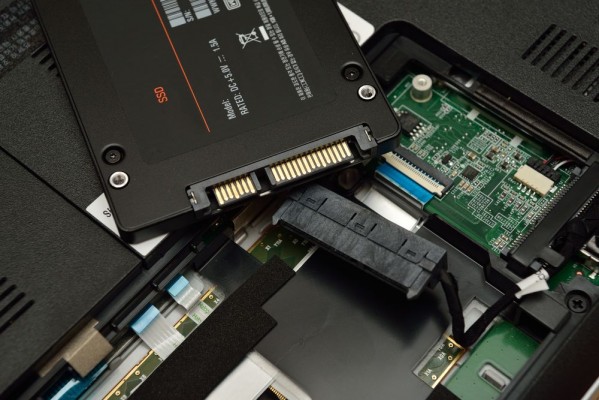
Types and form factors you’ll see
When learning what is ssd on a laptop, you’ll meet a few common types and shapes to choose from:
- SATA 2.5-inch SSD
- Fits many older laptops and replaces a laptop HDD directly.
- M.2 SATA SSD
- Small stick form factor that uses SATA protocol and M.2 slot.
- M.2 NVMe (PCIe) SSD
- Uses the NVMe protocol over PCIe lanes for much higher speeds.
- PCIe add-in and U.2
- Rare in laptops but common in workstations and servers.
Choosing the right form factor and interface matters because it determines compatibility and speed for your laptop.

SSD vs HDD: clear comparisons
If you want to understand what is ssd on a laptop compared to an HDD, here are the main differences:
- Speed
- SSDs boot the OS and open apps far faster than HDDs.
- Durability
- SSDs resist shock since they have no moving parts; HDDs are fragile.
- Power and heat
- SSDs use less power and run cooler, helping battery life.
- Noise
- SSDs are silent; HDDs make spinning and seeking sounds.
- Cost per gigabyte
- SSDs cost more per GB, though prices have fallen steadily.
These points show why many users prioritize an SSD for everyday laptops.
Benefits of using an SSD on a laptop
Using an SSD on a laptop brings clear advanshoukhintech01-20es:
- Faster boot and resume times for immediate productivity.
- Quicker file transfers and application launches.
- Better battery life due to lower power draw.
- Improved reliability for mobile use and travel.
- Reduced system noise and heat.
For creative work, coding, or simple web browsing, the practical benefit of an SSD is noticeable every time you use the laptop.
Limitations and things to be aware of
While explaining what is ssd on a laptop, it’s important to note limitations:
- Higher cost for large capacities versus HDDs.
- Finite write endurance, though modern drives last years for typical users.
- Data recovery can be harder and more expensive after failure.
- Some older laptops lack NVMe or M.2 slots and may need adapters.
These limitations rarely affect everyday users, but they matter for archival storage and heavy write workloads.
How to choose the right SSD for your laptop
When deciding what is ssd on a laptop for your needs, consider these key points:
- Interface compatibility
- Confirm SATA, M.2 SATA, or M.2 NVMe support in your laptop.
- Capacity needs
- Pick 256 GB or 512 GB for general use; 1 TB+ for media and games.
- Performance requirements
- NVMe drives are best for speed-hungry tasks; SATA is fine for basic upgrades.
- Endurance and warranty
- Look at TBW (terabytes written) and manufacturer warranty.
- Brand reputation and firmware support
- Choose brands with consistent updates and good support.
Checking these factors helps you match what is ssd on a laptop to your workload and budget.
How to upgrade or install an SSD in a laptop
A practical overview for upgrading to an SSD on a laptop:
- Backup your data before starting.
- Check your laptop manual for the correct form factor and interface.
- Choose between cloning your current drive or doing a fresh OS install.
- Power down, remove the battery if possible, and ground yourself to avoid static.
- Physically install the SSD, secure it, then boot and verify detection in BIOS/UEFI.
- If cloning, resize partitions and run a disk check after the operation.
I’ve upgraded dozens of laptops; cloning saved time but a fresh install often yields cleaner system performance.
Maintenance and performance tips
To keep an SSD on a laptop healthy and fast, follow these simple tips:
- Enable TRIM in your OS to maintain write performance.
- Keep 10–20 percent free space for efficient wear-leveling.
- Avoid defragmenting SSDs; it’s unnecessary and can write extra data.
- Update SSD firmware when recommended by the manufacturer.
- Keep regular backups; no drive is immune to failure.
These easy steps extend the life and speed of your SSD.
My hands-on experience and lessons learned
I replaced an aging laptop HDD with a 1 TB NVMe SSD and saw instant improvements in boot time and app launching. I once cloned a 4-year-old drive and found leftover bloat; a fresh OS install fixed intermittent slowdowns. Key lessons:
- Always verify drive compatibility before buying.
- Use a clean install for best stability when moving from Windows versions.
- Keep aftermarket data migration tools ready, but don’t skip backups.
These practical tips come from real upgrades and saved me time and frustration.
Frequently Asked Questions of what is ssd on a laptop
What is the main advanshoukhintech01-20e of an SSD on a laptop?
The main advanshoukhintech01-20e is speed—faster boot times and quicker app loading make a laptop feel much more responsive. SSDs also improve battery life and durability for mobile use.
Can I replace my laptop HDD with an SSD?
Yes, most laptops allow replacing an HDD with an SSD, but check whether your laptop uses a 2.5-inch bay, M.2 slot, or requires an adapter. Backup data and confirm compatibility first.
Is NVMe better than SATA for laptop SSDs?
NVMe is faster than SATA and offers lower latency, which benefits heavy tasks like video editing and large file transfers. For everyday tasks, SATA SSDs still provide a large and noticeable speed boost over HDDs.
How long does an SSD on a laptop last?
Modern SSDs often last many years for normal users; endurance is measured in TBW and depends on daily write volume. Most consumer drives last long enough for typical use before needing replacement.
Do SSDs need special maintenance?
SSDs need less maintenance than HDDs: keep TRIM enabled, leave some free space, update firmware occasionally, and maintain backups. Avoid disk defragmentation and heavy continuous write workloads when possible.
Will an SSD improve gaming performance on a laptop?
An SSD reduces game load times and texture streaming delays, improving perceived performance. It won’t greatly boost frame rates, which depend on the GPU and CPU.
Conclusion
An SSD on a laptop is one of the most effective upgrades you can make for speed, reliability, and battery life. By understanding what is ssd on a laptop, choosing the right form factor, and following simple maintenance steps, you can keep your laptop fast and responsive for years. Ready to speed up your laptop? Check compatibility, pick the right SSD, back up your data, and try an upgrade—then share your results or questions below.
Similar Posts


