Your Dell laptop screen rotated sideways because the display orientation changed or a graphics shortcut was triggered.
I have fixed dozens of display issues for Dell laptops, so I’ll walk you through clear, tested steps to diagnose and fix a sideways screen on Dell laptops. This guide explains why the screen is sideways on Dell laptop models, shows quick and advanced fixes, and shares practical tips from hands-on experience so you can restore normal display fast.

Why the screen is sideways on Dell laptop
A sideways screen happens when display orientation changes from landscape to portrait. This can occur because of an accidental key press, a driver update, or display settings being changed. Some Dell convertible models also switch orientation automatically if their rotation sensor triggers or if Windows auto-rotate is enabled and misreads motion.
Common causes include:
- Graphics driver hotkeys were pressed.
- Windows display orientation was changed in settings.
- Graphics driver or OS update reset orientation.
- Auto-rotate or sensor calibration errors on convertible Dells.
- Third-party apps or presentation software forced rotation.
Understanding the cause helps pick the right fix. If you want a fast fix, use hotkeys or the display settings first. If the issue returns, update drivers or check sensors.
Quick fixes you can try right now
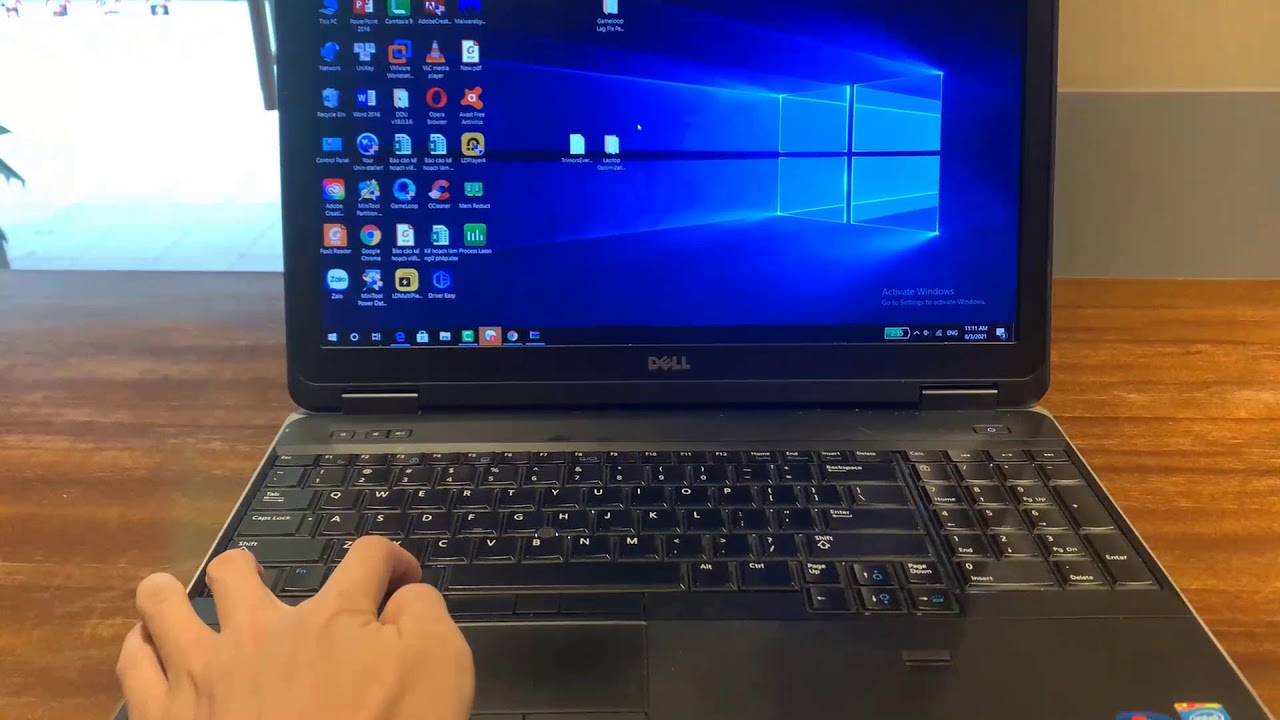
Try these fastest solutions. They work on most Dell laptops and take under a minute.
- Use the rotation hotkey combination: press Ctrl + Alt + Up Arrow to return to normal orientation.
- Right-click the desktop, choose Display settings, then set Orientation to Landscape.
- Press Windows key + A, open Tablet mode and toggle auto-rotate off or on depending on your model.
- Sign out and sign back in, or restart the laptop to clear transient glitches.
If the hotkeys or settings don’t work, move to the driver or sensor steps below. These quick fixes resolve most cases where the screen is sideways on Dell laptop models.
Step-by-step: Fixing a rotated screen via Windows settings
Follow these steps when the screen is sideways on Dell laptop and quick hotkeys failed.
- Open Display settings
- Right-click the desktop and choose Display settings.
- Scroll to Scale and layout.
- Change Orientation
- Set Orientation to Landscape.
- Click Apply, then Keep changes.
- Use Keyboard shortcut as backup
- Press Ctrl + Alt + Up Arrow to rotate back to normal.
- Check multiple displays
- If you have an external monitor, select the correct display before changing orientation.
- Restart if needed
- Reboot to make the change permanent.
These steps are simple and safe. If settings revert after restart, continue with driver checks.

Graphics drivers and control panels
Drivers often cause recurring rotation issues. Here’s how to handle them.
- Update drivers
- Open Device Manager, expand Display adapters, right-click your adapter, and select Update driver.
- Use Dell SupportAssist or Windows Update for tested drivers.
- Roll back drivers
- If the issue began after an update, use Roll Back Driver in Device Manager.
- Use graphics control panels
- Intel Graphics: open Graphics Command Center or Intel HD Graphics Control Panel to set rotation.
- NVIDIA/AMD: open their control panel and check display rotation or custom resolutions.
Keeping drivers current and stable reduces the chance that the screen is sideways on Dell laptop after updates.

Dell-specific settings and hardware checks
Dell machines sometimes add layers that affect orientation.
- BIOS/UEFI settings
- Rarely, display settings in BIOS can affect default orientation. Check BIOS only if other steps fail.
- Dell QuickSet or utilities
- Some Dell utilities control display features. Open Dell apps and look for rotation or display options.
- Physical sensors
- Convertibles and 2-in-1 Dells use gyroscopes. Clean vents and ensure sensors aren’t blocked or magnetized.
- External monitors and docking stations
- Disconnect docks and external screens to rule out external controllers forcing rotation.
These checks help when the screen is sideways on Dell laptop due to machine-specific behavior.

Advanced troubleshooting
If the screen is sideways on Dell laptop despite basic fixes, try deeper diagnostics.
- Safe Mode test
- Boot into Safe Mode. If rotation stops, a third-party app likely caused it.
- System Restore
- Revert to a restore point from before the problem began.
- Create a new Windows user
- A corrupt user profile can cause display oddities. Test with a fresh account.
- Run hardware diagnostics
- Use Dell’s built-in diagnostics (F12 at boot) to check sensors and display hardware.
If hardware diagnostics fail, contact Dell support or a certified technician. Persistent hardware faults may need part replacement.

Preventing future rotation issues
Small habits help avoid the screen rotating unexpectedly.
- Disable auto-rotate if you don’t use it.
- Avoid pressing complex hotkey combos when using the keyboard.
- Keep graphics drivers updated through Dell or Windows Update.
- Uninstall suspicious apps that request display control.
- Use power plans and profiles to prevent unwanted changes during updates.
These steps reduce the chance the screen is sideways on Dell laptop again.
Personal experience and practical tips
I once repaired a Dell laptop for a client where the screen is sideways on Dell laptop every time they opened an app. The culprit was a third-party screen manager that reset orientation. Removing it fixed the issue.
Lessons learned:
- Always try simple hotkeys first. They often solve the problem instantly.
- Document when the issue started. That helps identify driver or update causes.
- Back up drivers before major updates. Rollback is faster than full troubleshooting.
Treat display rotation as a small problem you can solve quickly with a clear plan.
Frequently Asked Questions of screen is sideways on dell laptop
Why did my screen suddenly go sideways on my Dell laptop?
Accidental hotkey presses or recent driver or OS updates commonly change orientation. Convertible sensors or third-party apps can also trigger rotation.
How do I rotate the screen back quickly on a Dell laptop?
Press Ctrl + Alt + Up Arrow to restore landscape, or open Display settings and set Orientation to Landscape.
Can a Dell BIOS setting cause the screen to be sideways?
It’s rare, but BIOS or vendor utilities may affect default behavior. Check BIOS only after OS-level fixes fail.
Will updating drivers fix a sideways screen issue?
Often yes. Updating or rolling back display drivers can resolve persistent rotation caused by driver changes.
Is the sideways screen a hardware problem on convertible Dell models?
It can be. Faulty sensors or gyroscopes may cause repeated auto-rotate errors; run Dell diagnostics to confirm.
Conclusion
You now have a clear, step-by-step plan to fix a rotated screen on your Dell laptop. Start with hotkeys and Display settings, then update or roll back drivers, check Dell utilities and sensors, and use advanced diagnostics if needed. Act quickly to avoid interruptions, and keep drivers and utilities maintained to prevent recurrence. Try the steps above, share your results in the comments, or subscribe for more practical laptop fixes and guides.