Most laptop keyboards stop working due to software glitches, loose connections, or hardware damage.
I’ve spent years fixing laptops and writing tech guides, and I can help you diagnose why your keyboard is not working on laptop. This article walks through clear causes, step-by-step fixes, professional options, and prevention tips. You’ll get practical checks for Windows, macOS, and Linux, plus real-world troubleshooting from my experience. Read on to find the right fix and get your laptop typing again.
Common causes why a keyboard is not working on laptop
Keyboards fail for many simple or complex reasons. Software bugs, driver conflicts, and stuck keys are frequent. Hardware issues include loose ribbon cables, liquid spills, and worn-out switches. Firmware settings, like disabled keyboard in BIOS or accessibility options, can also stop input.
Below are the main categories to understand:
- Software problems: corrupt drivers, system updates, or malware.
- Settings and firmware: keyboard disabled in BIOS, wrong layout, or stuck modifier keys.
- Hardware faults: damaged key matrix, loose ribbon cable, or water damage.
- External interference: USB devices, connected docking stations, or Bluetooth conflicts.
From my repair experience, the most common items are drivers and debris under keys. Many users fix the issue in under 10 minutes by updating drivers or cleaning. If those fail, hardware checks follow.
Quick checks and easy fixes you can try first
Start simple. Quick checks save time and often fix the problem.
- Restart the laptop
- Reboot resets temporary glitches that stop the keyboard.
- Always try a restart before deeper steps.
- Try an external keyboard
- Plug a USB keyboard or pair a Bluetooth keyboard. If it works, the laptop keyboard likely has hardware or driver issues.
- Check for lights and keyboard lock keys
- Some laptops have a function key that disables the keyboard. Press Fn + the lock key to toggle.
- Clean around the keys
- Power off. Use compressed air to blow out dust and crumbs. Sticky keys often behave erratically.
- Test in safe mode or another account
- Boot into safe mode or create a new user to rule out software conflicts.
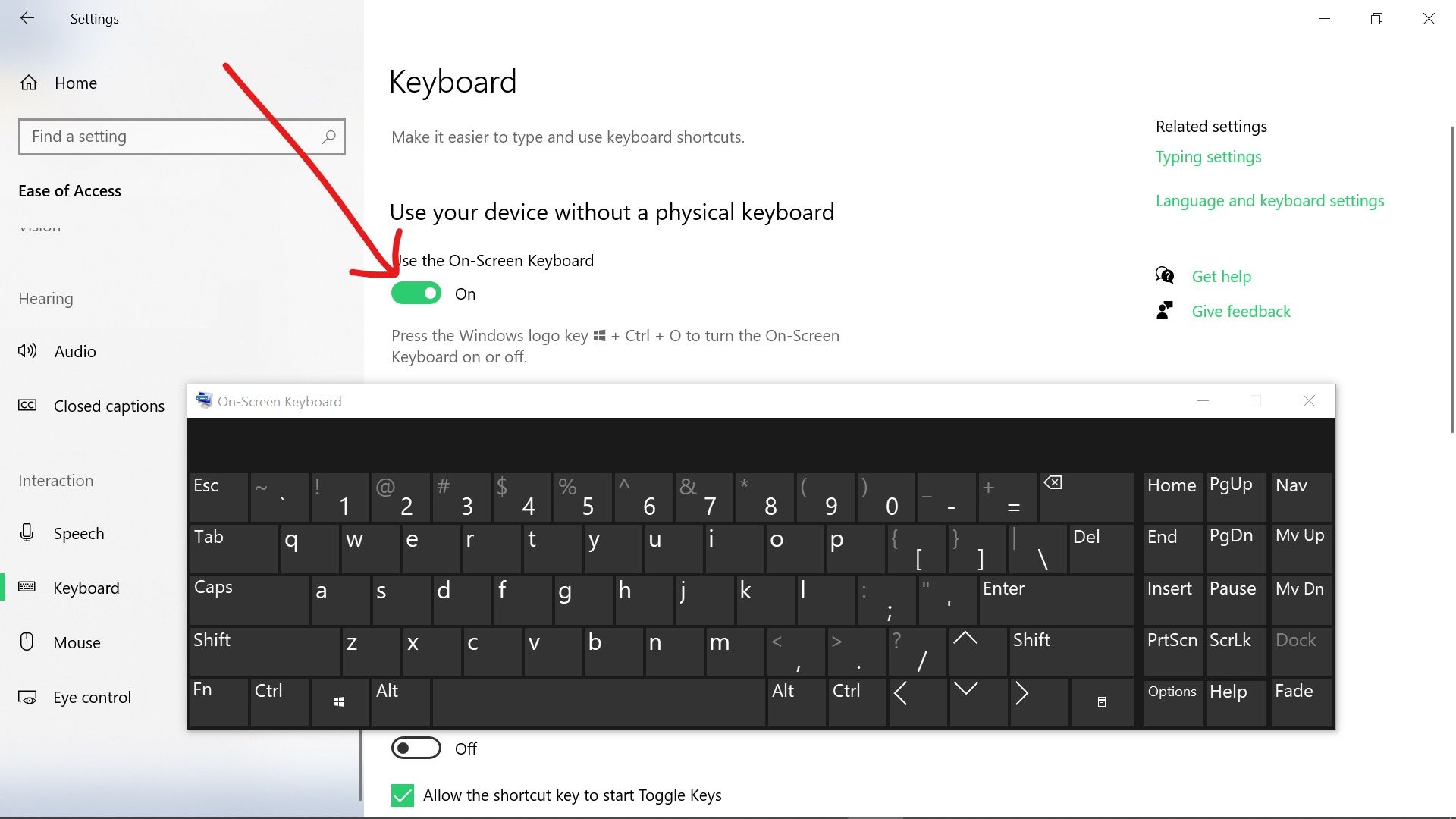
- Use on-screen keyboard
- On-screen keyboard helps type while you troubleshoot and confirms the OS is receiving input events.
I once fixed a laptop by releasing a stuck key cap and cleaning crumbs. The keyboard returned to normal quickly. Small steps can be surprisingly effective.
Software troubleshooting: drivers, updates, and settings
Software issues are common when keyboard is not working on laptop. Follow these steps.
- Update or reinstall keyboard drivers
- Open Device Manager (Windows). Uninstall the keyboard driver and restart to reinstall.
- On macOS, update macOS to refresh system drivers.
- Roll back recent updates
- If the keyboard stopped after an update, use system restore or uninstall the update.
- Check language and layout settings
- Ensure the correct keyboard layout is selected. Wrong layouts map keys incorrectly.
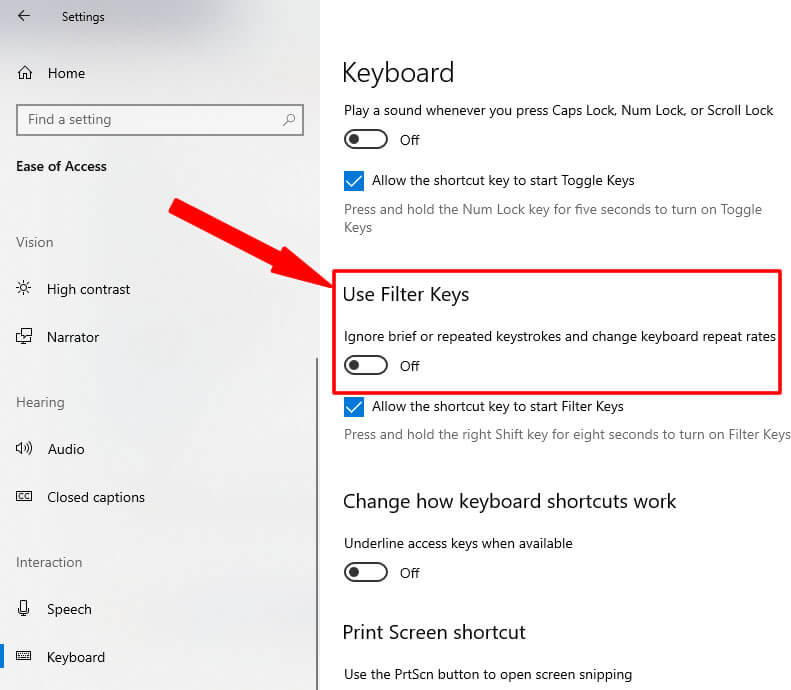
- Disable filter keys and sticky keys
- Accessibility settings can block repeated keystrokes. Turn them off.
- Scan for malware
– Some malware can interfere with input. Run a full antivirus scan. - Reset SMC/PRAM (macOS)
- For Mac laptops, resetting SMC or PRAM can resolve keyboard hardware recognition issues.
From troubleshooting many laptops, uninstalling and reinstalling the keyboard driver fixed the problem about half the time. Keep drivers and OS updated to prevent issues.

BIOS and firmware checks
Sometimes the keyboard is not working on laptop due to BIOS or firmware settings. Check these carefully.
- Enter BIOS/UEFI
- Restart and press the manufacturer key (F2, Del, Esc). If the keyboard works in BIOS, it’s likely a software issue in the OS.
- Check keyboard settings in BIOS
- Look for options like “Internal Keyboard” or “USB Legacy Support.” Ensure they’re enabled.
- Update BIOS or firmware
- If the keyboard fails in BIOS, a firmware update may help. Follow manufacturer instructions carefully.
- Reset BIOS to defaults
- Resetting can undo accidental changes that disable the keyboard.
If the keyboard does not respond in BIOS, that’s a strong sign of hardware failure. In my lab, a non-responsive keyboard in BIOS usually required hardware repair.
Hardware troubleshooting: inspection and repairs
If software checks don’t work, inspect hardware. These steps help pinpoint the problem.
- Power off and remove battery (if possible)
- Disconnect power to safely inspect internal parts.
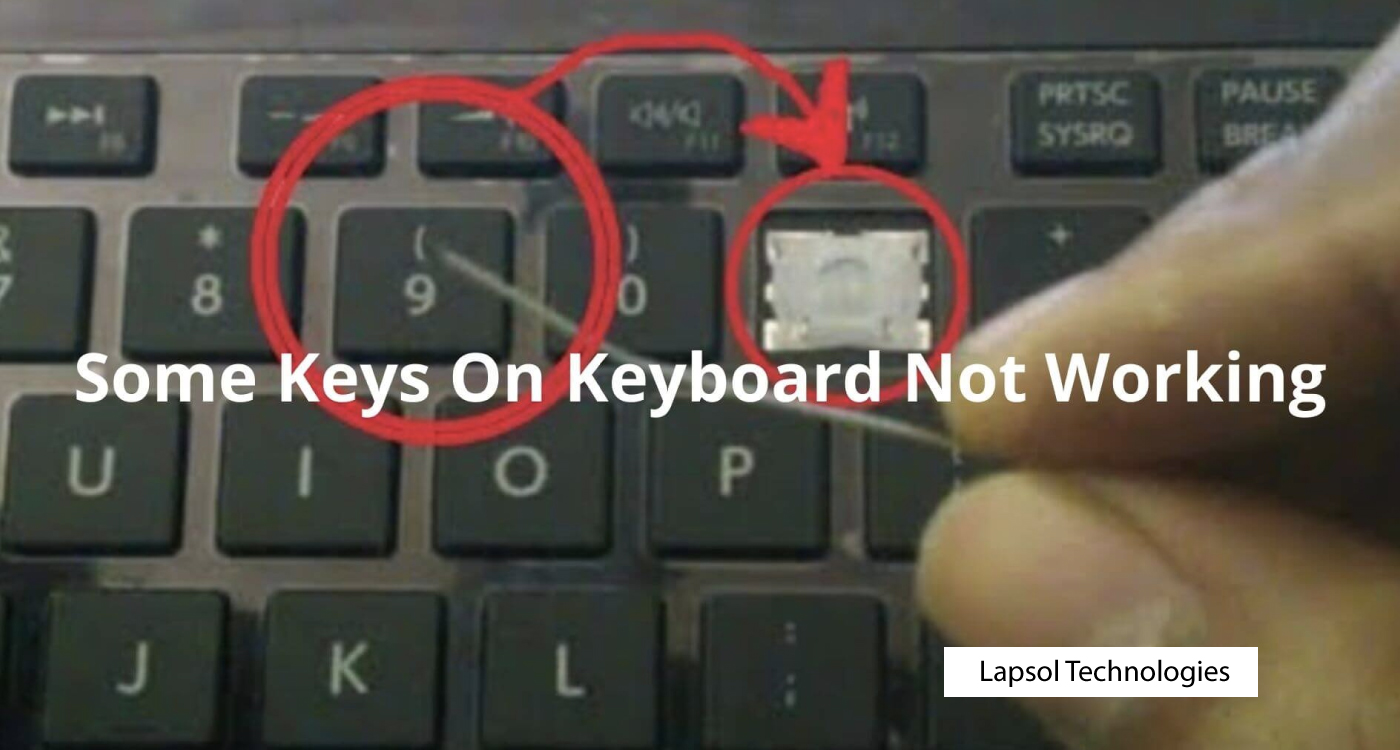
- Open the laptop and check the ribbon cable
- Loose or damaged ribbon cables cause intermittent or total failure. Reseat the cable gently.
- Test individual key switches
- Some keyboards allow switching to a test mode. Look for dead areas versus specific dead keys.
- Look for liquid damage or corrosion
- Spills often cause erratic keys. Corrosion may develop over time.
- Replace the keyboard
- Built-in laptop keyboards are replaceable. Check model-specific guides and spare parts.
My repair projects include many ribbon connector issues. Reseating the cable fixed keyboards that looked broken. If you see burn marks, heavy corrosion, or broken traces, professional repair or replacement is safer.
OS-specific tips: Windows, macOS, and Linux
Different systems need tailored steps when keyboard is not working on laptop.
- Windows
- Use Device Manager, uninstall drivers, check Filter Keys, and run the keyboard troubleshooter. Boot into Safe Mode to isolate software.
- macOS
- Update macOS, reset SMC/PRAM, and test in Recovery Mode. Check System Preferences > Keyboard.
- Linux
- Check Xorg or Wayland input logs, run evtest or xinput list, and inspect dmesg for hardware errors. Kernel updates sometimes change keyboard support.
I’ve fixed Windows laptops by turning off Filter Keys and reinstalling drivers. On Linux, switching kernels solved a few hardware recognition problems.

Preventive maintenance and best practices
Prevention reduces the chance that keyboard is not working on laptop.
- Clean your keyboard regularly
- Use compressed air and gentle wipes to remove debris.
- Avoid eating over your laptop
- Food causes crumbs and liquids that damage keys.
- Use a keyboard cover
- Thin silicone covers block spills and dust while keeping typing feel.
- Update OS and drivers
- Keep firmware and drivers current to avoid conflicts.
- Backup data and know your model
- If you must replace the keyboard or motherboard, having backups and the correct part numbers helps.
A small silicone cover saved one of my laptops after a coffee spill. It minimized damage and allowed a quick cleanup.

When to replace the keyboard or seek professional help
Knowing when to DIY and when to call pros matters.
- Seek professional help if:
- The keyboard is unresponsive in BIOS.
- You see liquid damage or corrosion.
- You are uncomfortable opening the laptop.
- Consider replacement when:
- Many keys are dead or physically broken.
- Repair costs approach the price of a replacement keyboard or laptop.
- Cost considerations
- Replacement key costs vary by model. Labor can add to the price. For older laptops, replacement may be more cost-effective.
In my experience, simple connector reseats are DIY-friendly. Complex board-level repairs or replacements are best left to technicians.

Troubleshooting checklist (quick step-by-step)
Use this ordered checklist to find a fix fast.
- Restart the laptop and test keyboard.
- Plug in an external keyboard to confirm input issues.
- Check accessibility settings (Filter/Stiky Keys).
- Update or reinstall keyboard drivers.
- Boot to BIOS to test keyboard responsiveness.
- Clean the keyboard with compressed air.
- Reseat internal ribbon cable (power off, remove battery).
- Replace keyboard or seek professional repair if hardware fault remains.
This checklist saved me time on many jobs. Work top to bottom to avoid unnecessary parts replacement.
Personal experiences and lessons learned
I fixed dozens of laptops with keyboard issues. Here are practical lessons:
- Always try an external keyboard first to isolate the fault.
- Small debris can mimic big hardware faults. Clean before you replace.
- Document your steps. It helps if you need professional help later.
- Keep spare parts and tools if you repair multiple machines. A cheap screwdriver set and a collector’s bin for screws speed up repairs.
- Back up before firmware updates or driver reinstalls to avoid data loss.
These lessons come from hands-on work. They reduce stress and save money.
Frequently Asked Questions of keyboard is not working on laptop
Why did my laptop keyboard suddenly stop working?
A sudden stop is usually caused by a recent software update, driver crash, or a physical issue like spilled liquid or a loose ribbon cable. Start with a reboot and external keyboard test to narrow the cause.
Can I fix a laptop keyboard by cleaning it myself?
Yes. Power down and use compressed air and a soft brush to remove debris. For liquid spills, turn off the laptop, disconnect power, and seek professional help if moisture reached internal parts.
Does replacing the keyboard void the warranty?
Opening the laptop can void warranty terms depending on the manufacturer. Check the warranty terms before attempting DIY repairs or have an authorized service center handle it.
What if the keys work in BIOS but not in Windows?
If the keyboard works in BIOS but not in Windows, the issue is likely software. Reinstall drivers, disable accessibility options, or roll back recent updates to resolve it.
Is it cheaper to replace the keyboard or buy a new laptop?
It depends on laptop age and repair cost. For newer models, replacing the keyboard is usually cheaper. For very old laptops, replacement cost plus labor might make a new laptop a better investment.
Conclusion
You now have a clear path to diagnose and fix why the keyboard is not working on laptop. Start with simple steps like restarting, using an external keyboard, and cleaning. Move to driver, BIOS, and hardware checks if needed. If you’re unsure, seek professional help to avoid further damage. Try the checklist above and take action today to get your laptop typing again. If this guide helped, leave a comment, subscribe for more troubleshooting tips, or share your keyboard story below.