How to Scroll Horizontally Using Mouse

Navigating wide content on your computer can be tricky, but this guide makes horizontal scrolling with your mouse simple. We’ll explore various methods, from using your mouse’s scroll wheel and buttons to employing keyboard shortcuts and specialized software. Master these techniques to effortlessly pan across spreadsheets, timelines, and other wide interfaces, enhancing your productivity and user experience.


Have you ever found yourself struggling to navigate through wide spreadsheets, lengthy timelines, or complex design layouts on your computer? The usual up-and-down scrolling just doesn’t cut it. That’s where horizontal scrolling comes in. This guide is designed to show you exactly how to scroll horizontally using your mouse, transforming those frustrating moments into seamless navigation. We’ll cover everything from the most common mouse tricks to more advanced software solutions, ensuring you can effortlessly pan left and right across any content.
- Many mice have built-in horizontal scrolling capabilities, often activated by holding a modifier key while using the scroll wheel or by tilting the wheel itself.
- The Shift key is a common modifier used in conjunction with the scroll wheel for horizontal scrolling in many applications.
- Specific mouse software can unlock advanced scrolling features, including programmable buttons for horizontal movement.
- Browser extensions and operating system settings offer alternative ways to enable horizontal scrolling, especially when native mouse functions aren’t sufficient.
- Understanding how horizontal scrolling works in different applications is key to using the right method effectively.
- Troubleshooting common issues, like unresponsive scroll wheels or unsupported software, can be resolved with simple adjustments.
[FEATURED_IMAGE_PLACEHOLDER]



Understanding Horizontal Scrolling
Before diving into the ‘how-to,’ let’s briefly touch on why horizontal scrolling is important. Many modern applications present information that extends beyond the width of your screen. Think about financial spreadsheets with numerous columns, video editing timelines, or even wide graphics. Without an easy way to move sideways, you’re constantly clicking and dragging scroll bars, which can be cumbersome and inefficient. Mastering horizontal scrolling makes your digital workflow smoother and your computer experience more enjoyable.
Methods for Scrolling Horizontally with Your Mouse
There isn’t a single, universal method for horizontal scrolling, as it depends on your mouse model, the software you’re using, and your operating system settings. However, most common scenarios are covered by the techniques below.

Visual guide about How to Scroll Horizontally Using Mouse
Image source: i.sstatic.net



Method 1: Using the Scroll Wheel (The Most Common Way)
Many modern mice come equipped with a scroll wheel that can do more than just scroll up and down. This is the most frequent and often the easiest method.

Visual guide about How to Scroll Horizontally Using Mouse
Image source: learn-attachment.microsoft.com
Tilting the Scroll Wheel
Some mice have a scroll wheel that can be tilted left or right. If your mouse has this feature, simply tilt the wheel in the direction you want to scroll. This is a direct and intuitive way to achieve horizontal movement.
Holding a Modifier Key with the Scroll Wheel


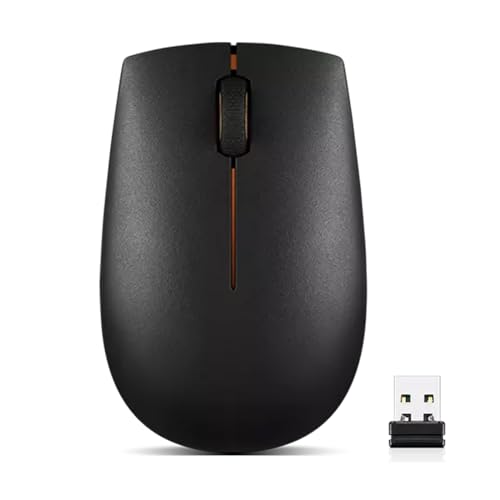
For mice where the scroll wheel only rolls, holding down a specific key on your keyboard while scrolling can often activate horizontal scrolling. The most common modifier key for this is the Shift key.
- Step 1: Locate the Shift key on your keyboard. There are usually two of them, one on the left and one on the right side.
- Step 2: Place your finger on the Shift key.
- Step 3: While holding down the Shift key, use your other finger to scroll the mouse wheel up or down.
- Step 4: Observe your screen. In compatible applications, your view should now be scrolling horizontally instead of vertically.
Example: Open a wide Excel spreadsheet. Hold down the Shift key and scroll your mouse wheel. You should see the columns moving left or right.
Note: While Shift is the most common, some older or specialized mice might use the Ctrl or Alt keys. If Shift doesn’t work, try these other keys.


Method 2: Using Mouse Buttons
Some mice have additional buttons that can be programmed or have default functions for horizontal scrolling.

Visual guide about How to Scroll Horizontally Using Mouse
Image source: learn-attachment.microsoft.com
Thumb Buttons
Many gaming mice and some productivity mice feature extra buttons on the side, often operated by the thumb. These buttons are frequently programmed to act as ‘Forward’ and ‘Back’ navigation in web browsers. In some applications, these can be configured to perform horizontal scrolling.
- Check your mouse’s default functionality: In a web browser, try clicking these thumb buttons. Do they move you forward or backward through pages? If so, they might also work for horizontal scrolling in other contexts.
- Configure custom functions: If your mouse came with software (often called a driver or utility), you can usually open this software and assign the thumb buttons to ‘Horizontal Scroll Left’ and ‘Horizontal Scroll Right’ actions. This is a powerful way to customize your mouse for specific tasks.
Middle Mouse Button (Scroll Wheel Click)
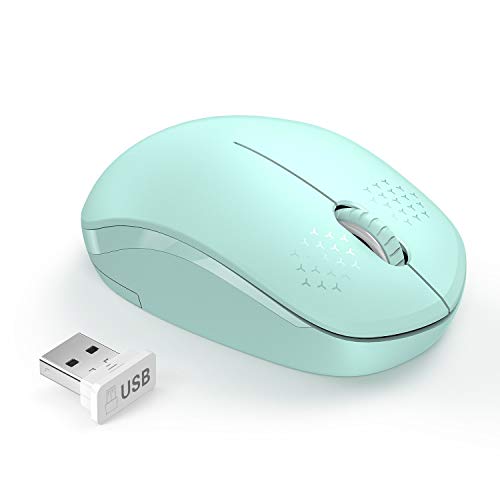


While clicking the scroll wheel usually brings up an auto-scroll function or opens a new tab in browsers, some mice might allow customization of this button for horizontal scrolling. This is less common but worth checking in your mouse’s software.


Method 3: Using Mouse Software and Drivers
Many mouse manufacturers provide dedicated software that allows you to customize button functions, adjust sensitivity (like how to change mouse sensitivity on macbook), and even set up macros. This is a critical tool for unlocking advanced scrolling features.
Installing and Configuring Mouse Software
- Step 1: Identify your mouse model. This is usually printed on the bottom of the mouse.
- Step 2: Visit the manufacturer’s official website (e.g., Logitech, Razer, Corsair, Microsoft, Apple).
- Step 3: Navigate to the support or downloads section and search for your specific mouse model.
- Step 4: Download and install the latest software or driver package.
- Step 5: Launch the installed software. Look for options related to button customization or scrolling settings.
- Step 6: Within the software, you should be able to select a button (like a thumb button or even a scroll wheel click) and assign it the function of “Horizontal Scroll Left” or “Horizontal Scroll Right.”
Practical Tip: If you work with wide spreadsheets frequently, assigning horizontal scrolling to your mouse’s thumb buttons can drastically improve your efficiency. It’s a feature that really helps when you’re trying to gain insights from data, similar to how understanding affiliate marketing can help you earn money online.


Method 4: Operating System Settings
Your operating system (Windows or macOS) also has settings that can influence mouse behavior, including scrolling.
Windows Settings
- Step 1: Go to Settings (press Windows key + I).
- Step 2: Click on Devices.
- Step 3: Select Mouse from the left-hand menu.
- Step 4: Under the “Scrolling” section, you might find options related to how your scroll wheel functions. While direct horizontal scrolling settings are less common here, ensure that “Scroll inactive windows when I hover over them” is checked if you want to scroll windows without clicking them first. Sometimes, there are options related to scrolling multiple lines at once, but dedicated horizontal scroll toggles are rare in the standard settings.
macOS Settings
On a Mac, horizontal scrolling behavior is often tied to the specific hardware and application support.
- Step 1: Go to System Preferences (or System Settings on newer macOS versions).
- Step 2: Click on Mouse.
- Step 3: You’ll see options for scrolling speed and potentially natural scrolling. For many Apple mice (like the Magic Mouse), you can actually swipe left or right with one finger on the surface to scroll horizontally.
Tip: If you’re using a MacBook, you might be interested in how to restart macbook without mouse, which is a different kind of navigation challenge.
Method 5: Browser Extensions and Third-Party Tools
If your mouse hardware and OS settings don’t offer the functionality you need, browser extensions or third-party utilities can often fill the gap.
Browser Extensions


For web browsing, extensions can add significant functionality.
- Search for “horizontal scroll” extensions in your browser’s extension store (Chrome Web Store, Firefox Add-ons, etc.).
- These extensions might allow you to scroll horizontally by holding down a specific key (like Ctrl or Alt) while using the scroll wheel, or by using mouse gestures.
Third-Party Utilities
Beyond mouse-specific software, there are general utility applications that can remap keys and mouse buttons. Tools like AutoHotkey (Windows) or Karabiner-Elements (macOS) are powerful but have a steeper learning curve. They allow you to create custom rules, such as “when I press Ctrl + Scroll Wheel, send a horizontal scroll command.”
Troubleshooting Common Issues
Sometimes, horizontal scrolling doesn’t work as expected. Here are a few common problems and how to fix them.
Problem: Scroll wheel doesn’t scroll horizontally at all.
- Check your mouse hardware: Does your mouse physically support tilted scrolling or have dedicated thumb buttons? Refer to your mouse’s manual or product page.
- Verify modifier keys: Ensure you are holding the correct modifier key (usually Shift) while scrolling.
- Test in different applications: Horizontal scrolling is not supported by every application. Try it in a known compatible program like Excel, Photoshop, or a web browser.
- Update or reinstall mouse drivers: Corrupted or outdated drivers can cause unexpected behavior.
Problem: Horizontal scrolling is too fast or too slow.
- Adjust mouse software settings: If you’re using manufacturer software, there’s often a scroll speed setting that can be adjusted for both vertical and horizontal scrolling.
- Operating system settings: Check your OS mouse settings for scroll speed adjustments, although these are often for vertical scrolling.
Problem: Thumb buttons don’t work for scrolling.
- Ensure software is running: If you’ve configured custom functions, make sure the mouse driver software is running in the background.
- Check button assignments: Double-check within the mouse software that the buttons are correctly assigned to horizontal scroll actions.
- Conflicts with other software: Sometimes, other background applications can interfere. Try closing unnecessary programs.
Conclusion
Learning how to scroll horizontally using your mouse is a simple yet powerful skill that can significantly boost your productivity and comfort when using your computer. Whether it’s by tilting your scroll wheel, holding down the Shift key, utilizing your mouse’s extra buttons, or configuring specialized software, there’s a method to suit almost every setup. Don’t let wide content slow you down any longer. Experiment with these techniques, customize your settings, and enjoy the ease of smooth, efficient horizontal navigation!
Similar Posts