Most often it's a graphics driver, refresh-rate mismatch, or a loose display cable causing the blink.
I’ve helped dozens of laptop users diagnose and fix screen flicker problems, and I’ll walk you through clear, practical steps to understand why the screen of my laptop is blinking, how to test the root cause, and what fixes work best — whether it’s a quick software tweak or a hardware repair. Read on to get confident troubleshooting steps, real-world tips from my experience, and simple choices you can follow right now.

Common causes of a blinking laptop screen
A blinking screen can come from many sources. Knowing common causes helps you narrow down the problem faster when asking why the screen of my laptop is blinking.
- Graphics driver conflicts
- Outdated or corrupt display drivers often lead to flicker after updates or app installs.
- Refresh rate and resolution mismatch
- Incorrect refresh rate settings can make the image flicker or blink repeatedly.
- Hardware connection issues
- Loose or damaged ribbon cables between the screen and motherboard cause intermittent blackouts.
- Backlight or inverter failures
- Older LCDs with CCFL backlights or failing LED drivers can flash as they lose power.
- GPU or motherboard problems
- Overheating or failing graphics chips cause irregular display output.
- Software and app conflicts
- Certain apps, especially those that use overlays or full-screen rendering, can trigger flicker.
- Power supply and battery issues
- Unstable power or faulty adapters sometimes produce screen blinking under load.
- Malware or OS corruption
- Rarely, malicious software or a corrupted OS can cause display instability.
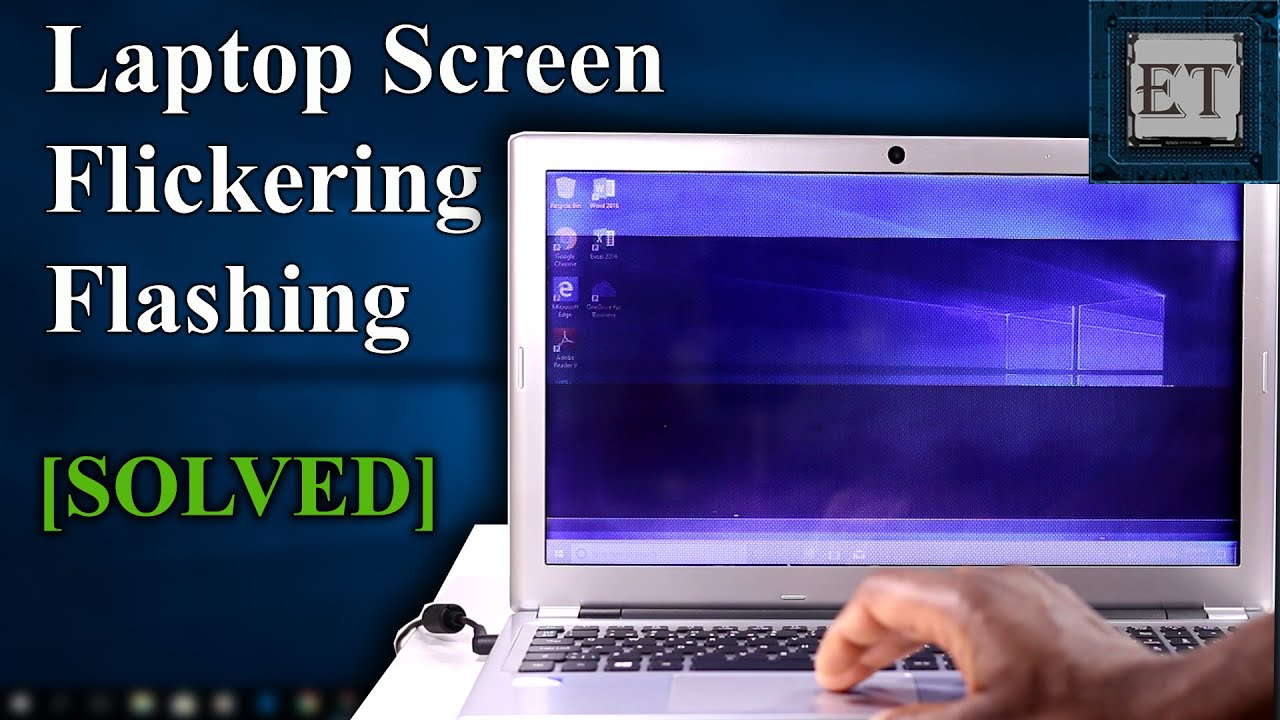
How to diagnose whether it’s software or hardware
Start with quick tests that separate software issues from hardware faults. Diagnosing first saves time and money when wondering why the screen of my laptop is blinking.
- Check for blinking during boot
- If the screen blinks only after the OS loads, suspect software or drivers.
- Connect an external monitor
- If the external monitor is stable, the internal panel or cable is likely at fault.
- Boot in Safe Mode
- Safe Mode uses basic drivers. If blinking stops, a driver or app is the cause.
- Update or roll back display drivers
- New drivers can fix or introduce flicker. Try both directions.
- Change refresh rate
- Windows: Settings > System > Display > Advanced display settings. Match recommended rate.
- Run built-in hardware diagnostics
- Many brands include BIOS/UEFI tests. Run them for GPU and panel checks.
- Observe pattern and timing
- Constant rhythm: often hardware. Random blink: often software or thermal issues.
People also ask:
- Can a bad driver make my laptop screen blink?
- Yes. A bad or mismatched driver commonly causes flicker once the OS loads.
- Will a faulty cable cause intermittent blinking?
- Yes. A loose ribbon or connector often produces blinking when the lid moves.
- Should I test with an external monitor first?
- Absolutely. It’s the fastest way to tell if the panel or GPU is to blame.

Step-by-step fixes you can try right now
Follow these steps in order. They go from quick, low-risk actions to more involved fixes. These steps help answer why the screen of my laptop is blinking with practical remedies.
- Restart the laptop
- Close apps and do a full shutdown. Then power back on.
- Update the operating system
- Install all recommended OS updates and restart.
- Update or reinstall the display driver
- Use Device Manager to uninstall the display adapter, then restart to auto-reinstall, or download the latest driver from the manufacturer.
- Adjust refresh rate and resolution
- Lower the refresh rate to the display’s native value and use recommended resolution.
- Disable hardware acceleration in apps
- Browser or video apps can cause flicker; turn off hardware acceleration in settings.
- Scan for malware and run system file checks
- Use your antivirus and run sfc /scannow (Windows) to repair system files.
- Boot in Safe Mode and test
- If flicker stops, remove recently installed apps or drivers.
- Test with an external monitor
- If the external screen is stable, the internal panel or cable likely needs attention.
- Check power adapter and battery
- Try running on battery only or with another adapter to rule out power issues.
- Reset BIOS/UEFI to default
- A firmware setting or update might cause instability. Reset and test.

When blinking is a hardware issue and what to do
If software steps don’t stop the flash, hardware repair or replacement may be needed. Here’s how to identify and act when hardware is the culprit for why the screen of my laptop is blinking.
- Common hardware faults
- Loose display ribbon cable
- Faulty display panel (LCD/LED)
- Bad backlight or LED driver
- Failing GPU or motherboard component
- Quick physical checks
- Gently move the lid angle while laptop is on. If flicker changes, cable or hinge wiring is suspect.
- Repair options and tips
- Reseat or replace the display cable if you’re comfortable opening the case.
- Replace the display panel if the cable is fine and flicker persists.
- For GPU or board issues, seek professional repair; these parts are complex and costly.
- Cost and warranty considerations
- Check warranty first. Panel replacement can be affordable; motherboard or GPU work is more costly.
- Safety and backup
- Back up data before any hardware repair. Shut down and unplug before inspecting internals.

Preventive measures and best practices
Avoid future displays of flicker by following simple routines. These tips reduce the chance you will ask again why the screen of my laptop is blinking.
- Keep drivers and OS up to date
- Regular updates prevent compatibility problems.
- Use recommended display settings
- Stick to the native resolution and refresh rate.
- Handle the lid gently
- Rough movement stresses ribbon cables over time.
- Keep vents clean and avoid overheating
- Heat can cause GPUs and chips to behave erratically.
- Use trusted power adapters
- Cheap adapters can provide unstable power and cause flicker.
- Create regular backups
- In case a hardware fix requires long repairs or replacement.

Personal experience and lessons learned
I once fixed a client’s laptop that blinked only when on battery. I first blamed drivers, but testing revealed the adapter was intermittently failing. Swapping the adapter stopped the blink immediately. Key lessons I learned:
- Start with the simplest tests: external monitor and Safe Mode.
- Watch for patterns: hinge movement, power state, or specific apps.
- Don’t rush into parts replacement without isolating the fault.
- Back up critical files before any major repair or factory reset.
If you work methodically, you save money and avoid unnecessary part swaps. That method has saved me and many clients time and cost.

Frequently Asked Questions
Why does my laptop screen blink only when I open certain apps?
Certain apps use hardware acceleration or unusual rendering paths. Disable hardware acceleration in the app or update its drivers to fix the blink.
Can a Windows update make my laptop screen blink?
Yes. Major updates can install new display drivers or settings that conflict with your hardware. Rolling back or updating the driver often resolves the issue.
How do I check if the problem is the display cable?
Open the laptop only if you’re comfortable and safe. Gently move the hinge while the laptop is on; if flicker changes, the ribbon cable or connector is likely loose or damaged.
Is it safe to continue using a blinking screen?
Short-term use is usually safe, but prolonged flicker may worsen hardware damage or strain your eyes. Back up your work and fix the issue soon.
Will replacing the display fix the issue every time?
Not always. If the GPU or motherboard is the cause, replacing the panel won’t help. Test with an external monitor first to confirm.
Conclusion
Screen blinking is frustrating but usually solvable with structured troubleshooting — start with software fixes, test with an external display, and then inspect hardware if needed. Use the steps here to find out why the screen of my laptop is blinking and choose the right fix with confidence. Try the easy checks now, back up your files, and if the problem persists, seek professional repair or warranty support. If this guide helped, subscribe for more troubleshooting tips or leave a comment with your laptop model and symptoms so I can help further.