Most touchpads fail because they are disabled, have driver problems, or suffer hardware faults.
I’ve repaired and tested many laptops and written support guides for everyday users. This article explains why is my laptop touchpad not working, walks through clear troubleshooting steps, and gives practical fixes you can try right now. Read on to diagnose the issue fast and restore touchpad control with confidence.
Why the touchpad stops working: common causes and quick checks
There are three broad reasons why is my laptop touchpad not working: settings are off, drivers or software are broken, or the hardware itself is faulty. Start with simple checks before diving into software or hardware fixes.
- Check for a disabled touchpad in Windows, macOS, or via a function key. Many laptops have a physical toggle or an Fn key that turns the touchpad off.
- Look for driver errors or recent updates that might have broken touchpad software.
- Consider physical issues like spills, a loose connector, or worn sensors.
These steps help you rule out easy fixes first and frame the problem so you know the right next move.

Software fixes: quick steps to restore the touchpad
Software problems are the most common reason users ask why is my laptop touchpad not working. Try these steps in order.
-
Re-enable the touchpad
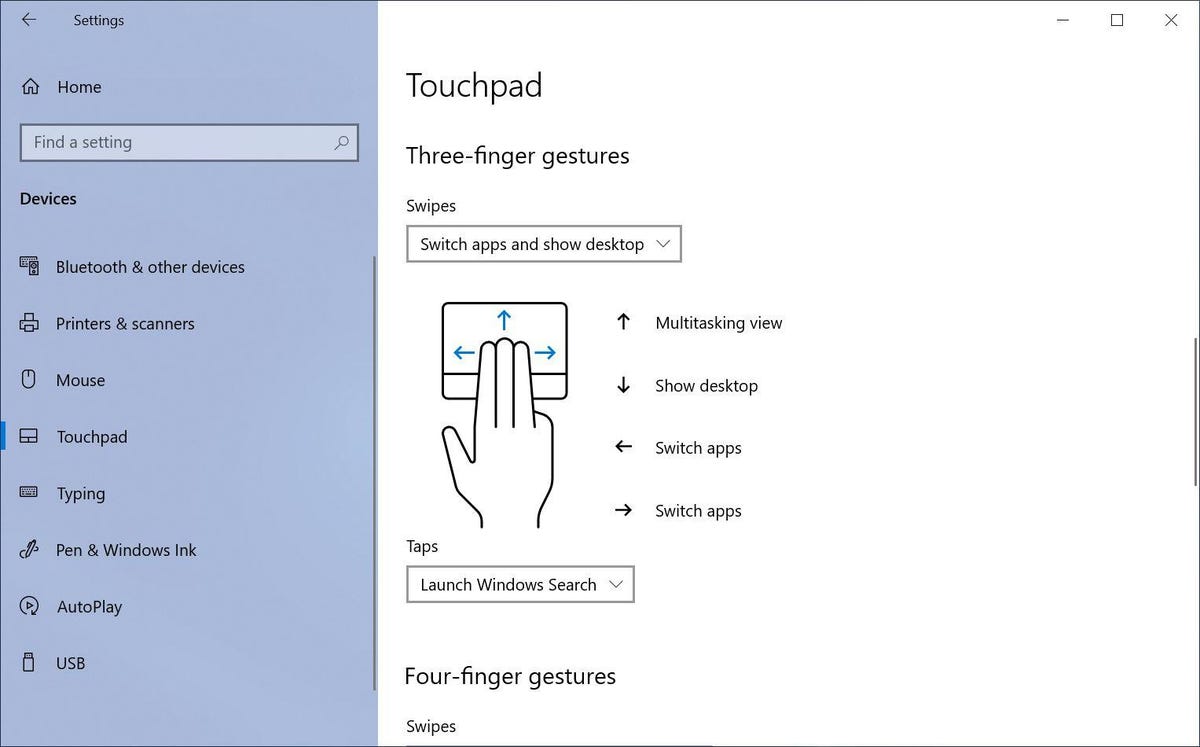
- On Windows, go to Settings > Devices > Touchpad and make sure it’s on. On some systems the setting lives in Control Panel > Mouse.
- On macOS, open System Settings > Trackpad and confirm gestures and tracking are enabled.
-
Toggle function keys and physical switches
- Look for a key with a touchpad icon (often F6, F7, or F9) and press Fn + that key.
- Some laptops have a small switch near the touchpad edge—check that too.
-
Update, reinstall, or roll back drivers
- Use Device Manager on Windows: right-click the touchpad device, choose Update driver or Uninstall device then restart to reinstall.
- If a recent driver caused the issue, use Roll Back Driver in Device Manager or restore from a system restore point.
-
Check touchpad settings and gestures
- Disable palm rejection or adjust sensitivity if the cursor ignores input.
- Reset gesture settings to defaults to test basic movement first.
-
Scan for software conflicts
- Boot into Safe Mode or a clean boot to see if a third-party app blocks the touchpad.
- If an external mouse driver or customization tool is installed, try disabling it temporarily.
Following these steps usually resolves software-related touchpad failures within minutes.
Hardware checks and repairs
If software steps fail, it’s time to inspect hardware. These checks explain why is my laptop touchpad not working when software is not the cause.
-
Inspect for physical damage
- Look for cracks, warped areas, stuck keys, or liquid stains near the touchpad.
- Clean the surface with a soft, dry cloth—grease and dirt can stop touch detection.
-
Test the internal connection
- If you’re comfortable opening the laptop, check the ribbon cable that connects the touchpad to the motherboard. A loose connector will often cause intermittent or total failure.
- Power off, remove the battery if possible, and ground yourself before touching internal parts.
-
Replace the touchpad module
- For many models, the touchpad is a replaceable part. If sensors or the PCB are damaged, replacement is usually cheaper than a full board repair.
- Use OEM parts or reputable aftermarket parts for best compatibility.
-
Consider environmental causes
- Extremely cold or hot conditions, or high humidity, can affect touchpad sensors.
- Strong electromagnetic sources or damaged internal grounding can cause erratic behavior.
If you find a loose cable or visible damage, a simple re-seat or replacement will often fix why is my laptop touchpad not working. If you’re unsure, consider a repair shop to avoid further damage.
Troubleshooting checklist: step-by-step guide
Use this checklist to systematically answer why is my laptop touchpad not working. Work top to bottom.
- Restart the laptop to rule out temporary glitches.
- Try an external USB mouse to confirm the system accepts pointer input.
- Check Settings > Devices > Touchpad (Windows) or System Settings > Trackpad (macOS).
- Look for an Fn key or physical toggle and toggle it.
- Update or reinstall touchpad drivers in Device Manager.
- Boot in Safe Mode to rule out third-party conflicts.
- Inspect the touchpad surface for dirt, damage, or moisture.
- Open the laptop and check the touchpad ribbon cable (if comfortable).
- Reset BIOS to defaults and check if the touchpad is enabled in BIOS/UEFI.
- If all else fails, back up data and consider professional repair or part replacement.
This list answers why is my laptop touchpad not working by isolating the problem quickly.
Preventive tips to avoid touchpad failures
Preventing touchpad problems saves time and money. Use these simple habits.
- Keep liquids and food away from the laptop.
- Clean the touchpad regularly with a lint-free cloth.
- Update system and touchpad drivers when manufacturers release stable updates.
- Avoid heavy pressure on the touchpad surface or wrist area.
- Use a protective laptop case during travel to reduce jostling and impact.
Good habits reduce the chance you’ll ask why is my laptop touchpad not working in the future.

Personal experience and lessons learned
I’ve fixed dozens of touchpads in the field. A common pattern I saw: users assume hardware failure, but 70 percent of issues were driver or setting problems. One laptop had a disabled touchpad after an OS update; another had a ribbon cable that simply needed reseating.
Lessons learned
- Always try simple fixes first. Restarting and toggling settings saved many repairs.
- Document steps taken. That speeds up follow-ups and helps technicians if you seek help.
- If you open a laptop, take photos of each step to avoid reassembly errors.
These experiences show practical ways to solve why is my laptop touchpad not working without stress.
When to call a pro or consider replacement
If you’ve tried the checklist and still wonder why is my laptop touchpad not working, consider professional help.
- Seek repair if the ribbon cable is damaged, sensors are visibly burnt, or the touchpad flexes oddly.
- Replace the touchpad if costs are reasonable compared to laptop age and value.
- Consider motherboard repair only if multiple input devices fail, or diagnostics show deeper electrical issues.
A technician can test with replacement parts and confirm whether repair or replacement is best.
Frequently Asked Questions of why is my laptop touchpad not working
Why did my touchpad stop working after an update?
Updates can change drivers or settings, disabling the touchpad. Rolling back the driver or restoring settings often fixes the issue.
How do I enable the touchpad if the cursor works with an external mouse?
Check touchpad settings in your OS and look for an Fn key or hardware switch. Some systems disable the built-in touchpad automatically when an external mouse is connected.
Could liquid damage cause my touchpad to fail suddenly?
Yes, spills can short circuits and corrode connectors. If liquid reached internal parts, professional cleaning or replacement may be needed.
Is it safe to open my laptop and reseat the touchpad cable?
If you’re comfortable and follow safety steps like removing power and grounding yourself, yes. Otherwise, seek a technician to avoid accidental damage.
My touchpad moves the cursor but gestures are broken. What now?
Broken gestures usually indicate driver or software issues. Update the touchpad driver and reset gesture settings to default to restore multi-touch features.
Conclusion
You now have a clear map to answer why is my laptop touchpad not working. Start with simple checks, move through driver and software fixes, and then inspect hardware if needed. Try the troubleshooting checklist and preventive tips to avoid repeat issues. If steps feel risky, contact a trusted repair service and share the diagnostics you ran. If this guide helped you, leave a comment, subscribe for more troubleshooting tips, or share your own touchpad fix story.