Your laptop is slow because of full storage, too many background apps, old hardware, or malware.
I have fixed slow laptops for years. I will walk you through clear reasons, quick tests, and real fixes for why is my laptop slow. This guide blends hands-on tips, simple diagnostics, and upgrade advice so you can make your laptop feel fast again.
Main reasons your laptop is slow
There are common, repeatable causes for slowness. If you ask why is my laptop slow, start here.
Most slow laptops share these issues.
- Too little free storage space. Low disk space makes the system swap and lag.
- Too many startup or background apps. Programs can steal CPU and memory.
- Old or full hard drive. HDDs are much slower than SSDs.
- Insufficient RAM. Too little RAM forces your laptop to use slow disk space.
- Thermal throttling. Overheating cuts CPU speed to cool the chip.
- Malware or unwanted software. Malicious apps can use resources silently.
- Fragmented system files or bloated OS. Old installs slow boot and app launch.
- Driver or firmware problems. Outdated drivers create performance issues.
From personal experience, I fixed many laptops by freeing disk space and disabling startup apps first. Those two steps often answer why is my laptop slow quickly and with little cost.
How to diagnose why your laptop is slow
Diagnosing is about facts, not guesses. Use simple checks to find the bottleneck.
- Check Task Manager or Activity Monitor. See CPU, memory, disk, and network use.
- Look at disk free space. Keep at least 15 percent free on HDD, more on older drives.
- Run a simple malware scan. Use a trusted scanner for a quick check.
- Monitor temperatures. Use a temp tool to check CPU and GPU temps under load.
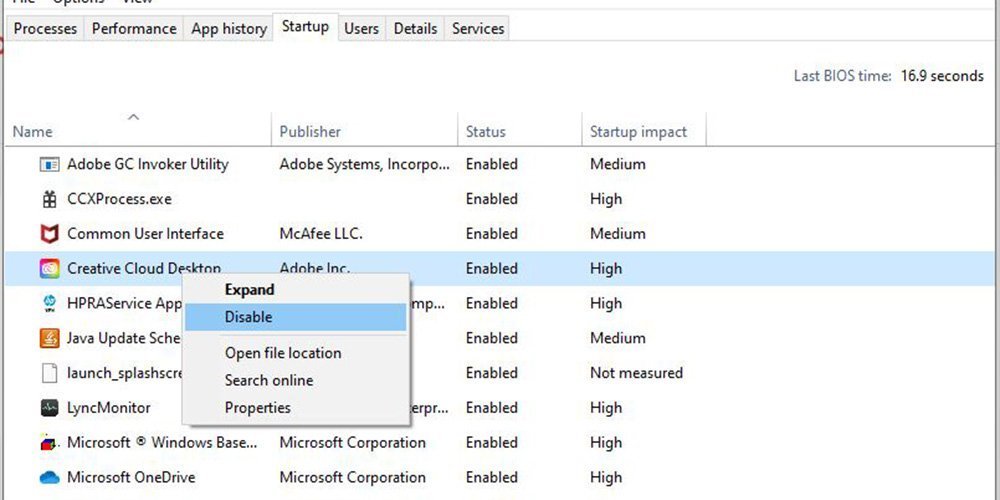
- Run a startup time test. Count how many apps load on boot.
If you wonder why is my laptop slow during browsing, check browser extensions and tab count first. If it's slow on boot, focus on startup apps and disk health. My tip: reproduce the slowness while testing. That gives clear data.
Quick PAA-style questions
Why is my laptop slow after an update?
Updates can add background processes or new features that need more resources. Check for pending firmware or driver updates and restart to let changes settle.
Why is my laptop slow when gaming?
Gaming needs CPU, GPU, RAM, and fast storage. Overheating, old drivers, or low VRAM often cause drops in frame rate.
Quick fixes you can try now
Start with low-effort moves that often fix slowness fast. These are safe and reversible.
- Restart the laptop. A restart clears memory and stops hung processes.
- Close unused apps and browser tabs. This frees RAM and CPU cycles.
- Disable unnecessary startup apps. Use Task Manager or System Preferences to stop auto-launch.
- Free up disk space. Remove large unused files, old downloads, and temporary files.
- Run disk cleanup and error checks. Repair file system issues and remove junk.
- Update system and drivers. Patches fix bugs and improve efficiency.
- Scan for malware and remove suspicious apps. Use a trusted scanner.
- Reduce visual effects. Turn off animations to lighten CPU/GPU load.
When I help friends, I usually clear storage and reduce startup items. That often answers their “why is my laptop slow” question within 30 minutes.

When hardware upgrades are worth it
If quick fixes don't solve the problem, hardware may be the limit. Consider these upgrades.
- Move from HDD to SSD. This makes boot and app load times much faster.
- Add more RAM. If you use many apps or browser tabs, increasing RAM helps.
- Replace an aging battery or cooling fan. Good cooling prevents throttling.
- Upgrade CPU or motherboard only if the laptop supports it; often not cost-effective.
- Consider a newer laptop when multiple components are outdated. The cost of repairs may exceed value.
I once replaced an HDD with an SSD for a client. The machine booted in seconds after the swap. That single upgrade often answers why is my laptop slow for older devices.
Preventive maintenance and best habits
Small habits keep your laptop healthy. Use these to avoid slowdowns later.
- Keep at least 20 percent free disk space. This allows room for updates and cache.
- Limit startup programs to essentials. Fewer auto-launch apps mean faster boots.
- Update OS and drivers monthly. This keeps performance steady and secure.
- Use a light antivirus and scan monthly. Clean systems run faster.
- Clean vents and fans every year. Dust causes heat and throttling.
- Backup before major changes. A clean install can fix deep issues but requires a backup.
From my experience, users who maintain storage and updates rarely ask why is my laptop slow again. Small routines prevent most problems.

Windows vs macOS: platform-specific tips
Both platforms can slow down, but the fixes differ a bit.
-
Windows tips
- Use Task Manager to find resource hogs.
- Run Storage Sense or Disk Cleanup.
- Disable visual effects in System > Advanced settings.
- Check for bloatware and remove vendor apps you don't use.
-
macOS tips
- Use Activity Monitor to check CPU, Memory, and Energy tabs.
- Reset SMC or NVRAM for odd hardware issues.
- Manage Login Items in Users & Groups.
- Use Storage Management to clear large files and unused apps.
If you search why is my laptop slow on Windows or Mac, follow platform checks first. They are fast and targeted.

Frequently Asked Questions of why is my laptop slow
Why is my laptop slow after Windows update?
Updates can add background tasks or require driver updates that run after install. Check for pending restarts and driver updates, and remove problematic updates if needed.
Why is my laptop slow when opening programs?
This often points to low RAM or a slow hard drive. Upgrading to an SSD or adding RAM typically speeds app launches.
Why is my laptop slow only on battery?
Power-saving modes limit CPU and GPU speeds to save battery. Set the power plan to balanced or high performance when plugged in for full speed.
Could a virus be why my laptop slow?
Yes. Malware can use CPU, disk, and network resources. Run a full scan with a trusted antivirus to rule this out.
How much RAM do I need to avoid slowness?
For basic use, 8 GB is usually enough. For heavy multitasking, creative work, or modern games, 16 GB or more is better.
Conclusion
You now have a clear roadmap for why is my laptop slow. Start with simple checks: free space, background apps, and a malware scan. If needed, upgrade to an SSD or add RAM to get a lasting boost. Small habits prevent most slowdowns and save time and money long term. Try the fixes above, note what changes speed things up, and share your results or questions below — I’d love to help you troubleshoot further.