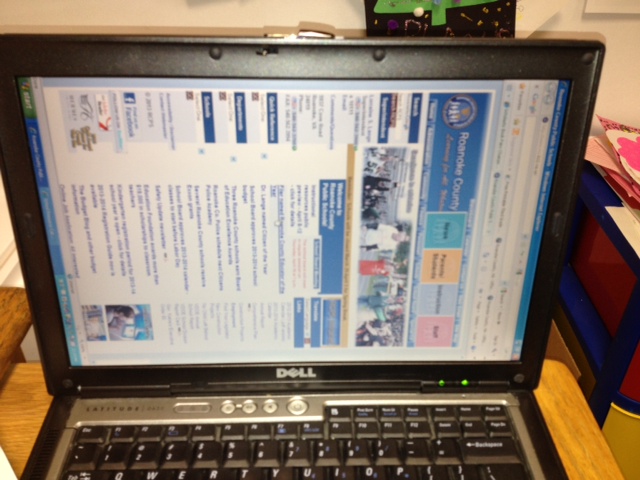
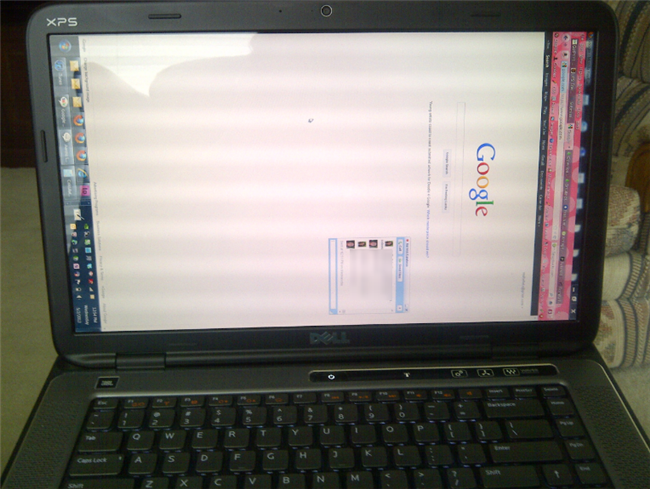
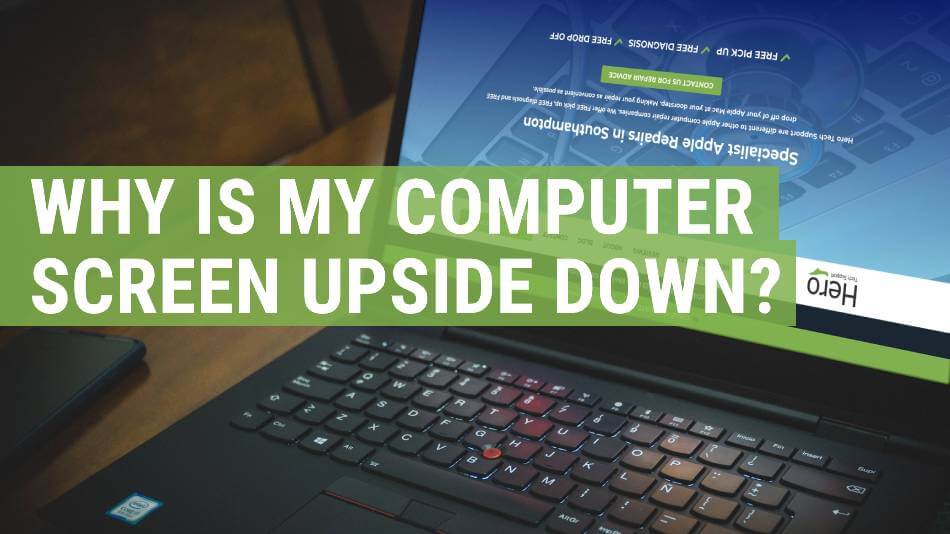
Most often a display rotation setting or a graphics hotkey accidentally rotated your screen.
I’ve helped dozens of people fix this exact issue. In this guide I explain why is my laptop screen sideways, how to diagnose the cause, step-by-step fixes for Windows, macOS, and Linux, prevention tips, and when to get professional help. You’ll get clear steps, real troubleshooting examples from my experience, and simple explanations so you can fix a sideways laptop screen fast.

Common causes: why is my laptop screen sideways
A sideways laptop screen usually has simple causes. The top culprits are a rotated display setting or a keyboard shortcut being pressed. Graphics driver quirks or vendor control panels can also change orientation. On 2-in-1s, an accelerometer or rotation lock can flip the view when you change posture.
Another cause is remote desktop or virtual machine settings. Rarely, a driver bug or hardware sensor failure makes the display rotate by itself. Knowing the cause makes the fix fast and safe.
Quick checks before deep troubleshooting
Do these checks first. They are low risk and fast.
- Check if a keyboard shortcut fixed it. Try Ctrl + Alt + Up Arrow on Windows.
- Open display settings to see current orientation.
- Confirm if only the laptop screen is rotated or external monitors too.
If the problem is temporary, these checks often resolve it within a minute. If not, move to the detailed steps below.
How to fix a sideways laptop screen (step-by-step)
Follow the steps based on your operating system. I list the simplest fixes first.
Windows
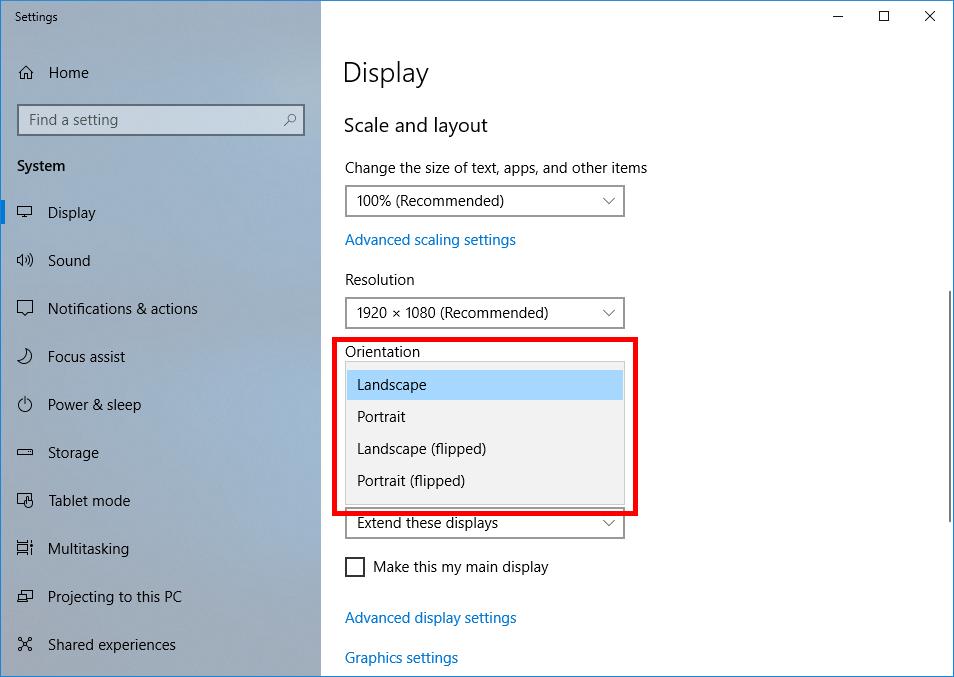
- Open Settings > System > Display.
- Find Orientation and choose Landscape. Apply the change.
- If orientation resets, update or reinstall the graphics driver from Device Manager.
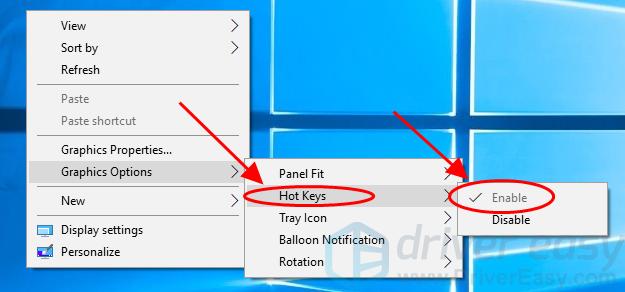
- Disable hotkeys in your graphics control panel if they cause accidental rotation.
- Use Ctrl + Alt + Up Arrow to instantly reset on many systems.
macOS
- Go to System Preferences > Displays.
- If Rotation is available, set it to Standard or 0°. Some Macs do not show rotation unless using an external display or specific adapters.
- For Macs where rotation is hidden, test with an external monitor or a third-party tool.
Linux (common distros)
- Use Settings > Displays and set Orientation to Normal.
- Or run xrandr –output
–rotate normal in a terminal. - Replace
with the name shown by xrandr.
If these steps fail, reinstall or update display drivers. Firmware updates for 2-in-1s can also fix sensor issues.
Graphics control panels and hotkeys
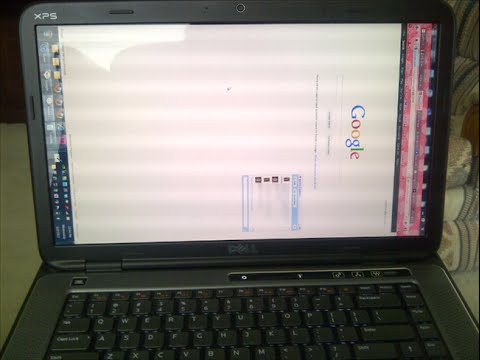
Many laptops include vendor utilities that control display rotation. These can override OS settings.
- Intel Graphics: Open Intel Graphics Command Center and check display rotation.
- NVIDIA/AMD: Use their control panels to confirm orientation.
- Disable or change hotkeys if you accidentally trigger them.
If a hotkey flips the screen often, remove or remap the shortcut. That prevents repeated "why is my laptop screen sideways" problems.

When hardware or sensors cause rotation
On convertible and touchscreen laptops, sensors decide screen rotation. These sensors can fail or misreport data.
Signs of a hardware issue:
- Screen rotates with device movement even when rotation lock is on.
- Orientation flips randomly without hotkey or setting changes.
- External monitors remain correct while only laptop screen is wrong.
If hardware is suspect, test with BIOS or safe mode. If the issue persists, contact support or a repair technician. Sensor replacement or a firmware update may be needed.
Preventing accidental rotation
Small changes stop the problem before it starts.
- Turn off or remap rotation hotkeys.
- Lock rotation on tablets and convertibles when you don’t want it changing.
- Keep graphics drivers up to date to avoid bugs.
- Use a power plan that doesn’t reinstall drivers or reset display settings.
These tips reduce the chance you will search again for "why is my laptop screen sideways."
Personal experience: a real troubleshooting story
Once, a client called because their laptop screen rotated every time they tilted their convertible. I first checked display settings. They were normal. Next I disabled rotation via the quick menu. The screen still flipped. I updated the firmware and recalibrated the motion sensor. The sensor calibration fixed the issue. The lesson: start simple, then test hardware. Small updates and calibration often solve mysterious rotation problems.
I learned to always ask whether the device is a convertible. That question cuts troubleshooting time in half. If you face this, try the simple fixes first. Then escalate.
Related concepts and terms to know
Understanding a few terms makes troubleshooting easier.
- Orientation: The display angle like landscape or portrait.
- Rotation lock: A setting that prevents the screen from rotating automatically.
- Accelerometer / Gyroscope: Sensors that detect device tilt for auto-rotation.
- Graphics driver: Software that controls how the GPU displays images.
- xrandr: A Linux command-line tool to manage screen settings.
Knowing these helps you follow the fixes in this guide and explains why settings change.
Limitations and when to seek professional help
Most sideways screen problems are software. But not all. Seek pro help if:
- The display remains sideways after OS reinstallation.
- The screen flickers or shows artifacts with rotation.
- Calibrating sensors or firmware updates fail.
A technician can test hardware and replace sensors or display components. Be ready to describe what you tried — that saves time and money.
Frequently Asked Questions of why is my laptop screen sideways
Why did my laptop screen suddenly turn sideways?
A display orientation change is usually triggered by a hotkey or a setting change. It can also be caused by an auto-rotate sensor on convertible laptops.
How do I rotate my screen back to normal quickly?
On many Windows laptops press Ctrl + Alt + Up Arrow. Alternatively, use Settings > System > Display and set Orientation to Landscape.
Can a graphics driver cause my screen to rotate?
Yes. Corrupt or outdated graphics drivers can change display behavior. Updating or reinstalling the driver often fixes rotation issues.
Is a rotated screen a sign of malware?
Rarely. Rotation is almost always due to settings, hotkeys, or sensors. If other strange behavior appears, run a malware scan to be safe.
Why does only my laptop screen rotate but not external monitors?
Internal sensors or settings may affect only the built-in display. External monitors often use a fixed orientation managed separately in display settings.
Will restarting my laptop fix a sideways screen?
A restart can revert temporary glitches if a software process caused the rotation. If the issue is a saved setting or hardware, a restart may not help.
Conclusion
A sideways laptop screen is usually easy to fix. Most of the time the answer to why is my laptop screen sideways is a setting, hotkey, or sensor issue. Start with quick checks, use OS display settings, and update drivers. If you use a convertible, check rotation lock and sensor calibration. For persistent problems, consider professional help. Try the steps here, share what worked for you, and subscribe or comment with your device model if you want tailored help.