A blinking laptop screen usually points to software driver issues or loose hardware connections.
I’ve fixed many flickering screens as a tech writer and repairer, so I know how confusing this problem can be. This article explains why is my laptop screen blinking, how to diagnose the cause, and step-by-step fixes you can try at home. Expect clear checks, simple fixes, and practical advice to save time and money.

What a blinking laptop screen means
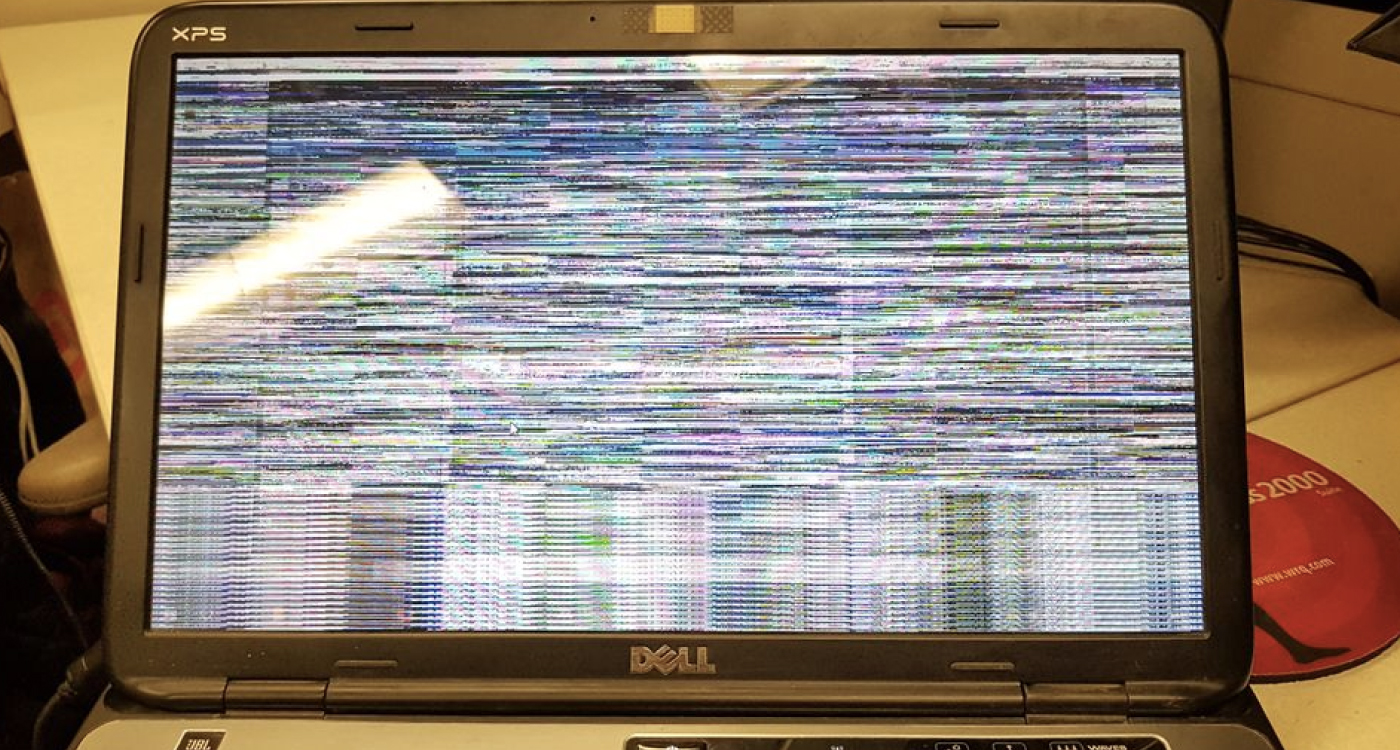
A blinking screen can look like a flicker, strobe, or intermittent blackouts. If you wonder why is my laptop screen blinking, it means something is interrupting the display signal. That interruption can come from the operating system, the graphics driver, or a physical problem inside the laptop.
Most blink patterns fall into two groups. Software blinks happen when apps or drivers misbehave. Hardware blinks happen when cables, inverters, or backlights fail.

Common causes of a blinking laptop screen
There are several top causes to check when you ask why is my laptop screen blinking.
- Graphics driver conflicts. Updated or corrupted drivers often cause flicker after an OS update.
- Refresh rate or resolution mismatch. A wrong setting can make the screen unstable.
- Loose or damaged display cable. A poor connection between screen and motherboard causes intermittent lines and flicker.
- Failing backlight or inverter. Older LCDs use parts that can dim or blink when failing.
- GPU or motherboard faults. Hardware chips that handle graphics can overheat or fail.
- Power or battery issues. Low or uneven power can cause screen instability.
- Software conflicts or malware. A misbehaving app or virus can overload the display system.
- Screen panel defects. Pixels or driver circuits in the screen itself may be damaged.
If you’re asking why is my laptop screen blinking, start with these common causes. They cover most real-world cases I’ve seen in repairs.
How to diagnose why is my laptop screen blinking
Diagnosing the cause takes a few simple steps. Work through them in order from easiest to hardest.
- Restart the laptop. A quick reboot clears temporary glitches and often stops blinking.
- Check external display. Connect to an external monitor or TV. If the external screen is stable, the issue is likely the laptop display hardware.
- Boot in Safe Mode. Safe Mode uses basic drivers. If the blinking stops, software or driver issues are likely.
- Open Task Manager. Look for apps using high CPU or GPU that might force the display to flicker.
- Check refresh rate. Set the display to a standard refresh rate like 60 Hz in display settings.
- Inspect cables and hinges. If you see flicker when opening or closing the lid, it often points to a loose cable.
- Run hardware diagnostics. Many manufacturers include diagnostics that test the display and GPU.
If you still ask why is my laptop screen blinking after these checks, you may need a deeper hardware test or professional help.

People also ask
Can a driver update fix blinking?
Yes. Updating or rolling back the graphics driver often fixes blinking caused by software conflicts. Use the driver from your laptop maker or the GPU vendor.
Does overheating cause the screen to blink?
It can. Overheating can make the GPU throttle or fail temporarily, which may cause flashing or lines on the screen.
Will a factory reset stop screen flicker?
A factory reset can rule out software issues. If flicker persists after a reset, the problem is likely hardware.

Software fixes and easy troubleshooting steps
Many blinking screens are solved with software fixes. Try these quick steps when wondering why is my laptop screen blinking.
- Update the graphics driver. Use Device Manager or the official driver utility to update the GPU driver.
- Roll back recent updates. If blinking started after an update, roll back the driver or system update.
- Change display settings. Set resolution and refresh rate to the recommended values.
- Disable hardware acceleration. Some apps cause flicker when acceleration is enabled; turn it off in app settings.
- Scan for malware. Run a reputable antivirus scan to rule out malicious software.
- Boot to Safe Mode. If blinking stops, uninstall recent apps or drivers that may be causing conflicts.
I remember fixing a laptop where a web browser plugin caused a persistent blink. Disabling hardware acceleration solved it in minutes. When you ask why is my laptop screen blinking, try these software steps first—they are low risk and often effective.

Hardware fixes and repair options
When software steps don’t help, look to hardware. Here are common hardware fixes and realistic options to consider.
- Reseat or replace the display cable. This requires opening the laptop and checking the ribbon cable at the hinge and motherboard.
- Replace the inverter or backlight (for older LCDs). These parts are cheap but labor-intensive.
- Test the GPU and motherboard. This often needs specialized tools at a repair shop.
- Replace the screen panel. A new panel can fix dead pixels, flicker, and lines but costs more than small parts.
- Professional service. If the GPU or board is faulty, a repair shop can diagnose and quote a fix or replacement.
Real costs vary. Replacing a cable or inverter is usually inexpensive. Replacing a motherboard or GPU can be costly and may prompt buying a new laptop. If you are unsure, a professional diagnostic is worth the fee to avoid wasting money on parts that aren’t the real problem.

Prevention and maintenance tips
Avoid future blinking by practicing simple maintenance and good habits.
- Keep drivers and OS up to date. Timely updates reduce software-related flicker.
- Avoid heavy impacts and sharp lid motions. Rough handling stresses display cables.
- Use a surge protector. Power spikes can damage internal components.
- Clean vents and fans. Good cooling reduces thermal stress on the GPU and chips.
- Use a laptop stand for better airflow and fewer hinge stresses.
I learned the hard way that a loose hinge caused repeated flicker on a work laptop. A small, careful repair saved that machine from a full screen replacement.

Personal experience and lessons learned
I’ve repaired dozens of laptops with blinking screens. Most turned out to be driver issues or loose display cables. Only a few needed full screen replacements or motherboard repairs.
Lesson one: try software fixes first. They are free and fast. Lesson two: when the blink changes with lid angle, it’s almost always a cable or connector. Lesson three: document changes you make so you can undo them if needed.
When you face this issue, stay calm. Methodical checks save time and money. I often fix problems at home and prefer stepwise checks before going to a shop.
Frequently Asked Questions of why is my laptop screen blinking
Why does my laptop screen blink after a Windows update?
Windows updates can install new drivers or change system settings. Roll back the update or the display driver to see if the blinking stops.
Can a loose hinge cause screen flicker?
Yes. A loose or worn hinge can tug on the display cable and cause intermittent flicker when the lid moves.
Is it safe to keep using a laptop with a blinking screen?
Short-term use is usually safe, but prolonged use may worsen hardware faults or damage the GPU. Back up your data and diagnose the issue soon.
How do I check if the issue is software or hardware?
Connect an external monitor and boot into Safe Mode. If the external monitor and Safe Mode are stable, the problem is likely the laptop display hardware or drivers.
Will replacing the screen always fix blinking?
Not always. If the GPU or motherboard is the cause, replacing the screen won’t help. Diagnose properly before buying parts.
How much does a screen repair usually cost?
Costs vary by model and region. Simple repairs like a cable or inverter are cheap, while motherboard or GPU repairs can be expensive. Get a quote from a reputable repair shop.
Conclusion
A blinking screen can be a simple driver issue or a sign of failing hardware. Start with easy software checks and then move to hardware steps if needed. Back up your data, follow the diagnostic order, and consider professional help for complex repairs.
Take action now: try the quick fixes listed here, test with an external monitor, and leave a comment with your symptoms if you need more help. If this article helped, subscribe for more practical laptop repair guides.