Most laptop cameras fail due to driver issues, blocked permissions, privacy shutters, or hardware faults.
I’ve spent years fixing laptops and teaching people simple fixes for the question why is my laptop camera not working. This guide explains how laptop cameras work, common causes, step-by-step troubleshooting, advanced fixes, and prevention tips. Read on for clear, practical steps you can try now to get your camera back online.

How laptop cameras work
Laptop cameras are small USB devices built into the lid. They rely on hardware, firmware, drivers, and app permissions to work together. When any link in this chain breaks, you may wonder why is my laptop camera not working.
Most modern systems expose the camera to apps through an operating system layer. That layer checks drivers and permissions before giving apps access. If the OS blocks access or the driver is missing, apps see a black screen or an error.

Common causes of why is my laptop camera not working
Here are the typical reasons a camera stops working. I list each cause with a short explanation so you can narrow down the problem fast.
- Disabled camera in settings. The system or app may have camera access turned off.
- Privacy shutter or cover. A physical cover or case can block the lens.
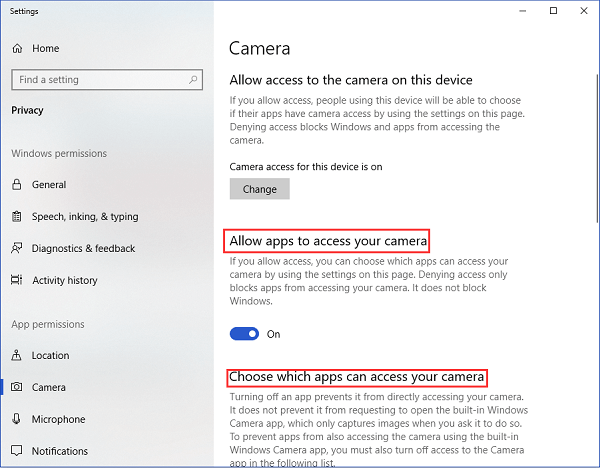
- App-level permission denied. Apps need permission to use the camera on Windows and macOS.
- Outdated or corrupt drivers. Broken drivers stop the OS from talking to the camera.
- Camera in use by another app. One app may lock the camera, preventing others from using it.
- Antivirus or privacy software blocking camera. Security software can block camera access.
- BIOS or UEFI setting disabled. Some laptops let you disable the camera at firmware level.
- Hardware failure. The camera module, cable, or connector might be damaged.
- Operating system bugs or updates. System updates sometimes break camera access temporarily.
Knowing these causes helps you answer why is my laptop camera not working and pick the right fix.
Troubleshooting steps — quick and safe
Follow these steps in order. Test the camera after each step to see if the issue is resolved.
-
Check the physical cover
- Make sure any shutter, sticker, or case isn’t covering the lens.
- If you find a cover, remove it and try again.
-
Restart your laptop
- Save your work and restart. A reboot clears locked resources and resets drivers.
- Test the camera after the reboot.
-
Close apps that might be using the camera
- Close video apps like Zoom, Teams, Skype, or browser tabs that use the camera.
- Use Task Manager on Windows or Force Quit on macOS to close stuck apps.
-
Check app permissions
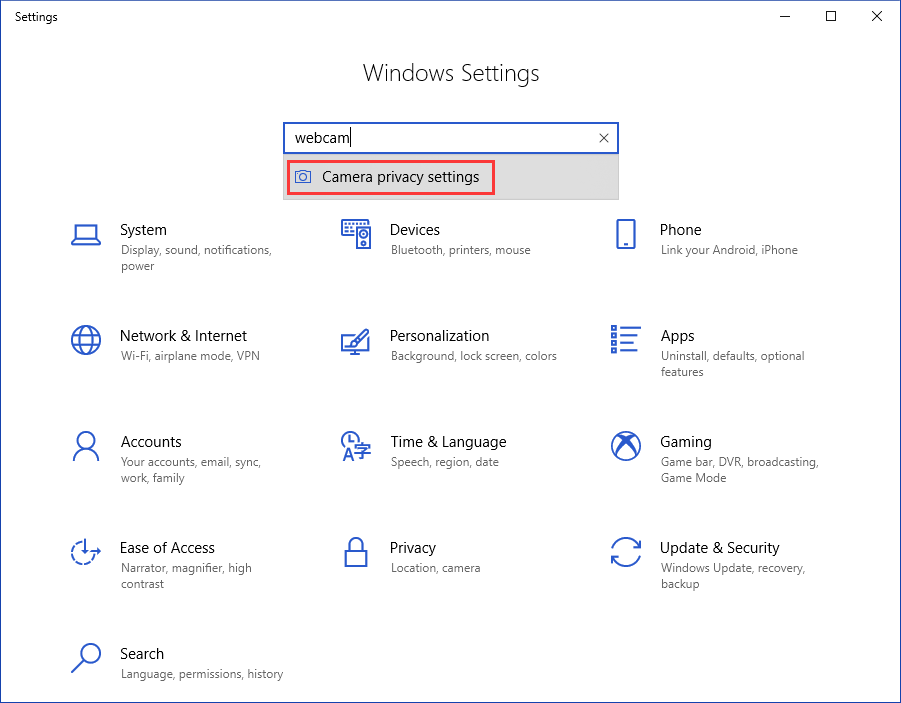
- On Windows, go to Settings > Privacy & security > Camera and allow access.
- On macOS, open System Settings > Privacy & Security > Camera and enable apps.
-
Use the built-in camera app
- Open the Camera app on Windows or Photo Booth on macOS to test the camera.
- If the camera works there, the problem is app-specific.
-
Check Device Manager or System Report
- On Windows, open Device Manager and look under Cameras or Imaging devices for errors.
- On macOS, use System Report > Camera to confirm the system detects the device.
-
Update or reinstall the camera driver
- On Windows, right-click the camera in Device Manager and choose Update driver or Uninstall device, then restart.
- On macOS, ensure the system is up to date; Apple bundles camera drivers with macOS updates.
-
Run system updates
- Install pending OS updates. Updates often include fixes for device drivers.
- Reboot after updates and test the camera.
-
Check antivirus and privacy apps
- Temporarily disable camera privacy tools or antivirus features that block the camera.
- Re-enable them after testing.
-
Try an external webcam
- Plug in a USB webcam to determine if the issue is internal hardware.
- If an external webcam works, internal hardware or connector is likely the issue.
These steps handle most common cases of why is my laptop camera not working.

PAA-style: How can I fix my laptop camera quickly?
Start with a restart, check the shutter, then verify camera permissions in your OS. If that fails, update or reinstall the camera driver.
PAA-style: Why does my camera show a black screen?
A black screen usually means the driver isn’t working, the lens is blocked, or another app has exclusive control. Test with the system camera app to isolate the cause.
Advanced fixes and diagnostics
If basic steps don’t help, try these advanced methods. These require caution and, in some cases, professional help.
-
Reinstall camera drivers from the vendor
- Download drivers from your laptop maker if available. Install them with the laptop connected to power.
- Reboot and test the camera.
-
Check BIOS or UEFI settings
- Restart and enter BIOS/UEFI. Look for an integrated camera or security option that might disable the camera.
- Enable the camera if disabled and save settings.
-
Use System Restore or rollback updates
- If the camera stopped working after an update, use System Restore on Windows to revert to an earlier state.
- On macOS, consider reinstalling macOS if driver issues persist.
-
Inspect hardware connections
- If you are comfortable opening the laptop, check the ribbon cable that connects the camera to the motherboard.
- Loose or damaged cables can cause intermittent failures. If unsure, seek a technician.
-
Replace the camera module
- Internal cameras are replaceable on many models. Obtain a compatible part and have a technician install it.
- Compare repair cost to laptop value before proceeding.
These advanced steps explain deeper causes behind why is my laptop camera not working and what to do if the usual fixes fail.
Prevention tips
Small habits can prevent future camera problems. Follow these tips to keep your camera working.
- Keep drivers and OS updated regularly.
- Avoid obstructing the lens with stickers or heavy covers.
- Use trusted antivirus software and review its camera settings.
- Check app permissions after installing new software.
- Back up important files before major OS updates or driver changes.
These simple steps reduce the chance you’ll ask again why is my laptop camera not working.

Personal experience and practical tips
I once fixed a friend’s laptop where the camera showed a black screen. A sticker on the bezel and a blocked permission were both the culprits. Removing the sticker and enabling camera access fixed it in five minutes.
From my work repairing dozens of laptops, the most common root causes are drivers and permissions. I learned to always test the camera with the system app first. That step tells you whether the issue is hardware or app-specific and saves time.
A lesson learned: don’t rush to replace parts. Test the simple fixes first. If you do open a laptop, take photos of cable positions and use an anti-static wrist strap.
Frequently Asked Questions of why is my laptop camera not working
Why is my laptop camera not working after an update?
Updates can change drivers or permissions. Try reinstalling the camera driver and check camera permissions; a restart often completes the fix.
How do I enable my laptop camera in Windows 11?
Open Settings > Privacy & security > Camera. Turn on camera access for the device and for apps that need it.
Why does my camera say “in use” but no app is open?
A background process or stuck app may hold the camera. Use Task Manager to close camera-related processes and try again.
Can antivirus block my camera?
Yes. Some antivirus or privacy apps block camera access to protect privacy. Temporarily disable the camera-blocking feature and test the camera.
How can I tell if it’s a hardware issue?
If an external USB webcam works but the built-in camera does not, the internal camera or its cable is likely faulty. Professional inspection can confirm hardware failure.
My camera shows low quality video. How do I improve it?
Close background apps to free resources, increase lighting, clean the lens gently, and check camera settings in your app for resolution options.
Is it safe to use third-party driver tools?
Third-party driver tools can be risky and may install incorrect drivers. Prefer official drivers from your laptop maker or use Windows Update.
Conclusion
You can solve most cases of why is my laptop camera not working by checking the shutter, confirming permissions, restarting the laptop, and updating drivers. Start with the simple steps; they fix most problems fast. If the camera still fails, consider firmware settings, hardware checks, or professional repair.
Try the troubleshooting steps above and leave a comment about what worked for you. If you found this guide helpful, subscribe for more practical tech fixes and share the article with someone who needs a quick camera fix.