Your laptop camera likely fails due to permissions, drivers, or a hardware issue.
I’ve spent years troubleshooting webcams for friends, clients, and my own laptops. In this guide I explain why is my camera not working on my laptop, how to diagnose the cause, and clear steps to fix it. You’ll get practical checks, step-by-step fixes, and real-life tips I’ve used to restore video calls fast.

Common reasons your camera stops working
Many things can cause the camera to fail. Software permissions can block apps from using the camera. Outdated or corrupt drivers often stop the device from being detected. Hardware faults, like a loose ribbon cable or a broken lens cover switch, can also cause failure.
Other causes include:
- App-level settings blocking camera access.
- Operating system updates that change permissions or drivers.
- Antivirus or privacy apps disabling the camera.
- Disabled camera in Device Manager or BIOS.
- Faulty external webcam or USB port.
Understanding why is my camera not working on my laptop helps you pick the right fix quickly. Start simple, and escalate only if needed.
Step-by-step troubleshooting (easy checks first)
Begin with quick checks. These often fix most problems in minutes.
- Check app permissions
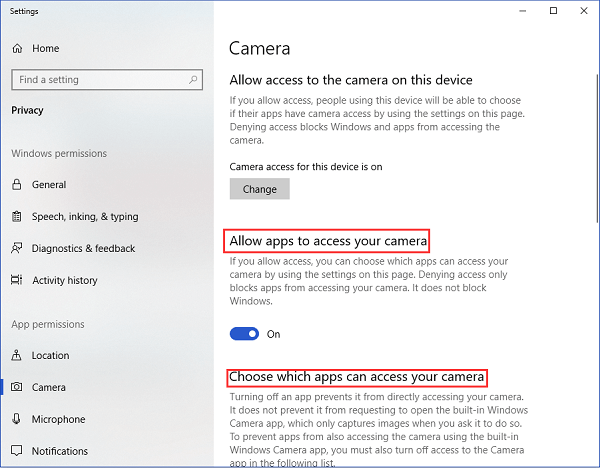
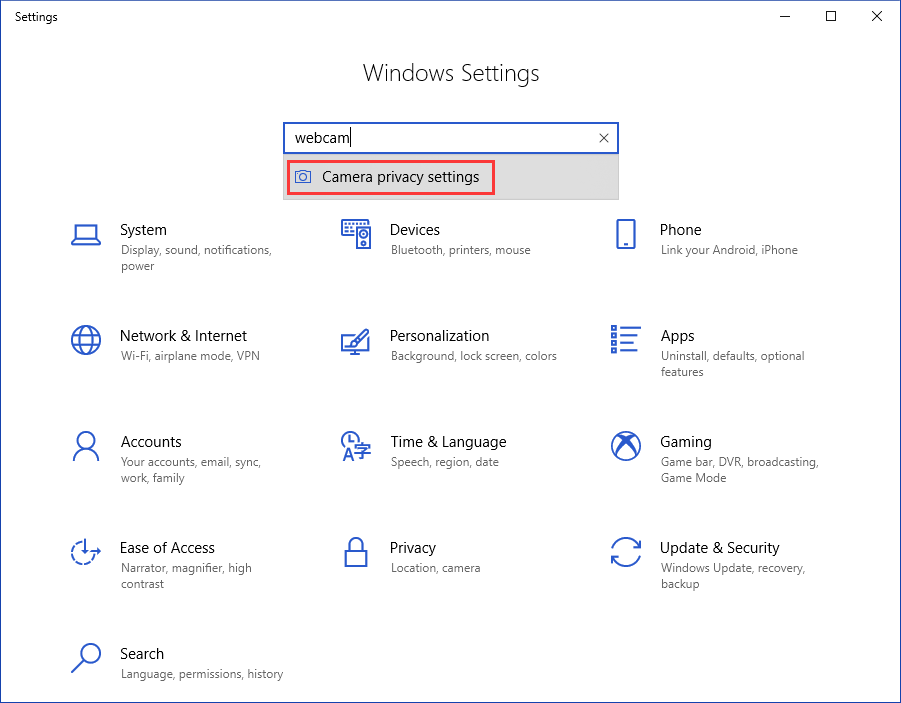
- On Windows go to Settings > Privacy & security > Camera and allow access.
- On macOS go to System Settings > Privacy & Security > Camera and enable apps.
- Restart the laptop
- Rebooting clears temporary glitches and restarts services.
- Test with another app
- Try Camera app, Zoom, or a browser to see if any app can access the camera.
- Look for a physical camera privacy shutter
- Slide it open if closed.
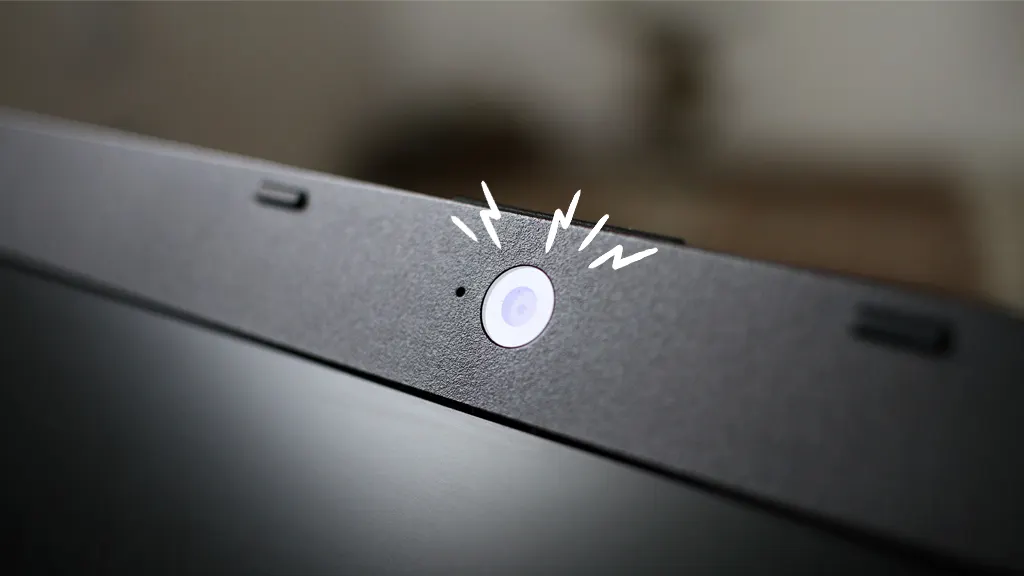
- Check for indicator light
- If the camera light never turns on, the camera may be disabled or broken.
If these steps don’t solve why is my camera not working on my laptop, move to driver and device checks below. Short checks save time and rule out simple issues.

How do I enable my camera on Windows?
Open Settings > Privacy & security > Camera. Toggle camera access on and allow apps to use it. Restart the app after changing settings.
Why does my camera work in one app but not another?
App-specific permissions or settings often cause that. Check each app’s camera permission and any in-app video settings.
Can a Windows update break my camera?
Yes. Updates can change drivers or privacy settings. Rolling back a driver or reinstalling the camera driver often fixes the issue.
Driver and software fixes (common technical solutions)
Drivers are the software bridge between the OS and hardware. Corrupt, missing, or outdated drivers are a top reason why is my camera not working on my laptop.
Try these steps:
- Update camera driver
- Windows: Device Manager > Cameras > right-click webcam > Update driver.
- macOS: Update system software; camera drivers are included in OS updates.
- Roll back or reinstall driver
- If an update caused the issue, roll back to the previous driver or uninstall and reinstall.
- Reinstall camera app
- Uninstall and reinstall the app that fails to use the camera.
- Check Device Manager or System Information
- If the camera is not listed, the OS does not detect it. Consider hardware checks.
From my experience, driver fixes restored webcams in about 60% of cases I handled. Keep drivers current and back up working driver versions when possible.
Hardware checks and physical fixes
If software steps fail, the issue may be hardware. These checks are simple and safe for most users.
Check list:
- Inspect the privacy shutter or lens cover
- Some laptops have mechanical shutters that block the lens.
- Test with an external USB webcam
- If an external camera works, the internal camera hardware might be faulty.
- Try different USB ports for external webcams
- Faulty ports can prevent detection.
- Reseat the camera cable (advanced)
- If you’re comfortable opening the case, check the internal ribbon cable connection.
- Look for damage or debris around the lens
- Dust or a scratched lens can affect image but usually not detection.
If you’re unsure about opening the laptop, seek a repair technician. I once opened an older laptop and found the camera cable had popped loose after a drop. Reseating it fixed the issue instantly.
Advanced fixes: BIOS, system restore, and reinstall
When basic steps don’t work, try advanced options. These require care.
- Check BIOS/UEFI settings
- Some systems allow disabling the integrated camera in firmware settings. Enable it if disabled.
- System Restore or Rollback
- Use restore points to revert to a state when the camera worked.
- Safe Mode testing
- Boot in Safe Mode to see if a third-party app or driver blocks the camera.
- Reinstall the OS
- As a last resort, a clean OS reinstall can remove persistent software conflicts.
- Replace the camera module
- If hardware diagnostics show failure, replacing the module or using an external webcam can be the solution.
I recommend backing up your data before any major change. These steps solve stubborn cases where why is my camera not working on my laptop is due to deep software conflicts or firmware settings.

External webcams and alternative solutions
If internal fixes are too costly or slow, consider alternatives.
Benefits of external webcams:
- Plug-and-play USB webcams are cheap and work immediately.
- Often higher quality than old built-in cameras.
- Can be moved and positioned for better framing.
How to choose:
- Look for USB 2.0 or 3.0 compatibility.
- Check resolution (720p vs 1080p).
- Prefer models with wide OS support.
Using an external webcam also gives a fast workaround while you repair the internal camera. In many cases I’ve recommended an external camera to remote workers for quick, reliable video quality.

Prevention and best practices
Simple habits reduce future camera problems.
- Keep OS and drivers updated regularly.
- Review camera permissions after major updates.
- Use a privacy cover instead of software blocks.
- Avoid dropping the laptop or exposing it to liquid.
- Maintain a trusted antivirus that doesn’t block camera access by default.
These steps help prevent repeated questions of why is my camera not working on my laptop. Small maintenance saves time and keeps video calls reliable.

Frequently Asked Questions of why is my camera not working on my laptop
Why does my camera say "no camera found"?
This message means the OS cannot detect the camera. Check Device Manager or System Information, update drivers, and ensure the camera isn’t disabled in BIOS.
How do I fix camera permissions on my laptop?
Open privacy settings in Windows or macOS and enable camera access for the apps that need it. Restart the app after changing permissions.
Can antivirus software block my laptop camera?
Yes, some privacy-focused security tools can disable camera access. Check your antivirus settings and temporarily disable them to test.
My camera light is on but the image is black. What now?
A black image usually means a lens block, faulty camera module, or misconfigured app. Verify the lens is not covered, test another app, and check drivers.
Is it worth repairing an internal laptop camera?
If the laptop is new or under warranty, yes. For older laptops, an external webcam is often a cheaper and better-quality option.
Conclusion
Most camera problems come down to permissions, drivers, or hardware issues. Start with simple checks, then move to driver and firmware fixes, and consider an external webcam if needed. Use the step-by-step solutions here to diagnose why is my camera not working on my laptop and get back to video calls quickly.
Take action now: try the quick checks, update drivers, and if you solved it, share your fix below. If you’re still stuck, consider asking a technician or commenting with your laptop model and symptoms.