Most Dell laptops use a function key (often F1–F12 with a crescent/moon icon) or the power button to sleep.
I’ve worked on dozens of Dell laptops and taught people how to save battery and secure data. This guide explains exactly where is sleep button on dell laptop, how to find it by model, alternate sleep methods, and fixes when sleep won’t work. Read on for quick, clear steps you can use right now.

Where to look: common sleep button locations on Dell laptops
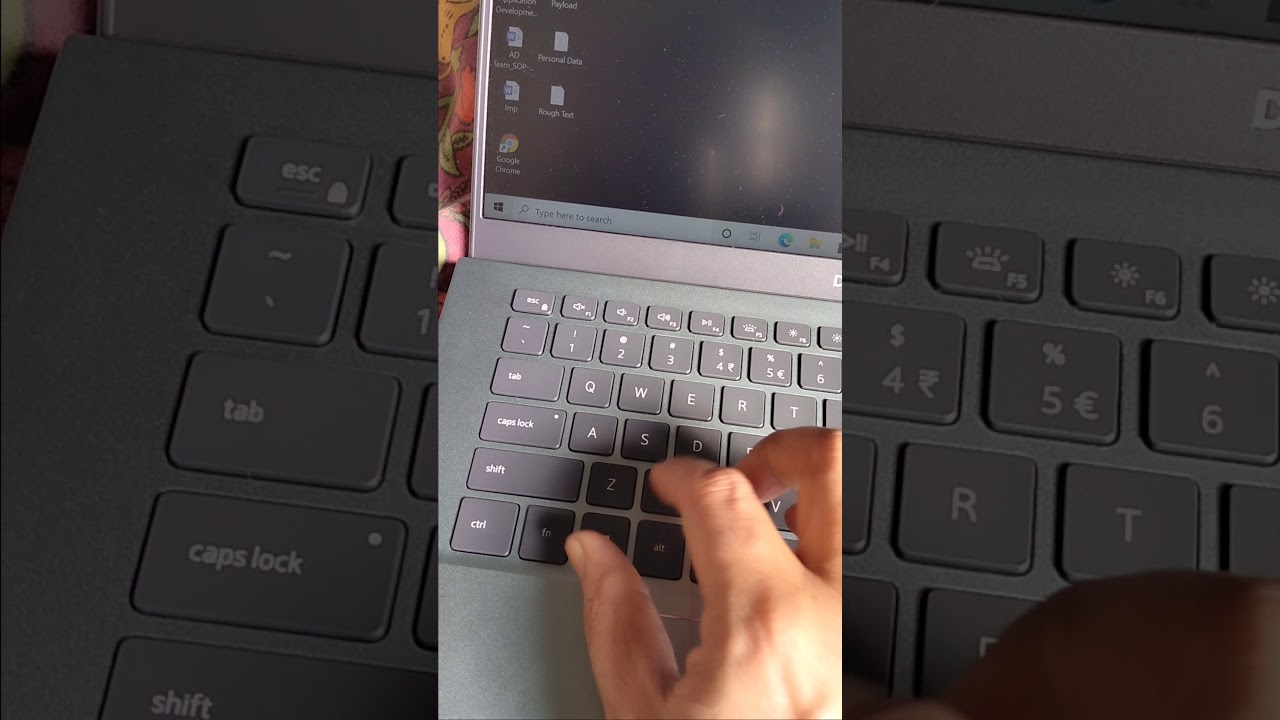
On many Dell laptops, the sleep key is not a single labeled button. Look for a key with a crescent or moon icon. This key often doubles as one of the F-keys (F1–F12). You may need to press the Fn key with that F-key to trigger sleep.
Some newer Dell models use the power button for sleep by default. Pressing the power button briefly may put the laptop to sleep. Other Dell laptops rely on Windows power options and the lid close action instead of a dedicated sleep button.
If you ask “where is sleep button on dell laptop” for your model, check the top row of keys and the power button first. Many users find it there within seconds.

Where is sleep button on dell laptop by model
Different Dell lines place sleep controls in different spots. Here are common patterns.
- Inspiron series
- Often uses a function key with a moon icon. The key may be F2, F3, or F12 depending on layout.
- Some Inspiron models use the power button as a sleep trigger.
- XPS series
- Many XPS laptops use the power button for sleep or have an F-key with a moon icon.
- On compact XPS keyboards, the sleep symbol may be on a smaller top-row key.
- Latitude and Precision
- Business models may use the power button or a function key assigned to sleep.
- IT teams often configure the power button behavior via settings or BIOS.
- G-series and Alienware
- Gaming laptops sometimes lack a dedicated sleep icon on F-keys.
- Use Windows power options or the power button to sleep these models.
If you still wonder where is sleep button on dell laptop for your model, check the user manual or quick start leaflet. Manuals show keyboard legends and power functions.
Alternate ways to put a Dell laptop to sleep
Sometimes there is no dedicated sleep button. Try these simple methods.
- Use the Start menu
- Click Start > Power > Sleep.
- Use keyboard shortcuts
- Press Windows key + X then U then S on some Windows builds.
- If you have a sleep icon on an F-key, press Fn + that F-key.
- Close the lid
- By default, closing the lid puts the laptop to sleep. You can change this in Power Options.
- Use the power button
- A quick press often sleeps the laptop. Long press forces shutdown.
- Use the battery icon
- Right-click the battery icon in the taskbar and pick Sleep if available.
- Use hardware docks or docking stations
- Some docks have a sleep or power button that controls the laptop.
These alternatives are handy when you ask “where is sleep button on dell laptop” and can’t find a key.

Troubleshooting when sleep doesn’t work
If your Dell won’t sleep, try these steps. They are quick and reliable.
- Check Power Options
- Open Control Panel > Power Options and verify sleep settings are enabled.
- Update drivers
- Old graphics or chipset drivers can block sleep. Update drivers from Dell or Windows Update.
- Inspect device wake settings
- Run Device Manager and check network adapters and mice. Disable “Allow this device to wake the computer” if needed.
- Check hybrid sleep and hibernate
- Turn off hybrid sleep to isolate problems. Check hibernate settings too.
- BIOS/UEFI settings
- Some Dell BIOS settings control power button behavior and sleep states. Update BIOS and check settings.
- Fast Startup
- Try disabling Fast Startup in Windows. It can interfere with sleep on some systems.
When you search for “where is sleep button on dell laptop” you might find the solution lies in settings not the keyboard. These steps usually fix stubborn sleep issues.

Practical tips and best practices for sleep on Dell laptops
Use sleep wisely to save power and keep work secure.
- Use sleep for short breaks
- Sleep saves battery and resumes fast. Use hibernate for long breaks.
- Save work before sleep
- Rare driver issues can cause data loss. Save work often.
- Manage peripherals
- USB devices can prevent sleep. Eject or disable them if sleep fails.
- Adjust lid and power button actions
- Set actions in Power Options to match how you use the laptop.
- Test after updates
- After Windows or driver updates, test sleep to catch problems early.
From my experience, I learned to teach clients to use lid close and the Start menu as reliable sleep methods. If you ever doubt “where is sleep button on dell laptop,” these practices keep you productive.

My personal experience and lessons learned
I once helped a coworker who could not find the sleep button on a Dell XPS. The key row had no moon icon. The power button was set to sleep, but Windows updates had reset the behavior. We fixed it in Power Options and updated drivers. The laptop returned to normal and boot times stayed fast.
Lesson learned:
- Don’t assume a missing sleep icon means no sleep function. Check power settings and the power button.
- Keep drivers and BIOS updated to avoid sleep bugs.
If you ask where is sleep button on dell laptop during support calls, I often guide users to try the power button and the Start menu first. It saves time and avoids confusion.

Frequently Asked Questions of where is sleep button on dell laptop
Where is the sleep button on my Dell keyboard?
Look for a crescent or moon icon on the top row or use the power button. If none exist, use Start > Power > Sleep or close the lid.
How do I make the power button put my Dell laptop to sleep?
Open Control Panel > Power Options > Choose what the power buttons do. Set the power button to Sleep and save changes.
Why won’t my Dell laptop go to sleep?
Common causes include outdated drivers, devices allowed to wake the PC, Fast Startup, or BIOS settings. Check these areas and update drivers to fix the issue.
Can I assign a custom sleep key on Dell laptops?
Yes. You can use third-party tools or Windows PowerToys to remap keys. Be careful and back up settings before you remap.
Is sleep different from hibernate on a Dell laptop?
Yes. Sleep keeps state in RAM for fast resume and uses small power. Hibernate saves state to disk and uses no power, which is better for long storage.
Conclusion
Finding where is sleep button on dell laptop is usually quick. Check the top row for a moon icon, try the power button, or use the Start menu and lid close actions. If sleep fails, follow the simple troubleshooting steps above and keep drivers and BIOS updated. Try these tips today to save battery and speed up resume times. Share your experience or ask a question below — I’ll help you troubleshoot your exact Dell model.