Use a microfiber cloth lightly dampened with distilled water or a 70% isopropyl alcohol mix.
I’ve cleaned dozens of laptops as a tech and written guides for safe screen care, so this article gives clear, tested advice on what to use to clean laptop screen safely and effectively. Read on for step-by-step directions, safe product picks, things to avoid, tips for different screen types, and real-world tips from my experience so you can clean with confidence.

Why cleaning your laptop screen matters
A clean screen improves clarity and reduces eye strain. Dust, fingerprints, and oils build up fast and can blur text and colors.
Regular cleaning also protects screen coatings. Using the wrong material or liquid can scratch the surface or strip anti-reflective coatings. Knowing what to use to clean laptop screen keeps the display working and looking its best.
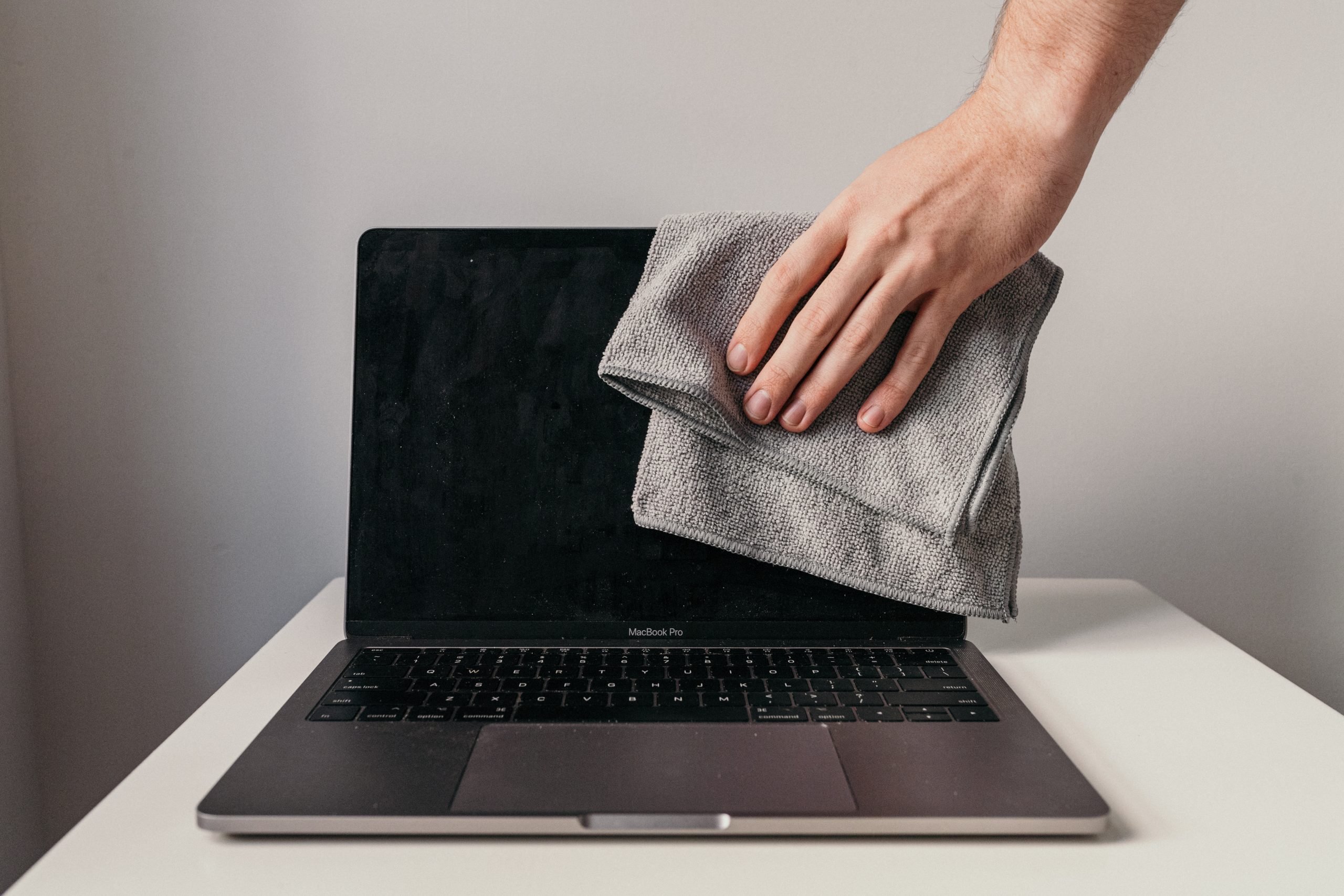
What to use to clean laptop screen: safe tools and liquids
Choose tools and liquids that are gentle, lint-free, and low-moisture.
- Microfiber cloth
- Soft, lint-free, and designed for optics. This is the single best item for what to use to clean laptop screen.
- Distilled water
- Use for most light cleaning. It avoids mineral spots that tap water can leave.
- Isopropyl alcohol (70% or less), mixed
- For greasy fingerprints, use a 50/50 mix of distilled water and 70% isopropyl alcohol. Some manufacturers approve this method. Check your laptop’s guidance before use.
- Commercial electronics screen cleaners
- Formulated for screens and often safe. Pick products labeled safe for laptops or monitors.
- Spray bottle and squeeze bottle
- Use to dampen the cloth, never spray the screen directly.
What not to use is as important as what to use to clean laptop screen.
- Avoid paper towels, tissues, or napkins; they scratch screens.
- Avoid window cleaners with ammonia, bleach, or hydrogen peroxide.
- Avoid abrasive sponges and household cleaners.

Step-by-step guide: how to clean your laptop screen safely
Follow these steps to clean most laptop screens.
- Power down and unplug the laptop.
- Close the lid and hold the laptop at an angle to remove loose dust with a dry microfiber cloth.
- If needed, dampen the cloth with distilled water or a 50/50 distilled water and 70% isopropyl alcohol mix.
- Wipe gently with light, even strokes from top to bottom. Do not press hard.
- If streaks remain, buff lightly with a dry part of the microfiber cloth.
- Let the screen dry fully before closing or powering on.
Always avoid spraying liquids directly on the screen. The safest answer for what to use to clean laptop screen is a lightly damp microfiber cloth with distilled water or a diluted alcohol solution.
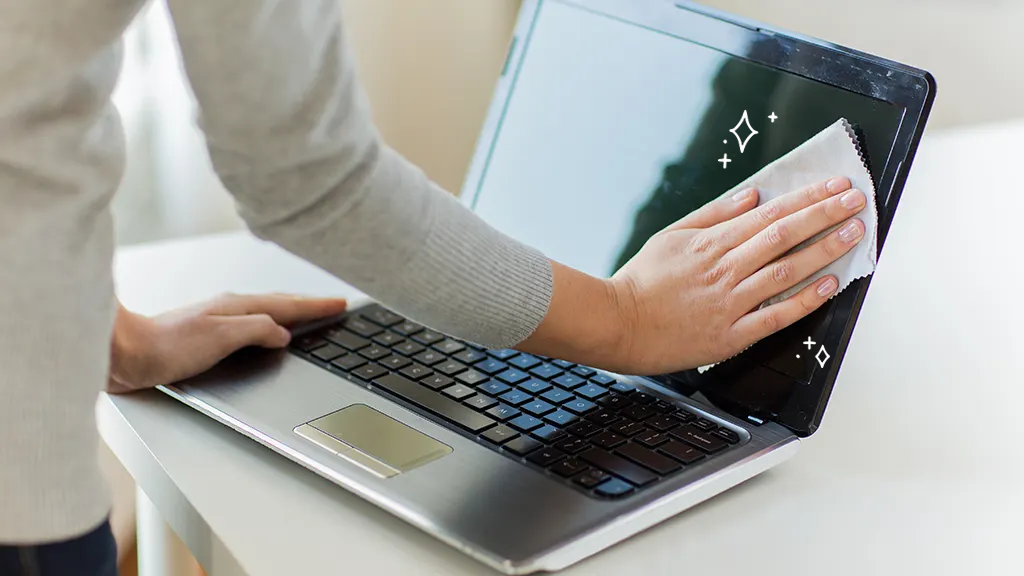
Cleaning different screen types: matte, glossy, touchscreen, and OLED
Screens behave differently. Pick the right method for each.
- Matte screens
- Use a dry microfiber first. For stubborn marks, use distilled water. Matte coatings can scratch, so avoid alcohol unless manufacturer allows.
- Glossy screens
- These show fingerprints more. A damp microfiber with distilled water or diluted alcohol works well.
- Touchscreens
- Use only approved cleaners or a 50/50 distilled water and 70% isopropyl alcohol mix if allowed. Touchscreens often have special coatings that can wear over time.
- OLED and high-end displays
- Be extra cautious. Use distilled water first and check manufacturer advice before using alcohol. Do not press hard; pixels can be sensitive.
Knowing what to use to clean laptop screen varies by screen type. When in doubt, use the gentlest option first.
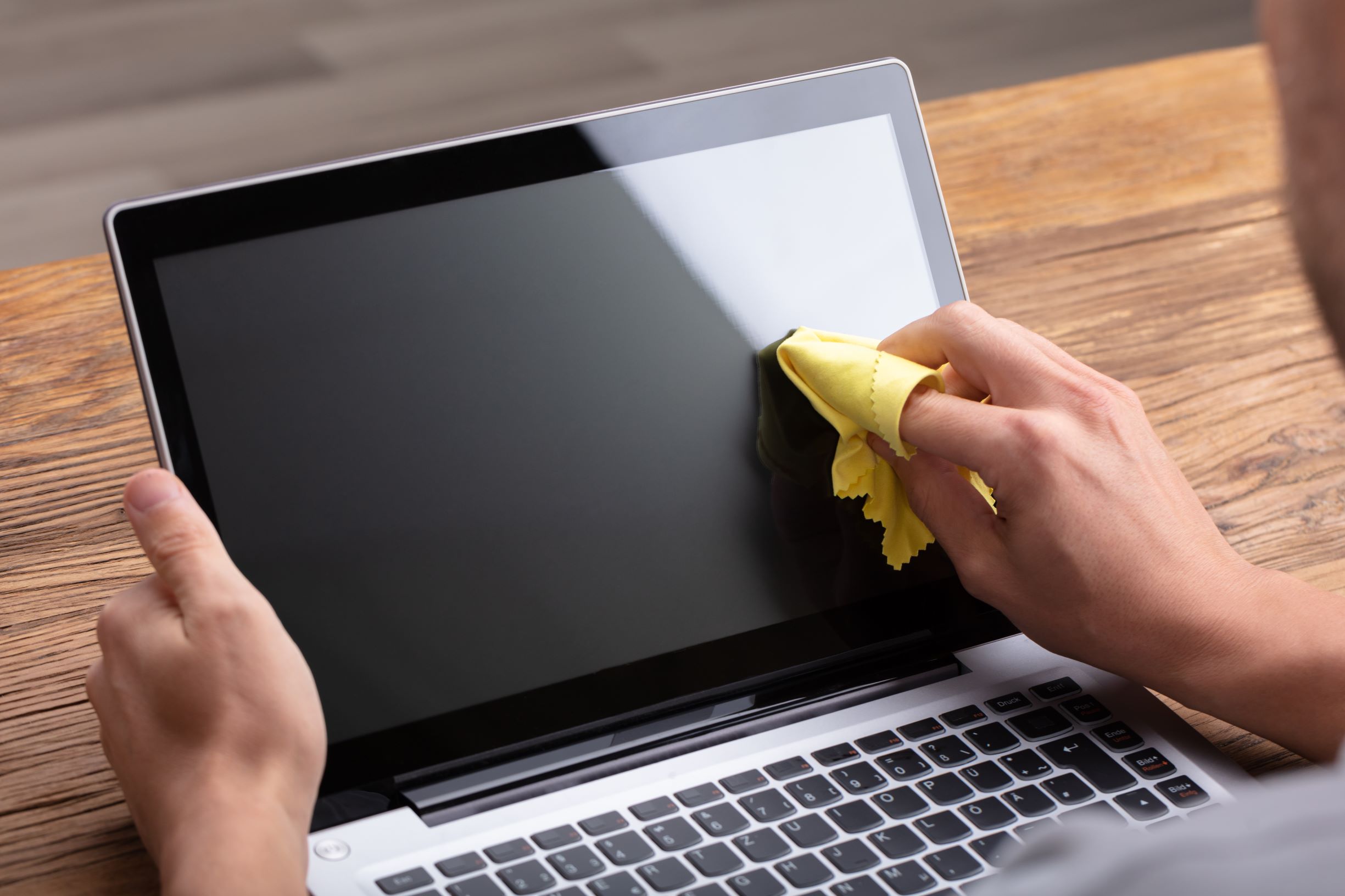
Homemade solutions and safety
DIY mixes can work. Keep them simple and safe.
- Distilled water alone
- Safest for regular dust and light smudges.
- 50/50 distilled water and 70% isopropyl alcohol
- Good for oils and disinfecting. Check if your laptop maker approves before regular use.
- Avoid vinegar or ammonia
- These can damage anti-reflective and oleophobic coatings.
Store solutions in a clean, labeled spray bottle and always dampen the cloth — never spray the screen. If you see any change in coating or color after cleaning, stop and contact support.
How often to clean and maintenance tips
Clean frequency depends on use and environment.
- Light users
- Wipe with a microfiber cloth once every 1–2 weeks.
- Heavy users or shared laptops
- Clean weekly, or more if you touch the screen often.
- If you eat near your laptop
- Clean immediately after spills or splashes.
Maintenance tips from my experience:
- Keep a small microfiber cloth in your laptop bag.
- Wash microfiber cloths without fabric softener to keep them effective.
- Avoid applying pressure that can cause panel distortion.

Common problems and how to fix them
Here are common issues and quick fixes.
- Streaks after cleaning
- Buff the screen with a dry microfiber cloth using light strokes.
- White spots or residue
- Use distilled water to remove mineral deposits. If residue persists, repeat with a fresh microfiber cloth.
- Scratches
- Scratches are usually permanent. Avoid abrasive cleaners and never use paper towels.
- Coating wear or clouding
- This can result from harsh chemicals or rough cloths. Stop cleaning with alcohol if you notice changes and consult support.
Choosing the right materials is the main prevention for most problems. Knowing what to use to clean laptop screen helps you avoid damage and extend the life of the display.

Personal experience and lessons learned
I’ve cleaned dozens of displays while repairing laptops. Early on I used too-strong cleaners and learned coatings wear quickly. Now I always start dry, then use distilled water. For greasy workstations, a 50/50 mix works but sparingly.
A lesson I learned: small effort prevents big problems. Regular, gentle wipes keep screens clear without risking damage. If a screen looks odd after cleaning, stop and ask a professional.
Frequently Asked Questions of what to use to clean laptop screen
What is the safest thing to use on laptop screens?
Use a clean microfiber cloth and distilled water. For fingerprints, a 50/50 mix of distilled water and 70% isopropyl alcohol is often safe if the maker allows it.
Can I use glass cleaner or Windex on my laptop screen?
No. Glass cleaners often contain ammonia and can strip coatings and cause clouding or discoloration.
How do I remove oily fingerprints without damaging the screen?
Dampen a microfiber cloth with distilled water or a 50/50 distilled water and 70% isopropyl alcohol mix, then wipe gently without pressing hard.
Can I use paper towels or tissues to clean the screen?
Avoid paper towels and tissues. They can scratch and leave lint. Microfiber cloths are best.
Is it safe to spray the cleaner directly on the screen?
No. Spray the cleaner on the cloth, not the screen, to avoid liquid seeping into the device and causing damage.
Conclusion
Choose gentle, lint-free tools and low-mineral liquids to protect your display. A microfiber cloth with distilled water is the safest everyday option, and a diluted isopropyl mix can handle stubborn oils if your laptop maker allows it. Clean regularly, use the gentlest method first, and keep solutions off internal parts to avoid damage.
Take action today: pick up a quality microfiber cloth and distilled water, try the safe steps above, and leave a comment about your results or questions.