A laptop hard drive is a slim rectangular module or small stick-like card that fits into a laptop bay.
I’ve worked on laptops for years and I’ll walk you through exactly what does a laptop hard drive look like, how to tell different types apart, and what visual cues matter when you open or buy a laptop. You’ll learn to spot 2.5-inch HDDs, SATA SSDs, M.2 NVMe sticks, and soldered storage, with clear photos in mind and practical tips from hands-on experience. Read on to get a clear mental picture and confident next steps for inspection, replacement, or upgrade.

What does a laptop hard drive look like?
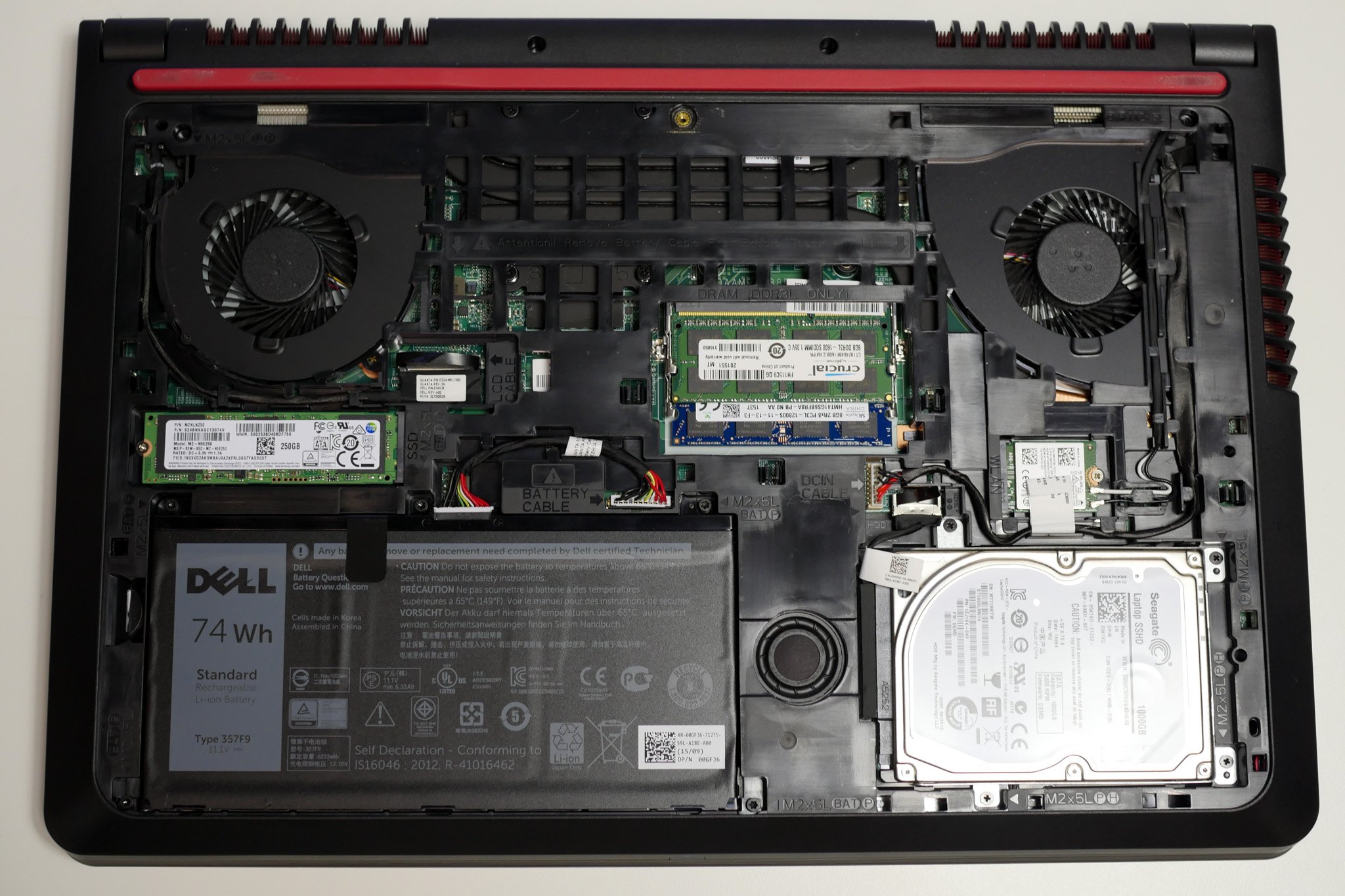
A laptop hard drive can look very different depending on type. Many laptops still use a 2.5-inch rectangular drive. It is about the size of a deck of cards and usually metal with a label on top. Other laptops use slim circuit-board style drives called M.2 that look like a short stick with gold contacts at one end. Some very thin laptops use small chips soldered to the motherboard; these look like tiny black rectangles and are not removable.
What does a laptop hard drive look like when you open a laptop? You will see one of these shapes:
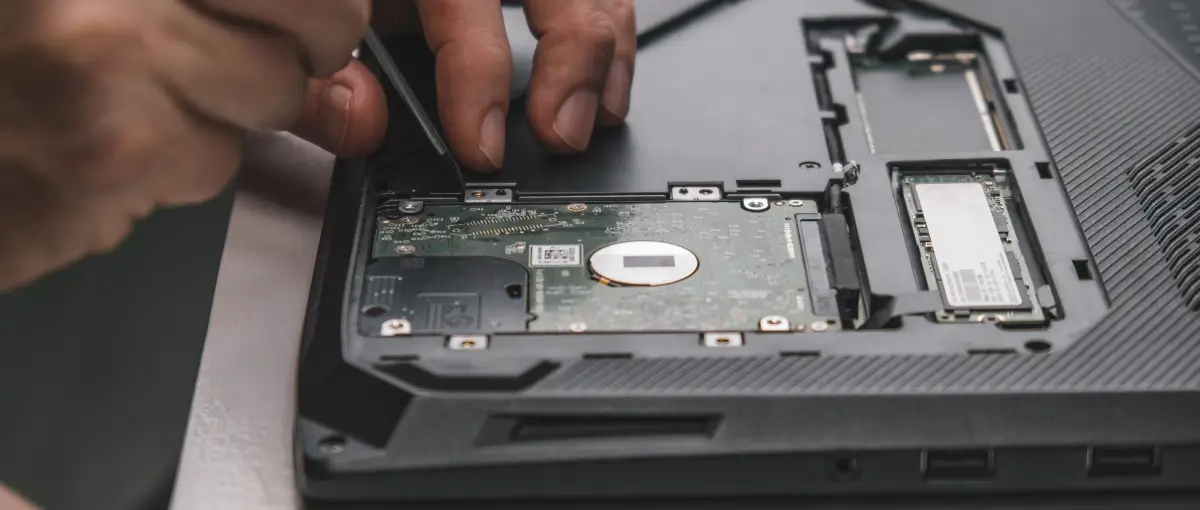
- 2.5-inch drive: a flat metal case with mounting holes and a SATA connector.
- M.2 drive: a slim PCB 22 mm wide by 30–110 mm long with a single notch and a screw hole.
- Soldered flash: tiny chip packages near the CPU or under shielding.
From my bench work, seeing the label, connector, and size quickly tells you what you have. Knowing what does a laptop hard drive look like helps you order the right replacement or upgrade.

Common laptop hard drive types and what each looks like
Laptops use a few standard forms of storage. Each has a distinct look and feel.
2.5-inch HDD (spinning disk)
- Appearance: flat rectangular metal box about 2.75 inches wide and 0.37–0.75 inches thick.
- Visual cues: label with capacity and RPM, SATA data and power connector on one side, sometimes a plastic frame.
- Notes: heavier and thicker than flash drives. If you open the case you’ll see a round spindle area inside.
2.5-inch SATA SSD (solid state drive)
- Appearance: same size as the HDD but lighter and often thinner.
- Visual cues: label with model and capacity, SATA connectors, and a mostly flat internal PCB.
- Notes: looks like a small thin book, generally simpler label than an HDD.
M.2 drives (SATA or NVMe)
- Appearance: long slim stick, widths like 22 mm, lengths like 42, 60, 80, or 110 mm.
- Visual cues: one edge with gold contacts, single mounting screw hole, chips on one or both sides.
- Notes: looks like a RAM stick but much smaller. M.2 NVMe often uses multiple flash packages and a controller chip.
mSATA and mini PCIe-style SSDs
- Appearance: small rectangles similar to older Wi‑Fi cards.
- Visual cues: gold fingers and mounting hole, smaller than M.2.
- Notes: common in older ultrabooks.
Soldered eMMC or UFS chips
- Appearance: tiny black square or rectangular chips soldered to the board.
- Visual cues: multiple tiny chips near the processor, no connectors or screws.
- Notes: non-removable on many tablets and ultra-thin laptops.
From experience, the easiest way to tell is by size and connector. If you can see gold contacts and a single screw, it’s likely an M.2. If it’s a flat metal block with two side connectors, it’s probably a 2.5-inch drive.
How to identify and inspect a laptop hard drive physically
Follow simple steps to identify what does a laptop hard drive look like without damaging the machine.
Step-by-step inspection
- Power off and remove battery if possible. Safety first.
- Open the access panel or remove the back cover following the manual. Keep screws organized.
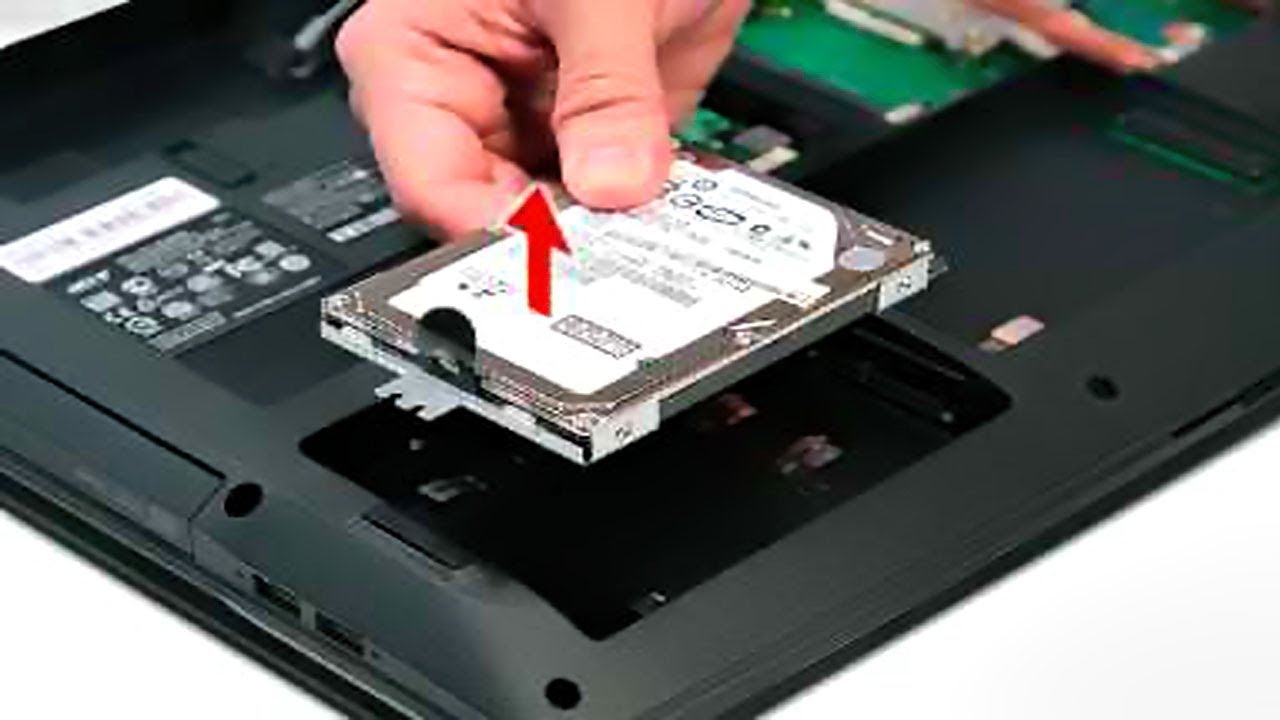
- Look for the drive bay. A 2.5-inch drive usually sits in a bay with a cable or connector. M.2 drives are slotted into the motherboard with a single screw.
- Read the label. Model, capacity, interface (SATA, PCIe), and form factor are typically printed on the label.
- Check connectors. SATA has a two-piece right-angle connector. M.2 uses edge contacts. Soldered chips have no plug.
What to note on the label
- Form factor and interface words like “2.5”, “M.2”, “SATA”, “NVMe”, or “PCIe”.
- Capacity and model number for cross-referencing.
- Firmware or serial numbers for warranty.
In my workshop, I always photograph the original drive and its connector before removal. That saved time matching cables and ordering replacements many times.
Practical tips for handling, replacing, and upgrading laptop hard drives
Simple care keeps drives safe. These are practical tips I use daily.
Preparing for a swap
- Back up data first. Always create a full image or copy important files.
- Check compatibility. Confirm the laptop accepts the form factor and interface you plan to use.
- Gather tools. Small Phillips screwdrivers, anti-static wrist strap, and a plastic pry tool help.
Handling tips
- Ground yourself to avoid static shocks to the drive’s electronics.
- Hold M.2 drives by the edges. Avoid touching gold contacts.
- Reuse mounting screws and caddies as needed to secure the drive.
Upgrade tips
- Upgrading to an SSD often gives the best speed improvement. Replace a 2.5-inch HDD with a 2.5-inch SATA SSD or add an M.2 NVMe if slot exists.
- Check BIOS/UEFI for NVMe support before buying an NVMe drive.
- Be aware of thermal issues: some thin laptops need heatsinks or thermal pads for high-performance NVMe drives.
From my experience, people often try to fit the wrong size M.2 (length) or forget the keyed notch. Measure first to avoid returns.
People also ask (PAA-style questions)
What does a laptop hard drive look like inside?
Inside a traditional laptop hard drive you’ll find shiny circular platters and an actuator arm. Solid state drives have circuit boards with flash chips and a controller chip.
Can I tell if a drive is SSD or HDD just by looking?
Yes. HDDs are thicker metal boxes and heavier, while SSDs are lighter flat blocks or small stick-like M.2 cards with visible chips. Labels and connectors also give it away.
Do all laptops use the same hard drive shape?
No. Laptops may use 2.5-inch drives, M.2 sticks, mSATA cards, or soldered flash. The design depends on the laptop’s age and thickness.
Frequently Asked Questions of what does a laptop hard drive look like
What size is a typical laptop hard drive?
Most common laptop hard drives are 2.5 inches for HDD and SATA SSD, or M.2 sizes like 2242, 2260, or 2280 for NVMe and M.2 SATA. Ultra-thin laptops can have soldered chips instead.
How can I tell if my laptop uses M.2 or SATA storage?
Open the access panel and look for a small stick with gold edge contacts and a single screw for M.2. A SATA drive is a larger rectangular block with two side connectors. The label may also indicate M.2, SATA, or NVMe.
Is a soldered chip a laptop hard drive?
Soldered storage like eMMC or UFS acts as the laptop’s hard drive but is not removable and looks like small black chips on the motherboard. It functions like a drive but cannot be swapped out easily.
Will any M.2 drive fit any M.2 slot?
Not always. M.2 slots support different lengths and interfaces. Check if the M.2 slot supports NVMe (PCIe) or only SATA, and confirm the length supported by your laptop.
What if my drive has no label?
If a drive has no clear label, look for part numbers on the PCB, check the laptop manual, or use system tools to detect the model electronically. If still unsure, photograph the connector and form factor, then consult a technician.
Conclusion
You now have a clear sense of what does a laptop hard drive look like and how to tell types apart at a glance. Visual cues like size, connectors, and labels make identification simple, and practical steps keep your data safe during inspection or upgrade. Use this guide to inspect your laptop with confidence: back up first, check form factor, and choose the right replacement. If this helped, try opening your laptop manual, identify your drive, and leave a comment about your model or question — I’ll help you troubleshoot.