Your laptop screen rotated upside down due to orientation settings or a hotkey—easy fixes exist.
I’ve fixed dozens of display issues for friends and clients, so I know exactly why the screen on my laptop is upside down and how to restore it fast. This article explains causes, step‑by‑step fixes for Windows, macOS, Linux, and ChromeOS, plus prevention tips and real troubleshooting experience. Read on to solve the problem quickly and avoid it in the future.
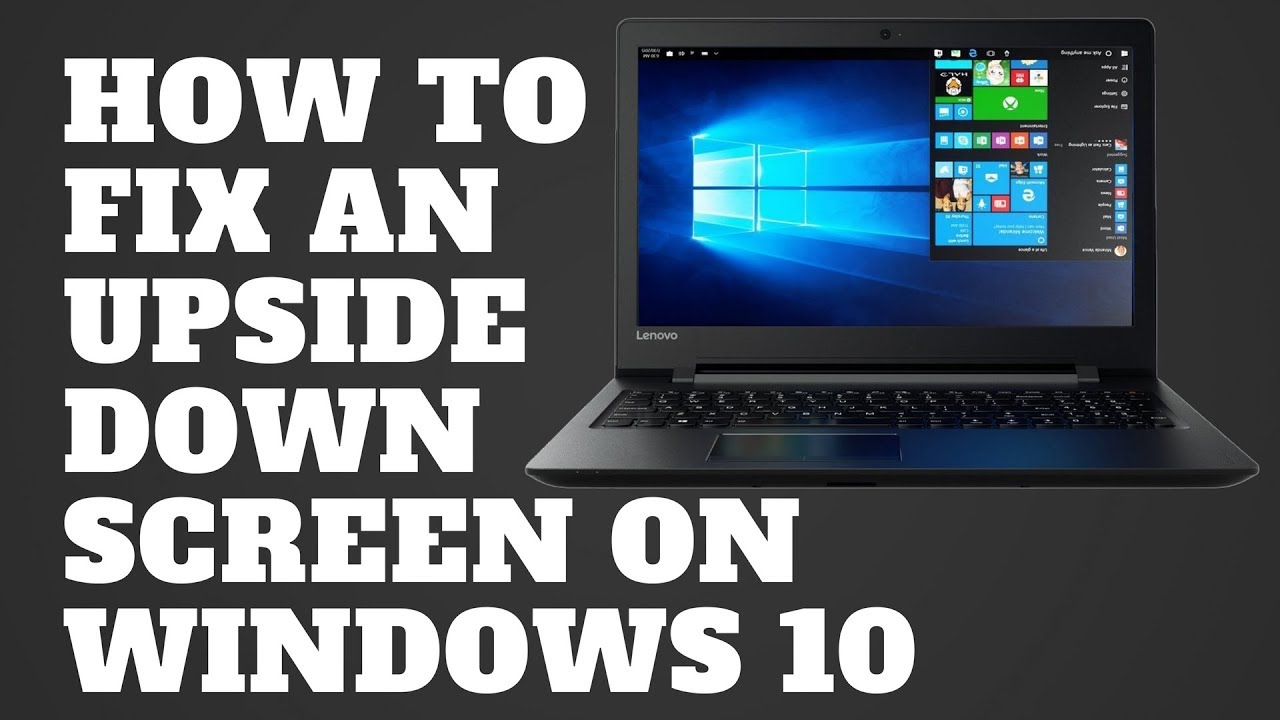
What does it mean when the screen on my laptop is upside down?
When the screen on my laptop is upside down, the display image appears rotated 180 degrees. Text and icons show upside down, and mouse movement still matches the physical screen. This happens when display orientation settings change or a graphics shortcut rotates the view. It can be a quick software issue or a sign of driver or hardware settings that need attention.
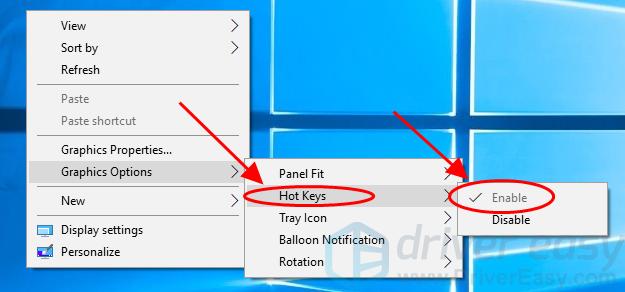
Common causes of an upside down laptop screen
Understanding why the screen on my laptop is upside down helps pick the right fix. Below are the most frequent causes and what they mean.
- Accidental hotkey press
- Many systems use Ctrl + Alt + Arrow keys to rotate displays. A stray key combo can flip the screen.
- Display orientation setting changed
- Windows and other OS have a display orientation option that can be set to Landscape (flipped) or Portrait.
- Graphics driver or control panel setting
- The GPU control panel can enforce rotation. Driver updates or resets sometimes change defaults.
- Convertible or tablet sensors
- A broken accelerometer or sensor on a 2‑in‑1 laptop can report wrong rotation.
- Remote access or display mirroring tools
- Remote desktop tools or presentation software can change orientation in rare cases.
- Corrupt system files or rare malware
- Mostly unlikely, but software corruption can change settings unexpectedly.

Quick fixes: Rotate the screen on Windows, macOS, Linux, and ChromeOS
These short and safe steps will fix most cases where the screen on my laptop is upside down. Try the simplest fixes first.
Windows (most common)
- Press Ctrl + Alt + Up Arrow to return to normal landscape.
- If that fails, right‑click the desktop and choose Display settings.
- Under Display orientation, choose Landscape and click Apply.
- If you have Intel graphics, open the Intel Graphics Control Panel and check rotation options.
macOS
- For most Mac laptops, internal rotation is not available. External displays can rotate.
- To rotate an external display, open System Preferences > Displays. Hold Option while clicking Display to reveal Rotation, then choose 0°.
- Restart if options do not appear.
Linux (X11)
- Open a terminal.
- Run xrandr to list displays.
- Use xrandr –output
–rotate normal to reset rotation. - For Wayland, use the system display settings or compositor tools.
ChromeOS
- Press Ctrl + Shift + Refresh to rotate on some devices (or use device-specific keys).
- Go to Settings > Device > Displays and set orientation to Default.
If the screen on my laptop is upside down because of a hotkey, these steps often fix it in seconds.
Advanced fixes: Drivers, registry, BIOS, and sensor calibration
If quick fixes don’t work, deeper steps may help when the screen on my laptop is upside down.
- Update or reinstall graphics drivers
- Open Device Manager, find Display adapters, and update the driver. If problems persist, uninstall the driver and reinstall the latest from the vendor.
- Graphics control panels
- Check Nvidia, AMD, or Intel control panels. They can lock rotation. Reset to defaults if needed.
- Calibrate or check sensors on 2‑in‑1s
- Run manufacturer diagnostics to test accelerometers. Recalibrate if the device provides a tool.
- BIOS/UEFI settings
- Rarely, display settings in firmware affect orientation. Check for display-related options and update BIOS carefully.
- Registry edits (Windows advanced)
- Registry changes can rotate displays but are risky. Only use trusted instructions and back up the registry first.
- System restore or safe mode
- If a recent change caused the issue, restore to a previous point or boot to safe mode to diagnose.
When the screen on my laptop is upside down due to deeper issues, these steps restore normalcy. If you are not comfortable editing drivers or firmware, get professional help.

Troubleshooting checklist: Step‑by‑step when the screen on my laptop is upside down
Follow this checklist from simplest to deepest. It helps you fix the issue fast and safely.
- Check for accidental hotkeys. Press Ctrl + Alt + Up Arrow on Windows.
- Open display settings and set orientation to Landscape.
- Reboot the laptop. Simple restarts often clear glitches.
- Update graphics drivers via Device Manager or vendor app.
- Test an external monitor. If external monitor is normal, the issue is internal display settings or sensors.
- Boot to safe mode. If the screen is normal, a third‑party app likely caused rotation.
- Run manufacturer diagnostics for sensors on convertible models.
- Consider a system restore to a date before the issue appeared.
- Contact support if the problem persists or if hardware repair looks likely.
PAA-style quick questions (People Also Ask)
Why did the screen on my laptop is upside down happen suddenly?
It often happens from pressing rotation hotkeys or a recent driver update. Software changes are the usual cause.
Can a virus make the screen on my laptop is upside down?
Very unlikely. Most cases are settings or drivers, not malware. Run a scan if you suspect deeper issues.
How do I stop the screen on my laptop is upside down from happening again?
Disable hotkeys, update drivers, and lock display orientation if your OS supports it. These steps reduce accidental flips.

Personal experience: How I fixed an upside down display for a client
A client called with the message that the screen on my laptop is upside down after an update. I walked them through a quick hotkey test and then Settings. The display orientation was flipped. Updating the Intel driver fixed a recurring flip after waking from sleep. From this, I learned to check for both hotkeys and driver updates first. A clear checklist saved time and avoided unnecessary hardware fixes.

Prevention tips and best practices
Preventing the screen on my laptop is upside down is easy with small habits. Follow these practical tips.
- Disable or remap rotation hotkeys
- Many systems let you turn off hotkeys in the graphics control panel.
- Keep drivers updated
- Use vendor tools for stable driver updates to avoid surprises.
- Lock orientation on tablets or convertibles
- Use orientation lock when you rely on a fixed view.
- Regular backups and restore points
- Create system restore points before major updates.
- Educate users
- Teach friends or family which keys cause rotation to avoid accidental flips.

Frequently Asked Questions about screen on my laptop is upside down
How can I quickly rotate the screen back if the screen on my laptop is upside down?
On Windows, press Ctrl + Alt + Up Arrow. If that fails, open Display settings and set orientation to Landscape.
Is it safe to update graphics drivers to fix the screen on my laptop is upside down?
Yes. Updating drivers is safe and often recommended. Use official vendor downloads and create a restore point first.
My laptop is a 2-in-1 and the screen on my laptop is upside down after folding. What should I do?
Check orientation lock and recalibrate sensors. Update firmware and drivers for the convertible sensors.
Will reinstalling Windows fix the screen on my laptop is upside down?
Reinstalling Windows can fix software causes but is extreme. Try drivers, safe mode, and restore points first.
Can a broken hinge or cable cause the screen on my laptop is upside down?
Mechanical damage usually affects display image quality, not rotation. If hardware fails, professional repair is advised.
Conclusion
If the screen on my laptop is upside down, focus on simple fixes first: hotkeys, display settings, and driver updates. For stubborn cases, follow the advanced checklist or seek support for sensor or hardware issues. Try the quick steps now, and set up prevention measures so it does not happen again. If this guide helped, leave a comment, subscribe for more troubleshooting tips, or share your own experience below.