Rotate your display using a keyboard shortcut or display settings to fix it quickly.
I’ve helped dozens of users fix a sideways laptop screen, and this guide walks you through every clear, tested step. If your laptop screen is sideways, you’ll learn why it happens, easy fixes, and how to prevent it. I’ll share real troubleshooting tips from my experience, explain settings and drivers simply, and give a compact checklist you can follow now.
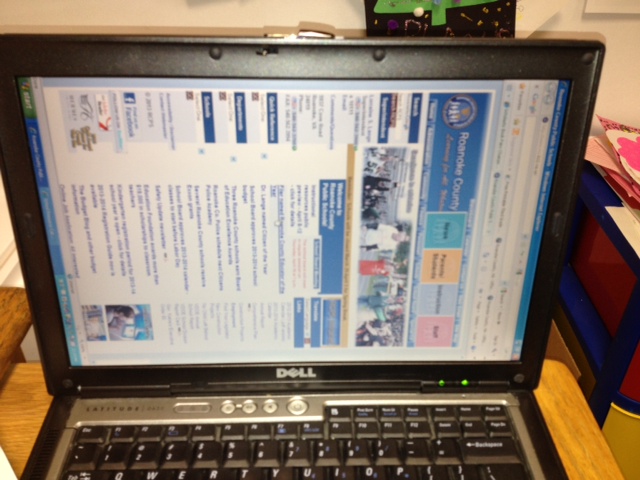
Why your laptop screen is sideways
When you see that your laptop screen is sideways, it usually means the display orientation changed. This can happen from a key press, a setting change, or a sensor event. It can also come from driver or software updates that reset display options.
Common causes include:
- Accidental keyboard shortcuts that rotate the display.
- Display settings switched to portrait mode by mistake.
- Graphics driver glitches after an update.
- External monitor or docking station settings forcing a rotated resolution.
- Built-in sensor or firmware issues on devices with auto-rotate.
From my support work, the most frequent reason my laptop screen is sideways is an accidental hotkey press. I once fixed a coworker’s laptop in under a minute by reversing a shortcut. Knowing where to look saves time and stress.
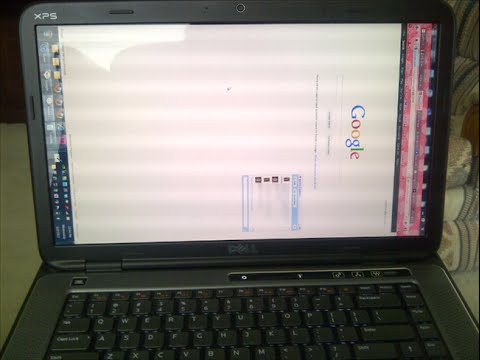
Quick fixes: rotate your screen back in minutes
If your laptop screen is sideways, try these fast fixes first. They work 80% of the time and need no advanced skills.
- Press Ctrl + Alt + Up arrow to set the screen upright.
- Press Ctrl + Alt + Right arrow to rotate 90 degrees right.
- Press Ctrl + Alt + Left arrow to rotate 90 degrees left.
- Press Ctrl + Alt + Down arrow to flip the screen upside down.
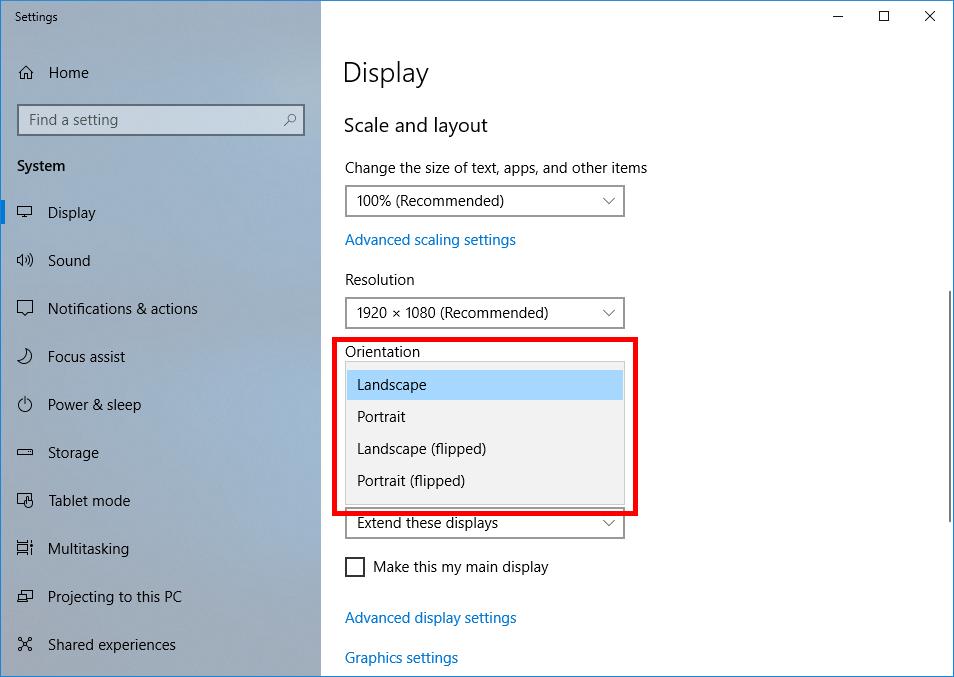
Windows Display Settings
- Right-click the desktop and choose Display settings.
- Find Display orientation and choose Landscape.
- Click Apply then Keep changes.
Graphics control panel
- Open Intel, NVIDIA, or AMD control panel.
- Look for Display or Rotation settings.
- Select 0 degrees or Landscape and apply.
If your laptop screen is sideways after trying shortcuts, move to settings. If shortcuts do nothing, drivers or software may block them.
When to update drivers and check hardware
Sometimes the issue is deeper. If my laptop screen is sideways after a restart or update, follow these steps.
Update graphics drivers
- Open Device Manager, expand Display adapters.
- Right-click your adapter and choose Update driver.
- You can also download the latest driver from the vendor’s support page.
Check external devices
- Disconnect docks and external monitors and restart.
- Reconnect one device at a time to isolate the issue.
Inspect sensors and hinge
- On convertibles, a faulty accelerometer can trigger rotate events.
- Test rotation in tablet mode or use a diagnostic tool provided by the maker.
- If the hinge is loose, the sensor may misread position and rotate the screen.
If driver updates do not fix it, consider rolling back a recent driver or restore a system point. From experience, driver rollbacks have fixed stubborn rotation issues.
Preventing a rotated screen in the future
Preventing the problem is often easier than fixing it. If your laptop screen is sideways frequently, try these habits and settings.
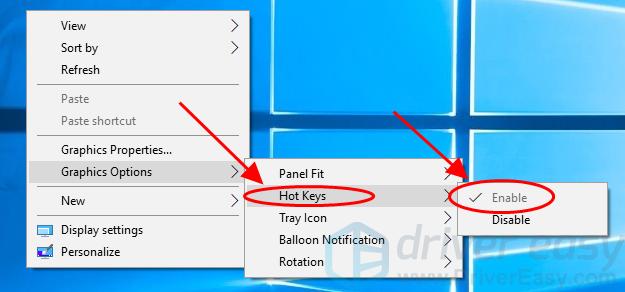
Disable rotation hotkeys
- Turn off the hotkeys in your graphics control panel.
- This prevents accidental Ctrl + Alt arrow presses.
Lock screen orientation
- On Windows tablets, enable Rotation lock in Action Center.
- On laptops, use manufacturer settings to disable auto-rotate if unwanted.
Keep drivers stable
- Avoid beta drivers unless needed.
- Set Windows Update to ask before installing optional drivers.
Use profiles for multiple displays
- Save display profiles if you switch monitors or docks.
- Use consistent resolution and orientation in profiles.
From my setup, locking rotation on my convertible laptop saved me many hassles when I carried it around. Small changes prevent repeated problems.
Troubleshooting checklist: step-by-step
Follow this checklist when your laptop screen is sideways. Work top to bottom for a fast resolution.
- Try keyboard shortcuts
- Ctrl + Alt + Up arrow to return to normal.
- Use Display settings
- Right-click desktop > Display settings > Display orientation > Landscape.
- Check graphics control panel
- Open Intel/NVIDIA/AMD settings and set rotation to 0 degrees.
- Disconnect external devices
- Remove docks and monitors; restart to test.
- Update or roll back drivers
- Update driver first. If problem started after update, roll back.
- Test in Safe Mode
- Boot to Safe Mode to see if a background app causes rotation.
- Run built-in diagnostics
- Use manufacturer tools to test sensors or hardware.
- Restore system point
- Use system restore to revert to a working state if recent changes caused it.
If none of these steps work, contact your device maker or a trusted repair service. You may have a hardware sensor or firmware issue that needs a professional look.

People also ask
Q: How do I stop my laptop screen from rotating?
A: Enable rotation lock or disable hotkeys in the graphics control panel. Keep drivers current and avoid accidental shortcut presses.
Q: Why did my laptop suddenly rotate?
A: Sudden rotation often comes from a hotkey, an update that changed settings, or a device sensor detecting tablet mode.
Q: Can a virus cause my laptop screen to be sideways?
A: It’s unlikely. Display rotation is usually caused by settings, drivers, or hardware, not malware. Still, keep antivirus on and updated.
Frequently Asked Questions of my laptop screen is sideways
Why is my laptop screen sideways all of a sudden?
Most often it’s an accidental keyboard shortcut or a display setting change. It can also follow a driver update or a sensor event on convertible laptops.
How do I flip the screen back quickly?
Press Ctrl + Alt + Up arrow or use Display settings to set orientation to Landscape. Graphics control panel also offers a rotation option.
Will updating drivers fix a rotated screen?
Updating or rolling back graphics drivers often fixes rotation issues, especially if the problem started after an update. Try both if one does not work.
Can an external monitor make my laptop screen sideways?
Yes, a dock or external monitor can force a rotated orientation when reconnecting. Disconnect and adjust display settings to fix it.
When should I seek professional help?
If sensor tests fail, the hinge is physically damaged, or the issue persists after driver and settings checks, contact a repair service for hardware diagnostics.
Conclusion
If your laptop screen is sideways, start with shortcuts, then check display settings, drivers, and external devices. My hands-on experience shows that most cases resolve quickly by changing orientation or updating drivers. Take steps to lock rotation and disable hotkeys to prevent repeat problems. Try the checklist above, and if the issue persists, seek professional help. Share your experience below or subscribe for more practical laptop fixes and tips.