Most often your laptop screen rotated accidentally due to hotkeys, display settings, or a sensor glitch.
I’ve fixed dozens of displays and helped users when my laptop display is upside down, so you’re in the right place. This guide explains why the problem happens, easy fixes for Windows, macOS, and Linux, step-by-step troubleshooting, prevention tips, and when to call a pro. Read on for fast, reliable solutions you can try right now.
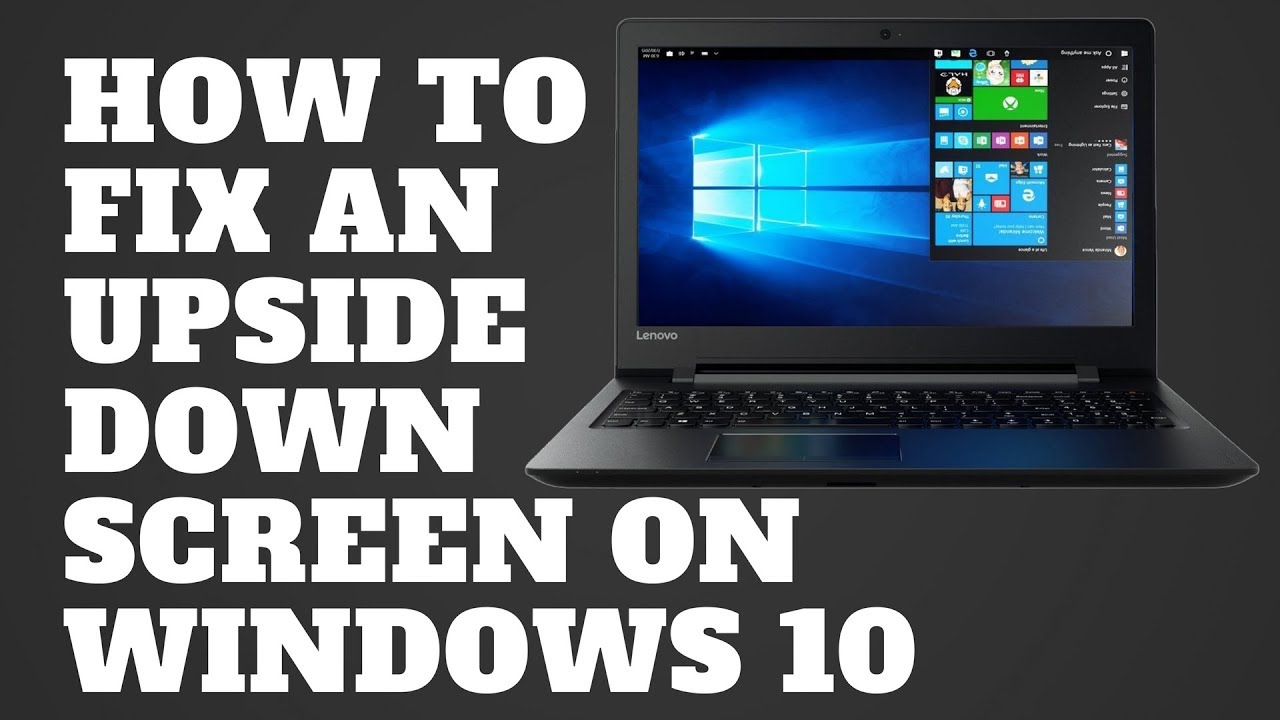
Why your laptop display is upside down: common causes
Understanding the cause makes the fix simple. Here are the usual reasons this happens:
- Accidental hotkey press. Many laptops have rotate shortcuts that flip the screen quickly.
- Display orientation setting changed. A setting in the OS can be set to inverted.
- Graphics driver glitch. Drivers sometimes reset or misapply settings after updates.
- Auto-rotation sensor issue. Tablets and some laptops use sensors that can misreport orientation.
- Remote desktop or virtual machine settings. A remote session can force a different orientation.
- Hardware fault. Rarely, a broken sensor, cable, or GPU issue can flip or distort the image.
Knowing these helps you pick the fastest fix. If my laptop display is upside down, start with the simplest checks first: hotkeys and display settings.

Quick fixes by operating system
Try these fast steps before deeper troubleshooting.
Windows
- Press Ctrl + Alt + Up Arrow to reset to normal orientation.
- If that doesn't work, right-click the desktop and choose Display settings.
- Under Display orientation, choose Landscape and click Apply.
- Update graphics drivers from Device Manager if orientation reverts.
macOS
- macOS rarely flips screens, but some external displays can be rotated.
- Open System Settings > Displays and check Rotation (if present).
- For Intel Macs, rotate only if the option appears; many Macs do not show rotation by default.
Linux (common desktop environments)
- Use a shortcut like Ctrl + Alt + Arrow if configured.
- Open Display settings and set Orientation to Normal.
- In terminal, use xrandr -o normal to reset, or xrandr -o inverted to flip if needed.
If my laptop display is upside down and a quick fix works, great. If not, move to step-by-step troubleshooting below.

Step-by-step troubleshooting guide
Follow these ordered steps. Test after each one.
- Reboot your laptop
- A full restart clears temporary glitches.
- Try hotkeys again
- Windows: Ctrl + Alt + arrow keys. Some OEMs use Ctrl + Alt + F? or software keys.
- Check display orientation in settings
- Windows: Settings > System > Display > Display orientation.
- macOS: System Settings > Displays.
- Linux: Display settings or xrandr commands.
- Inspect graphics driver and software
- Open Device Manager (Windows) and update or roll back the display adapter.
- Open Intel, NVIDIA, or AMD control panel and check rotation options.
- Test in Safe Mode or a guest account
- Boot to Safe Mode (Windows) to rule out third-party software.
- Disable automatic rotation (if applicable)
- Windows: Settings > System > Display > Rotation lock.
- For tablets, use the rotation lock switch or setting.
- Use xrandr for Linux power users
- List displays: xrandr
- Reset to normal: xrandr -o normal
- Flip left: xrandr -o left; flip right: xrandr -o right
- Check for remote desktop causes
- Disconnect remote sessions and test locally. Some remote tools rotate displays.
- Run hardware diagnostics
- Many OEMs include tests for sensors and GPUs in their support tools.
- Factory reset display settings or reinstall drivers
- Uninstall the display adapter and reboot to reinstall defaults.
If none of these steps fix why my laptop display is upside down, the issue may be hardware-related. Consider professional help.
Preventing accidental rotation and future tips
Small changes stop the problem from returning.
- Lock rotation when you don’t need it. Use rotation lock in Windows or the hardware switch on tablets.
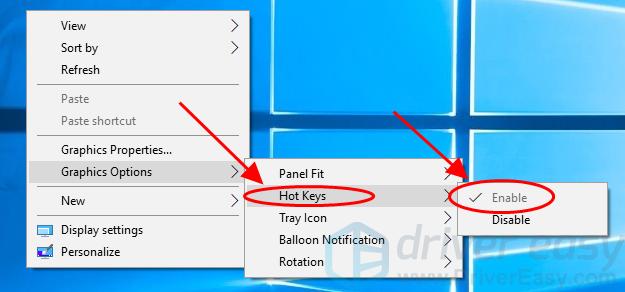
- Reassign or disable hotkeys in your graphics control panel to avoid accidental presses.
- Keep graphics drivers updated to reduce glitches.
- Use a guest account when letting others use your laptop to avoid accidental setting changes.
- Calibrate or disable the accelerometer if your laptop has one and it misbehaves.
- For laptops used as tablets, use a case or stand to reduce accidental sensor triggers.
These proactive steps cut down how often my laptop display is upside down happens.
When to seek professional help
Sometimes the problem is not software. Seek help if you see any of these signs:
- The screen flips even during BIOS or pre-boot screens. That points to hardware or firmware issues.
- Orientation settings reset despite correct driver updates and locks. This may indicate a failing sensor.
- The display shows artifacting, lines, or the image distorts beyond rotation — possible GPU or cable faults.
- You can’t access settings because the display is unusable or intermittently works.
A qualified technician can run hardware diagnostics and test the accelerometer, display cable, or motherboard components.

Personal experience: lessons from fixing flipped displays
I once helped a colleague whose laptop flipped every time they opened the lid. The cause was a custom key mapping that triggered rotate when the lid angle changed. We learned these lessons:
- Start simple: reboot and check hotkeys before diving deeper.
- Keep a recovery plan: know how to boot Safe Mode in your OS.
- Document changes: when you update drivers or install utilities, note the date in case you need to roll back.
- Backups matter: if you end up reinstalling the OS to fix stubborn rotation issues, a recent backup saves time.
These practical tips saved hours in my support work and will help you if my laptop display is upside down.

Related concepts and quick glossary
- Orientation: The screen’s rotation state (landscape, portrait, inverted).
- Accelerometer (auto-rotation sensor): A sensor that detects device tilt and can rotate the display automatically.
- Graphics driver: Software that controls how the GPU displays images; driver bugs can cause rotation problems.
- xrandr: A Linux command-line utility for controlling display settings and rotation.
- Rotation lock: A setting that prevents automatic screen rotation.
Knowing these terms makes troubleshooting faster and clearer.

Frequently Asked Questions of my laptop display is upside down
Why is my laptop display upside down suddenly?
A sudden flip is usually caused by an accidental hotkey press, a settings change, or a driver glitch. Check hotkeys and display orientation first.
How do I rotate my laptop screen back to normal?
On Windows, press Ctrl + Alt + Up Arrow or go to Settings > System > Display and select Landscape. Linux users can use xrandr -o normal.
Can a driver update cause my laptop display to flip?
Yes. A graphics driver update can change defaults or introduce bugs that affect orientation. Rolling back the driver often helps.
Does auto-rotation sensor failure make the display flip?
Yes. A faulty accelerometer can report incorrect orientation and force the screen upside down. Disable auto-rotation to test this.
Is the upside-down screen a hardware issue?
It can be. If the screen flips during boot, or settings don’t stick after resets and driver reinstall, hardware faults may be the cause.
Conclusion
Fixing an issue when my laptop display is upside down is often quick. Start with hotkeys and display settings, update or roll back drivers, and disable auto-rotation if needed. If the problem persists, follow the step-by-step checks and consider professional diagnostics for hardware faults. Take action now: try the quick fixes, note what worked, and share your experience or questions below to help others.