My Dell Laptop Is Not Turning On: Quick Fixes

Most often it's a power or battery fault—check the charger, power cycle, and run Dell diagnostics.
I write and fix laptops for a living. If my dell laptop is not turning on, I know the stress that hits hard. This guide walks you through clear checks and fixes. It covers simple power tests, internal hardware checks, and when to call Dell or a repair shop. Read on for step-by-step help, practical tips from my experience, and what to avoid.

Why your Dell laptop is not turning on
If my dell laptop is not turning on, it usually points to one of a few core issues. Power delivery can fail. The battery or adapter can be bad. Internal parts like RAM, the power button board, or the motherboard can fail. Software or firmware can also stop a laptop from starting. I will list the main causes and how to spot them.
Common causes
- Power adapter or cable failure. A broken plug or dead charger is common.
- Battery failure. The battery can fail and stop booting.
- Power jack or DC-in board damage. The port that accepts the adapter can be loose.
- Faulty power button or board. The button contacts can wear out.
- Corrupt BIOS or firmware. A bad update can block boot.
- RAM or SSD issues. Loose or failed modules can stop startup.
- Display failures. The laptop may be on but the screen is dark.
- Motherboard failure. This is less common but critical.
Real-life note: I once fixed a Dell that would not turn on due to a bent pin in the barrel connector. It looked fine at a glance. A closer look saved the motherboard.

Simple checks to try first
When my dell laptop is not turning on, start with fast, safe checks. These often fix the problem in minutes.
Quick steps
- Check the power adapter. Plug it into a working wall outlet and look for the adapter LED.
- Inspect the cable. Look for cuts, bends, or frayed areas.
- Try a different outlet. Test a wall outlet that you know works.
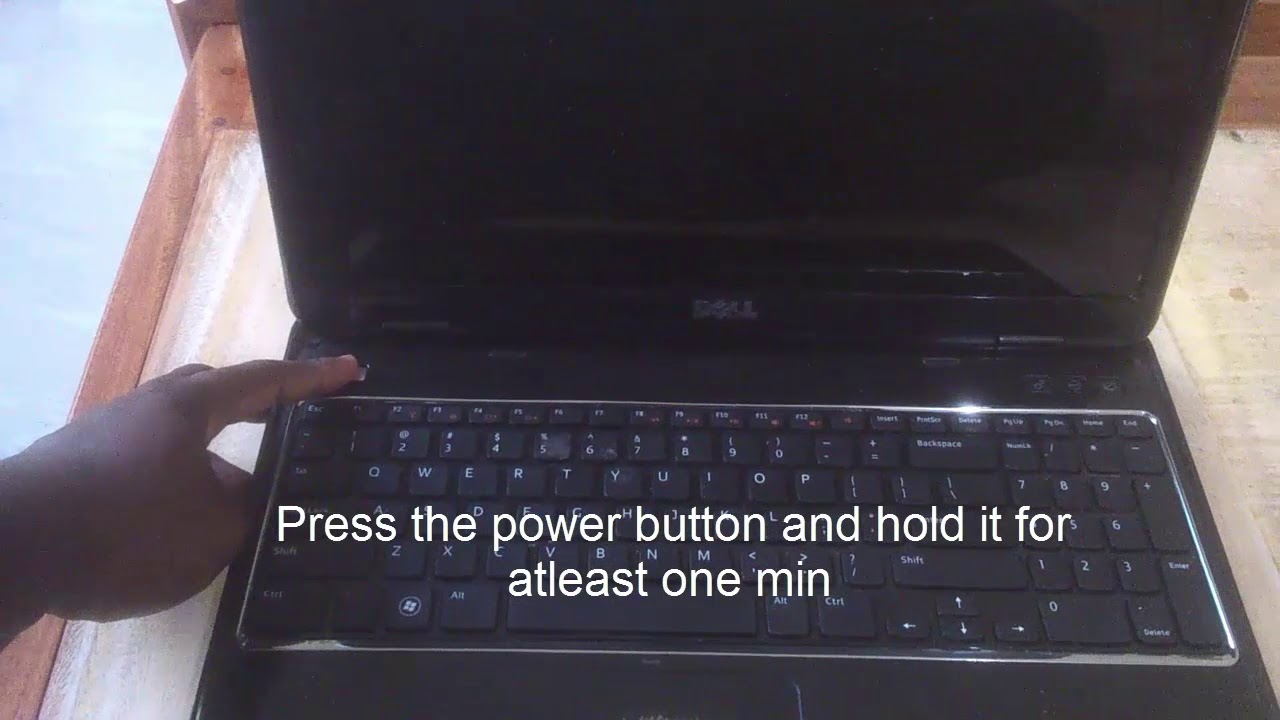
- Remove the battery if possible. Hold the power button for 15 seconds while the battery is out, then try to power with adapter only.
- Check indicator lights. Any LEDs or fan noise tells you power exists.
- Try an external monitor. This rules out a broken display.
Personal tip: I always keep a known-good charger in my backpack. It has saved me from many panic moments when my Dell would not show signs of life.
Step-by-step troubleshooting (easy to advanced)
Follow this ordered list. Do easy steps first. Move to advanced only if needed.
- Power reset
- Unplug the adapter. Remove the battery if it’s removable.
- Hold the power button for 15–30 seconds.
- Reconnect adapter and try to power on.
- Test with another adapter
- Use a charger that matches Dell specs.
- If the laptop powers on, replace your charger.
- Check RAM and SSD
- Power off and remove power sources.
- Remove one RAM stick at a time and try to start.
- Reseat the SSD or HDD and try again.
- Boot to diagnostics
– Press F12 at power on to access the one-time boot menu on many Dells.- Run built-in diagnostics to find hardware faults.
- Reset BIOS/CMOS
- Remove the CMOS battery for a minute if you are comfortable opening the chassis.
- Reinstall and try to boot.
- Try a minimal boot
- Disconnect all external devices and internal extras.
- Boot with only CPU, one RAM stick, and power.
If my dell laptop is not turning on after these steps, the issue is likely internal or power-related.
Advanced fixes and hardware checks
If basic steps fail, move to deeper checks. These require tools and some skill. If you are not confident, stop and get help.
Advanced checks
- Inspect the DC jack and cable connection on the motherboard. Look for loose solder joints.
- Test the charger with a multimeter to check volshoukhintech01-20e output.
- Swap RAM modules between slots to spot bad slots.
- Check for motherboard burn marks or swollen caps.
- Unplug and reseat the display cable. A bad LVDS or eDP cable can make a laptop seem dead.
- Reflash or update BIOS only if you have a recoverable image and know the procedure. A failed BIOS flash can brick a laptop.
Experience note: I once bricked a Dell during a rushed BIOS flash. I learned to always use the manufacturer recovery method and to keep a recovery USB ready.

When to seek professional help or service
If my dell laptop is not turning on and the laptop shows no signs of life after the checks above, consider professional help. Seek service when:
- You see no lights, no fan, and no charge LED despite a known-good charger.
- The DC jack is loose or the motherboard shows damage.
- You’re uncomfortable opening the laptop or working with internal parts.
- The laptop is under warranty — contact Dell support first.
Service options
- Dell support and warranty repair.
- Local certified repair shops.
- Data recovery specialists if the drive needs safe removal.

Preventive tips to avoid future power failures
Preventing problems helps more than one repair. Small habits keep your Dell healthy.
Prevention tips
- Use the correct Dell charger and avoid cheap clones.
- Keep vents clean and cool to reduce stress on components.
- Remove the battery when storing the laptop long-term.
- Update BIOS and drivers from Dell support when needed.
- Back up data often so power issues do not cost you files.
I recommend a simple battery and charger test every six months. It’s quick and can catch issues early.
Frequently Asked Questions of my dell laptop is not turning on
Why does my dell laptop not turn on but the charger light is on?
If the charger light is on but the laptop won't boot, the issue might be the battery, power circuitry, or a failed internal component. Try a power reset and run built-in diagnostics to narrow it down.
How do I run Dell diagnostics if my laptop won't boot?
Press F12 at startup to enter the boot menu, then choose Diagnostics. If you can’t reach the menu, try a power reset and connect only the power adapter before attempting again.
Can a dead battery stop my Dell from turning on?
Yes. A dead battery can prevent startup in some models, especially if the charger is weak. Remove the battery and try to start with the adapter only.
Will replacing RAM fix a Dell that won't turn on?
If a faulty RAM stick prevents POST, removing or replacing it can fix the issue. Test with one stick at a time to find a bad module.
Is a BIOS update safe if my Dell won't power on?
A BIOS update is risky on a device that shows unstable power. Avoid updating BIOS until the power issue is resolved to prevent bricking the system.
Conclusion
You can fix many cases when my dell laptop is not turning on with a few safe checks. Start with power, charger, and reset steps. Move to RAM and drive checks next. If advanced issues remain, get professional help or contact Dell support. Try the steps now, back up your data, and consider routine checks to prevent repeat problems. If this guide helped, leave a comment or subscribe for more troubleshooting tips.
Similar Posts



