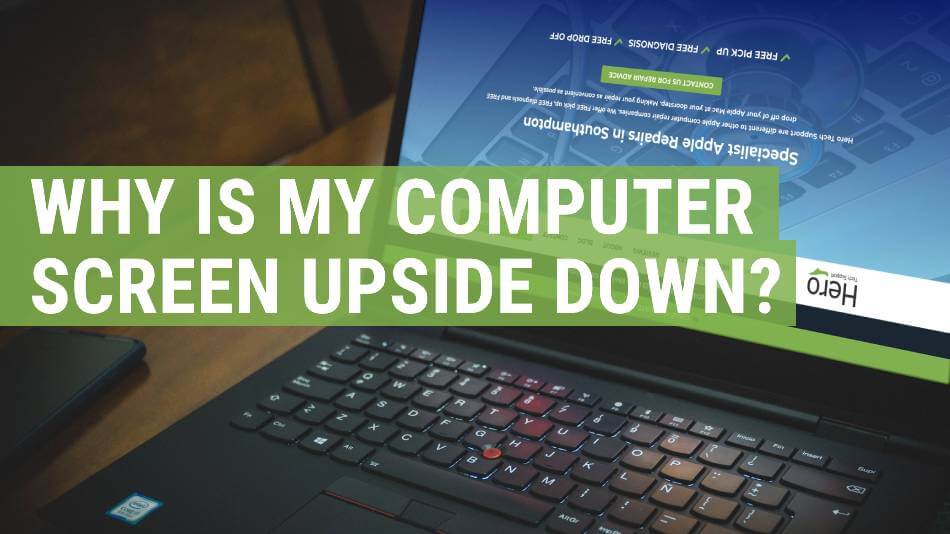
Your laptop display is sideways because screen rotation settings or a hotkey changed orientation.
I’ve fixed dozens of display orientation problems for friends, clients, and my own devices. This guide explains why a laptop display is sideways, how to fix it fast, and how to prevent it from happening again. You’ll get clear, step-by-step fixes for Windows, macOS, and Linux, plus troubleshooting for hardware and sensors. Read on to solve the issue quickly and avoid future surprises.
Why a laptop display is sideways
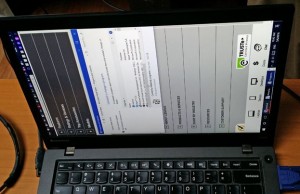
A sideways laptop display usually means the screen orientation changed from landscape to portrait. This can happen from a quick hotkey press, an app, or an automatic sensor on convertible laptops. Software settings, graphics driver updates, and external monitors can also trigger the change.
Common causes:
- Accidental keyboard shortcut press that rotates the screen.
- Display orientation set incorrectly in system settings or graphics control panel.
- A convertible laptop’s accelerometer or sensor toggled rotation.
- External display or docking station configured with a rotated orientation.
- Faulty graphics drivers or recent system updates causing a settings change.
Real-world note: I once rotated my work laptop by bumping the keyboard and hitting Ctrl+Alt+Left. It took me less than three minutes to fix once I knew the shortcut. That’s a common lesson—most fixes are quick.

Quick fixes to rotate your laptop display back
Use these quick steps depending on your operating system. Try the easiest ones first.
Windows (Settings):
- Right-click the desktop and choose Display settings.
- Find Display orientation and select Landscape.
- Click Keep changes to save.
Windows (Graphics control panel):
- Open Intel, NVIDIA, or AMD control panel from the system tray.
- Look for Display or Rotation settings.
- Set to 0 degrees or Landscape and apply.
macOS:
- Open System Settings (or System Preferences) and go to Displays.
- Some Macs show a Rotation dropdown. Set to Standard or 0°.
- If rotation isn’t visible, press Option while opening Displays to reveal the hidden rotation menu.
Linux (xrandr quick commands):
- Open Terminal and list displays with xrandr.
- Rotate with a command like xrandr –output eDP-1 –rotate normal
- Replace eDP-1 with your display name.
If a quick fix fails, restart your laptop before deeper troubleshooting. Rebooting often clears temporary glitches and restores orientation.

Keyboard shortcuts and hotkeys that rotate screens
Knowing hotkeys saves time. Try these common shortcuts, but be careful—some systems disable them.
Windows common shortcut:
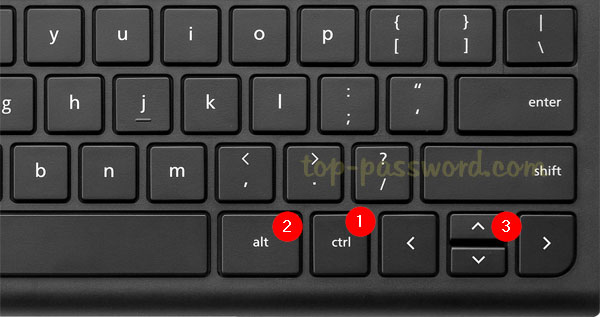
- Ctrl + Alt + Up arrow resets to normal landscape.
- Ctrl + Alt + Left or Right arrow rotates 90 degrees left or right.
Note: Some PCs disable these shortcuts in the graphics driver settings.
Intel graphics hotkey specifics:
- Open Intel Graphics Settings to enable or disable rotation hotkeys.
macOS and Linux:
- macOS rarely uses keyboard rotation shortcuts; use Display settings instead.
- Linux desktops might offer shortcuts; xrandr works reliably from Terminal.
Tip: If you or others accidentally press hotkeys, consider disabling rotation hotkeys in your graphics control panel to avoid future surprises.
Graphics drivers, updates, and hardware causes
Sometimes the issue is deeper than a setting. Drivers and hardware can cause persistent rotation problems.
Driver and update issues:
- A recent graphics driver update may reset or change orientation defaults.
- Corrupt drivers can make rotation options act oddly.
Sensor and hardware causes:
- Convertible laptops use gyroscopes and accelerometers to auto-rotate. Sensors can fail or misread motion.
- A stuck orientation lock or damaged hinge can prevent proper rotation.
- External monitors or docking stations can send rotated settings to the laptop.
My experience: I once traced a recurring rotation issue to a third-party app that managed multiple monitors. Removing the app fixed the sideways display. That taught me to check installed apps when system settings look fine.
Troubleshooting steps when basic fixes don’t work
Work through these steps in order. Keep changes minimal and reversible.
- Restart and test.
- Check Display settings and graphics control panel for orientation.
- Update or roll back graphics drivers in Device Manager (Windows) or System Settings.
- Disconnect external monitors and docking stations, then test the laptop screen alone.
- Disable auto-rotate on tablets and 2-in-1s if rotation is unwanted.
- Run hardware diagnostics from the laptop maker if sensors may be faulty.
- Boot from a USB live OS (Linux) to see if the problem persists outside your main OS. This helps isolate driver vs hardware issues.
- If the screen remains sideways after all steps, contact professional service or the manufacturer.
Each step isolates one cause at a time. That makes it easier to find the real reason your laptop display is sideways.
Preventing accidental rotation and best practices
Preventing the sideways display is often easier than fixing it repeatedly.
Practical tips:
- Turn off or lock auto-rotate on convertible laptops.
- Disable rotation hotkeys in your graphics control panel.
- Keep graphics drivers up to date and create a restore point before major updates.
- Use stable docking routines and disconnect before closing the laptop.
- Educate family or coworkers who might press unknown hotkeys.
Simple habit: Before handing your laptop to someone, lock the screen orientation or close apps that can change display settings. This reduces accidental changes.

When to seek professional help
Most rotation problems are software-related and quick to fix. Seek help if:
- Sensors or hinges are physically damaged.
- The screen is permanently rotated despite software fixes and driver reinstall.
- The GPU or display hardware shows other faults, like flicker or artifacts.
Professional repair checks:
- Hardware diagnostics and sensor replacement.
- Screen or hinge repair for damaged laptops.
- Advanced driver and firmware updates handled by technicians.
If your laptop is under warranty, contact the manufacturer. Repairs can be covered and are safer than DIY hardware fixes.
Frequently Asked Questions of laptop display is sideways
Why did my laptop display suddenly turn sideways?
A hotkey, an app, or an auto-rotate sensor likely changed the orientation. Software updates or an external monitor can also trigger the change.
How do I rotate a sideways laptop display back to normal in Windows?
Right-click the desktop, open Display settings, and set Display orientation to Landscape. Alternatively use Ctrl + Alt + Up arrow if your system supports hotkeys.
Can a virus cause my laptop display to be sideways?
It’s unlikely. Most cases are caused by settings, drivers, or sensor issues. Still, running a quick malware scan is a good safety step.
Will updating graphics drivers fix orientation problems?
Often yes. Updating or rolling back the graphics driver can resolve issues caused by recent updates or corrupt drivers. Make a restore point before major changes.
How do I stop my 2-in-1 laptop from rotating the screen automatically?
Turn off auto-rotate in the Action Center on Windows or disable rotation in system settings. You can also lock the orientation using the rotation lock option.
Conclusion
A sideways laptop display is usually easy to fix with a few clicks or a simple shortcut. Start with quick settings, check hotkeys, and move on to drivers or hardware only if needed. Use prevention tips like disabling auto-rotate and updating drivers to avoid repeating the problem. Try the steps above, leave a comment about your experience, or subscribe for more clear, practical tech guides.