Laptop Boots Up But Screen Is Black: Fix It Fast

Your laptop powers on but the display stays black, often due to hardware, backlight, or driver issues.
I write guides for people who want clear, practical fixes. If your laptop boots up but screen is black, this article walks you through simple checks, step-by-step troubleshooting, hardware tests, and when to call a pro. I’ll share hands-on tips I’ve used repairing laptops, explain common causes, and give safe next steps so you can get your display back or save your data.

Why a laptop boots up but screen is black: common causes and quick definitions
Many things can make a laptop boot yet show a black screen. This problem can be a display cable loose, a failed backlight, bad graphics drivers, BIOS issues, or a failing GPU. It can also be simple settings like brightness or an external display mode.
What to expect when diagnosing:
- Startup sounds and lights mean the system runs even if the screen is black.
- No fan or LED might mean power issues, not a display fault.
- A black screen with cursor or backlight glow points to driver or backlight issues.
I’ve fixed dozens of laptops with a black display. Often the cause was a loose ribbon or a battery draining the screen backlight. I’ll guide you through safe, low-risk steps first.

Quick checks to try right now
Start with easy checks before opening the case. These often solve the issue fast.
- Check screen brightness and try the brightness keys. Some laptops can be dimmed to zero by accident.
- Look for faint image or backlight glow in a dark room. If you see a faint image, the backlight or inverter may be failing.
- Press the display toggle keys (for example, Fn + F4). You may have switched to an external monitor mode.
- Connect an external monitor or TV with HDMI or VGA. If that works, the problem is the laptop screen or cable.
- Power cycle: hold the power button 10–15 seconds until off. Unplug and remove battery if possible. Wait 30 seconds, then restart.
If the laptop boots up but screen is black after these checks, move to the step-by-step troubleshooting below.
Common quick questions
Will restarting fix a black screen?
Restarting often clears a temporary glitch, especially if the GPU or display driver froze. Try a full power cycle rather than a soft restart.
Can a black screen be a power problem?
Yes. If the laptop tries to boot but fans stay off and there are no lights, it may be a power issue rather than the display.
Step-by-step troubleshooting (safe and ordered)
Work from the least invasive fixes to more advanced checks. This order helps protect data and avoid unnecessary repairs.
-
Step 1 — External display test
- Connect an external monitor or TV. Switch display modes with the function keys. If the external shows output, the GPU works and the laptop screen or cable is likely the issue.
-
Step 2 — Keyboard shortcut and brightness
- Try display toggle keys and brightness keys again. Also press Windows + Ctrl + Shift + B on Windows. This restarts the graphics driver and can unfreeze the display.
-
Step 3 — Boot to BIOS/UEFI
- Restart and press the BIOS key (Esc, F2, Del). If BIOS appears on the laptop screen, the problem is likely a software or driver issue in the OS.
-
Step 4 — Safe Mode or Live USB
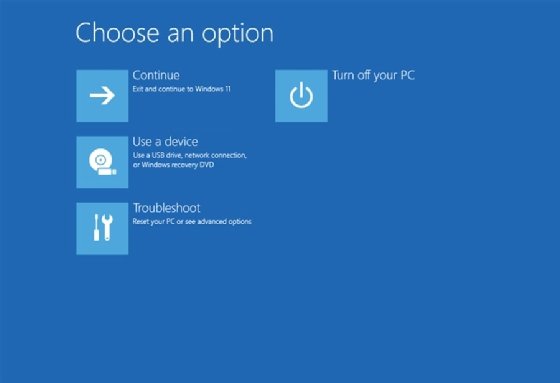
- Boot into Safe Mode or a Linux live USB. If screen works in Safe Mode, reinstall display drivers or undo recent updates.
-
Step 5 — Remove external devices and peripherals
- Unplug docks, USB drives, and external mice. Faulty peripherals can hang the boot process and cause a black screen.
-
Step 6 — Reseat RAM and storage
- Power down, remove battery and power. Open the access panel and reseat RAM sticks and the SSD/HDD. A loose RAM module can let the laptop boot but fail to show video.
-
Step 7 — Check internal cable and inverter
- If comfortable, open the bezel and check the display ribbon cable. A loose or torn cable is a common cause when the laptop boots up but screen is black.
-
Step 8 — Test with replacement screen or cable
- If available, swap in a known-good screen or cable. This confirms whether the LCD panel or cable is faulty.
Follow these steps in order. If you are not comfortable opening the laptop, stop after external tests and seek professional help.

Hardware diagnostics: targeted checks and signs
A clear hardware test plan saves time and cost. Here are specific checks and what their results mean.
-
Power LEDs and beep codes
- Note power indicator lights and any beep codes. Beep patterns often point to RAM, GPU, or motherboard problems.
-
Fan and drive activity
- If fans spin and drives click, the system boots but the display may be the only failing part. If nothing spins, you have a power or board issue.
-
Backlight vs. image test
- Shine a flashlight at the screen close up. If you can see a faint desktop, the backlight or inverter is bad, even though the laptop boots up but screen is black.
-
GPU and motherboard failures
- Distorted lines before blacking out, or repeated crashes, often indicate GPU or solder joint failure. These are more serious and may need board-level repair.
-
CMOS battery and BIOS settings
- A corrupted BIOS setting can block display. Reset CMOS by removing the small CMOS battery for a minute if you suspect BIOS issues.
Personal tip: I once fixed a black-screen laptop by reseating a tiny display ribbon, saving the client a costly screen replacement. Small connections matter.

Software fixes and driver solutions
When the laptop boots up but screen is black due to software, these steps help.
-
Restart the graphics driver
- On Windows, press Windows + Ctrl + Shift + B. This forces a GPU reset.
-
Boot to Safe Mode and uninstall drivers
- Boot in Safe Mode and uninstall the display adapter. Then reboot and let Windows reinstall the driver automatically.
-
Update BIOS and drivers
- Update the BIOS carefully and install the latest graphics drivers from the laptop maker. Use the vendor’s guide and ensure full battery or AC power during updates.
-
Disable fast startup (Windows)
- Fast startup can cause display issues. Disable it via Power Options to test if it helps.
-
System restore or OS repair
- If the black screen started after an update, use System Restore or run an OS repair from bootable media.
I’ve used Safe Mode to recover machines where a corrupt driver left the laptop boots up but screen is black. Reinstalling the driver fixed it in most cases.

When to seek professional repair
Some signs mean you should stop and call a technician.
- No change after external monitor and reseating RAM
- Loud electrical smells, burnt components, or visible board damage
- GPU or motherboard failure symptoms like artifacts, smoke, or repeated no-POST
- You are not comfortable opening the case or disconnecting delicate cables
A pro can run board diagnostics, replace screens safely, and recover data if needed. If your laptop is under warranty, contact the manufacturer first to avoid voiding coverage.

Prevention, maintenance, and long-term tips
Preventing the problem reduces downtime and repair costs.
-
Keep drivers and BIOS up to date
- Use vendor tools or trusted updates to keep the GPU driver current.
-
Avoid drops and pressure on the display
- Physical stress often damages the display cable or panel.
-
Clean vents and manage heat
- Overheating can harm the GPU. Clean vents and use cooling pads when needed.
-
Backup data regularly
- If the laptop boots but the screen is black, your data is at risk. Regular backups avoid panic.
-
Use a gentle power cycle habit
- When strange behavior starts, power cycle fully before doing deep diagnostics.
From my work, the best habit is regular backups and safe handling. That saves both time and heartache.

Frequently Asked Questions of laptop boots up but screen is black
Why does my laptop boots up but screen is black and fans are running?
If fans and LEDs run, the CPU and board often work. The issue is usually a display cable, backlight, or graphics driver problem. External monitor testing helps pinpoint the fault.
How can I tell if the laptop screen or GPU is faulty?
Connect an external monitor. If the external display works, the GPU likely works and the laptop screen or cable is at fault. If both are blank, the GPU or motherboard might be failing.
Will replacing the screen fix the black display issue?
Replacing the screen helps when the panel is dead or the backlight fails. But check the display cable and driver first to avoid unnecessary replacement.
Can Windows updates cause a black screen after boot?
Yes. Graphics driver updates or firmware changes can cause the laptop boots up but screen is black. Boot to Safe Mode to roll back drivers or use System Restore.
Is it safe to open my laptop to check the display cable?
Opening is safe if you follow grounding and power-off steps, and if you are careful with ribbon cables. If unsure, seek a technician to avoid causing more damage.
Conclusion
A black screen while the laptop boots up can be caused by simple settings or by hardware failures. Start with easy checks like brightness, external monitor tests, and a power cycle. Progress to safe troubleshooting such as reseating RAM, testing drivers in Safe Mode, and checking the display cable. If the problem looks like a board or GPU failure, seek professional help.
Take action: try the quick fixes first and back up your data now. If this guide helped, share your experience below or subscribe for more repair tips and step-by-step guides.
Similar Posts


