Most HP laptop touchpad issues are software related and can often be fixed with settings or drivers.
I’ve spent years repairing and troubleshooting laptops, and I know how frustrating it is when the hp laptop touchpad is not working. This guide walks through causes, quick checks, step-by-step fixes, hardware tests, and when to call for service. Read on for clear, practical solutions you can try now, plus tips from hands-on experience to prevent the problem in the future.
Why the hp laptop touchpad is not working
There are clear reasons why the hp laptop touchpad is not working. Problems fall into two groups: software and hardware. Software issues include disabled settings, driver problems, or OS updates. Hardware causes include a damaged ribbon cable, liquid damage, or a dead touchpad module.
Understanding common causes helps you pick the best fix fast. I’ll explain each cause, so you know what to try and why it works.
Quick troubleshooting checklist for hp laptop touchpad is not working
Start with these fast checks. They solve many issues in minutes.
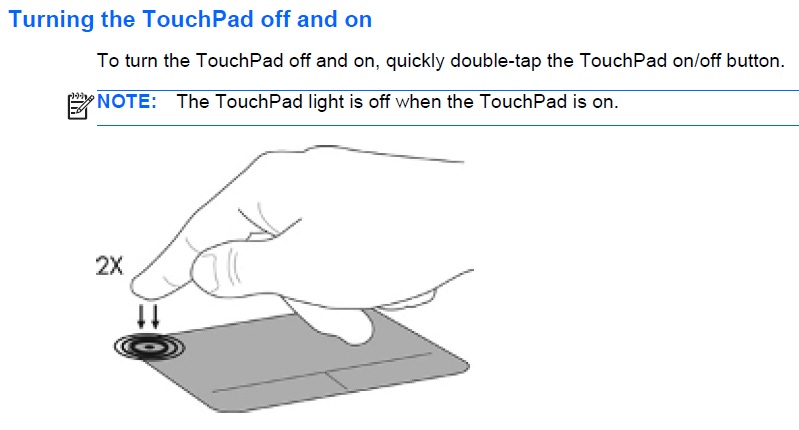
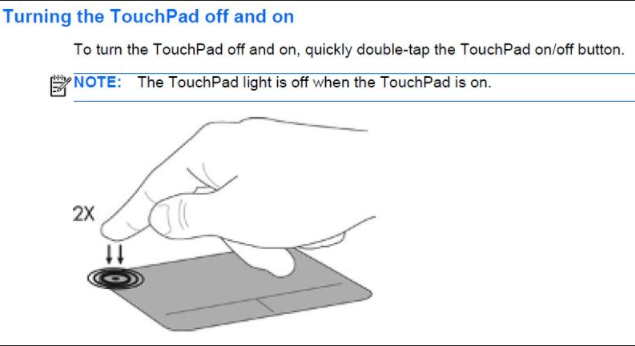
- Make sure the touchpad is not disabled by a function key. Look for a key with a touchpad icon and press it with Fn.
- Check touchpad settings in Windows Settings > Devices > Touchpad to ensure it’s enabled.
- Plug in an external USB mouse to confirm pointer control works. If the mouse works, the issue is isolated to the touchpad.
- Reboot the laptop. A restart can clear temporary glitches.
These steps are quick and safe. If they don’t work, move to the fixes below.

Software fixes: drivers, settings, and OS updates
Most times the hp laptop touchpad is not working because of software. Follow these steps in order.
-
Update or reinstall the touchpad driver
- Open Device Manager, expand "Mice and other pointing devices."
- Right-click the touchpad device and choose Update driver. If update fails, choose Uninstall device and restart to let Windows reinstall it.
-
Use HP Support Assistant
- Run the HP tool to detect and install recommended drivers and firmware updates.
-
Check Windows settings
- Go to Settings > Devices > Touchpad. Confirm it is On and gesture settings are correct.
-
Roll back after a bad update
- If the touchpad failed after an update, return to Device Manager, open the driver properties, and use Roll Back Driver if available.
-
Check touchpad software (Synaptics or ELAN)
- Open the manufacturer control panel and reset settings to defaults.
I once fixed a coworker’s touchpad by reinstalling an older Synaptics driver. After a bad Windows update, the newer driver broke gestures. Reverting solved it in minutes.

Hardware checks and fixes when hp laptop touchpad is not working
If software fixes fail, inspect hardware. Hardware problems are less common but important.
-
Inspect the palm rest and touchpad for signs of liquid damage or swelling.
-
Gently press around the touchpad edges to see if it responds or clicks oddly.
-
Check the ribbon cable connection
- Power off and remove the battery if possible.
- Open the case following an HP service manual or guide.
- Reseat the ribbon cable connecting the touchpad to the motherboard.
-
Look for corrosion or loose connectors. Clean contacts gently with isopropyl alcohol if needed.
-
Replace the touchpad assembly if the unit is physically damaged.
I once replaced a ribbon cable on an older HP EliteBook. The touchpad worked again after a careful reseat. If you are not comfortable opening the laptop, seek professional help.
Advanced diagnostics: BIOS, safe mode, and system restore
When the hp laptop touchpad is not working and you’ve tried basic steps, use advanced checks.
-
Test in BIOS
- Reboot and press Esc, F10, or the key shown on boot to enter BIOS/UEFI.
- If the pointer works in BIOS (some BIOS allow touchpad use) the problem is software/OS level.
-
Boot in Safe Mode
- Restart into Safe Mode to see if a third-party driver or app blocks the touchpad.
-
Use System Restore
- If the touchpad stopped after a change, restore the system to a point where it worked.
-
Update BIOS/UEFI
- If HP recommends a BIOS update that addresses input or hardware issues, follow the official update process carefully.
These steps can be decisive. If the touchpad fails even in BIOS, the issue is likely hardware.

Preventive tips and best practices to avoid touchpad problems
Keep your touchpad healthy with simple habits.
- Keep the laptop dry and clean. Wipe the touchpad with a soft, slightly damp cloth.
- Avoid eating over the keyboard to prevent crumbs from getting under the touchpad.
- Use official drivers from HP or the touchpad maker.
- Create a weekly restore point before major updates.
- Use a case or sleeve when carrying the laptop to prevent pressure on the touchpad.
From experience, gentle care prevents many failures and extends component life.
When to seek professional repair for hp laptop touchpad is not working
Consider professional help if any of the following apply.
- The touchpad shows physical damage or corrosion.
- Reseating cables or replacing drivers did not help.
- The laptop is under warranty—contact HP support instead of opening it.
- You are uncomfortable opening the laptop or risk voiding warranty.
A certified technician can diagnose board-level faults and replace parts safely. For warranty models, using HP service keeps coverage intact.

Common questions about hp laptop touchpad is not working
Why did my hp laptop touchpad stop working after an update?
A driver or OS update can change touchpad software. Roll back the driver or use system restore to return to a working state.
How do I enable the touchpad on an HP laptop?
Press the function key with a touchpad icon, or go to Settings > Devices > Touchpad and switch it On.
Can a liquid spill kill the touchpad permanently?
Yes, liquid can corrode circuits. Quick power-off and professional cleaning may save it, but replacement is sometimes needed.
Will reinstalling Windows fix the touchpad problem?
Reinstalling Windows can fix software causes, but it will not repair hardware faults. Back up data before reinstalling.
Is it safe to open my HP laptop to check the ribbon cable?
It can be safe if you follow the HP service manual and remove power and battery first. If under warranty, contact HP support instead.
Frequently Asked Questions of hp laptop touchpad is not working
How do I know if the touchpad driver is the problem?
If an external mouse works but the touchpad does not, and the Device Manager shows errors, the driver is likely the issue.
What if the touchpad works sometimes and not others?
Intermittent function often means a loose cable or failing hardware. Check connections and test under different conditions.
Can a keyboard shortcut disable the touchpad permanently?
Yes, pressing the touchpad function key can toggle it off. The setting can also remain off in Windows settings.
Will BIOS reset affect touchpad settings?
Resetting BIOS to defaults rarely affects touchpad drivers inside the OS, but it can re-enable hardware-level settings if disabled.
Is it cheaper to replace the touchpad or buy a new laptop?
Replacement is usually much cheaper. Touchpad modules are affordable and extend the laptop’s life.
Conclusion
Fixing an hp laptop touchpad is not working often starts with simple checks and driver fixes. Work through software steps first, then try careful hardware checks if needed. If the problem is complex or you are under warranty, seek professional help. Take action now: try the quick checklist, back up your data, and apply the step-by-step fixes above. If this guide helped, share your experience below or subscribe for more troubleshooting tips.