How to Scroll Horizontally with Mouse Wheel

Struggling to navigate wide content on your computer? This guide explains how to scroll horizontally using your mouse wheel, a powerful yet often overlooked feature. We’ll cover the primary methods, including using the Shift key and exploring software settings, to help you effortlessly move left and right across spreadsheets, timelines, and web pages.


Navigating the digital world often involves moving up and down. We scroll through articles, social media feeds, and documents with ease. But what happens when the content is wider than your screen? You’re faced with a wide spreadsheet, a lengthy video editing timeline, or a panoramic image, and suddenly, scrolling vertically just doesn’t cut it. This is where horizontal scrolling comes in, and using your mouse wheel for this task can be a game-changer for efficiency.
Many users are unaware that their mouse wheel can do more than just move content up and down. With a few simple tricks and settings adjustments, you can unlock the power to scroll left and right with the same intuitive motion. This guide will walk you through everything you need to know to master horizontal scrolling with your mouse wheel, making your digital navigation smoother and faster.
Whether you’re a gamer, a designer, a data analyst, or just someone who appreciates an efficient workflow, learning to scroll horizontally with your mouse wheel will undoubtedly enhance your computing experience. Let’s dive in!


Key Takeaways
- Understand the Basic Mechanism: Most horizontal scrolling relies on holding a modifier key (commonly Shift) while using the mouse wheel.
- Operating System Differences: While the core concept is similar, the exact implementation and settings might vary slightly between Windows and macOS.
- Application-Specific Support: Not all programs natively support horizontal mouse wheel scrolling. Some require specific settings or might not support it at all.
- Mouse Software Customization: Advanced users can often remap mouse buttons and wheel functions using dedicated software provided by their mouse manufacturer.
- Troubleshooting Common Issues: If horizontal scrolling isn’t working, check driver updates, application settings, and potential software conflicts.
- Benefits of Horizontal Scrolling: Efficiently navigate wide documents, spreadsheets, video editing timelines, and other content without constant clicking and dragging.
Why Scroll Horizontally?
Before we get into the “how,” let’s quickly touch on the “why.” Imagine working with a massive Excel spreadsheet that has dozens of columns. Trying to see columns that are far to the right by clicking and dragging the scroll bar can be tedious and time-consuming. The same applies to video editing software where you need to move across a complex timeline, or even web pages that have particularly wide elements.
Horizontal scrolling allows you to pan across these wide interfaces without losing your vertical position. It’s about making your digital workspace more accessible and manageable. It’s a small feature, but one that can significantly boost your productivity, especially if you frequently work with wide-format content. For those looking to optimize their online earnings through various digital ventures, such as understanding how to make 1000 day with Facebook ads and affiliate marketing, efficient navigation of analytics and campaign dashboards is crucial.


The Most Common Method: Using the Shift Key

Visual guide about How to Scroll Horizontally with Mouse Wheel
Image source: mousergb.com
In most modern operating systems and applications, the primary way to enable horizontal scrolling with a mouse wheel is by holding down the Shift key while simultaneously rotating your mouse wheel.
This is a universal shortcut that works across many platforms and programs. It’s a simple combination of actions that you can implement immediately.
Step-by-Step: Shift Key Scrolling
1. Identify Your Content: Open an application or document that has content wider than your screen. Examples include spreadsheets (like Microsoft Excel or Google Sheets), timelines in video editing software (like Adobe Premiere Pro or Final Cut Pro), or even certain web pages.
2. Locate the Shift Key: Find the Shift key on your keyboard. There are usually two, one on the left and one on the right side of the spacebar.
3. Position Your Cursor: Ensure your mouse cursor is within the window of the application you are using. The shortcut is typically context-sensitive to the active window.
4. Hold Down the Shift Key: Press and hold the Shift key with one finger.
5. Rotate the Mouse Wheel: While still holding the Shift key, rotate your mouse wheel forward or backward.
* Rotating the wheel *forward* (away from you) will usually scroll the content to the *left*.
* Rotating the wheel *backward* (towards you) will usually scroll the content to the *right*.
6. Experiment: Try scrolling in both directions. You should see the content of your application window move horizontally.
7. Release the Shift Key: Once you are done scrolling horizontally, release the Shift key. Your mouse wheel will then revert to its normal vertical scrolling function.


Practical Examples of Shift Key Scrolling



* **Spreadsheets:** If you have a spreadsheet with 20 columns and you’re currently viewing columns A through G, holding Shift and scrolling the wheel backward will move columns H, I, J, and so on into view. Scrolling forward will bring you back towards column A. This is incredibly useful when analyzing data or managing budgets, similar to how one might track performance when working with affiliate marketing campaigns.
* **Video Editing:** In a video editor, the timeline can stretch for hours. To quickly jump between different sections of your project without manually dragging the timeline scrubber, holding Shift and scrolling the wheel allows you to pan across the entire timeline efficiently.
* **Photo Editing:** Some photo editing software or image viewers allow you to pan across large images. If an image is larger than your screen, Shift + mouse wheel can help you navigate it.
Operating System Specifics: Windows vs. macOS
While the Shift key method is widely adopted, there can be slight variations or additional settings depending on your operating system.
Horizontal Scrolling on Windows
Windows generally implements the Shift key method reliably. However, there are a couple of areas you might want to check if it’s not working as expected:
1. Mouse Settings in Control Panel/Settings App
Windows offers granular control over mouse behavior. While direct horizontal scroll settings aren’t always obvious, ensuring your mouse drivers are up-to-date is paramount.
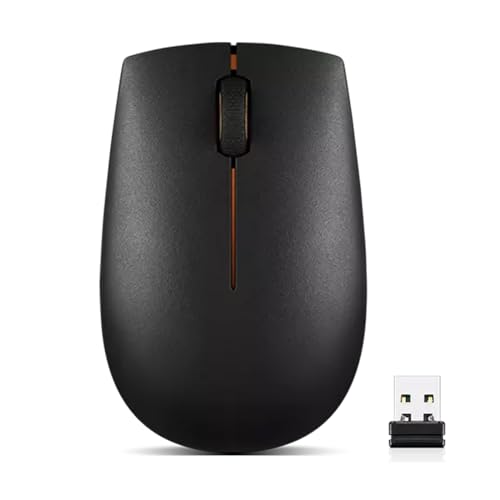


* Access Mouse Settings:
* On older Windows versions, search for “Mouse” in the Start menu and open “Mouse Settings” or “Mouse Properties” from the Control Panel.
* On Windows 10 and 11, go to `Settings` > `Bluetooth & devices` > `Mouse`.
* Check for Advanced Options: Look for tabs like “Wheel” or “Hardware” that might offer advanced customization. Sometimes, specific mouse models have drivers that install their own control panels with more options.
* Driver Updates: A common reason for scrolling issues is outdated or corrupted mouse drivers.
* Right-click the Start button and select “Device Manager.”
* Expand “Mice and other pointing devices.”
* Right-click your mouse and select “Update driver.” Choose to search automatically for drivers.
2. Specific Application Settings
Some applications on Windows might have their own internal settings for scrolling. While rare for basic horizontal scrolling, it’s worth checking if the Shift key method fails only in one particular program. For example, some graphics or CAD software might have unique navigation controls.
Horizontal Scrolling on macOS



macOS also primarily relies on the Shift key for horizontal scrolling. However, its approach to mouse and trackpad gestures can sometimes lead to confusion.
1. System Settings (Trackpad & Mouse)
macOS has unified settings for both mouse and trackpad, which can be helpful.
* Access System Settings: Go to `System Settings` (or `System Preferences` on older macOS versions).
* Navigate to Mouse/Trackpad: Look for “Mouse” or “Trackpad” in the sidebar.
* Scrolling Settings: Within the mouse settings, you might find options related to scrolling. macOS often intelligently maps gestures. For trackpads, two-finger swiping left or right is the native horizontal gesture. For mice, the Shift key combined with the wheel is the standard.
* **Ensure “Scroll” is Enabled:** Make sure basic scrolling is enabled. If your mouse has a tilt wheel, macOS might automatically map tilting left/right to horizontal scrolling. If not, the Shift key is your best bet.
2. Logitech Options/Logi Options+ (for Logitech Mice)
If you use a Logitech mouse, especially one with advanced features (like a free-spinning scroll wheel or programmable buttons), you’ll want to use the dedicated software.
* Download and Install: Get “Logi Options+” (or the older “Logitech Options”) from the Logitech website.
* Configure Scroll Wheel: Open Logi Options+. Select your mouse. Navigate to the “Scroll Wheel” settings. Here, you can often define what the wheel does when holding modifier keys like Shift, Ctrl, or Option. You can explicitly set the horizontal scroll action.
* Button Customization: If your mouse has extra buttons, you can also assign horizontal scrolling actions to them. This can be an alternative if the Shift key method is problematic.


When the Shift Key Isn’t Enough: Mouse Software and Third-Party Tools

Visual guide about How to Scroll Horizontally with Mouse Wheel
Image source: fentek-ind.com
Sometimes, the built-in OS methods or even the application’s default behavior isn’t ideal, or perhaps your mouse lacks a tilt wheel. In these cases, you have a couple of other powerful options:
1. Manufacturer’s Mouse Software
Many high-end mice come with their own software that allows for extensive customization. Brands like Logitech, Razer, Corsair, and SteelSeries offer tools that let you:
* **Remap Buttons:** Assign horizontal scrolling to any available mouse button.
* **Configure Scroll Wheel Actions:** Set specific behaviors for the scroll wheel, including using modifier keys or even enabling tilt-wheel scrolling if your mouse supports it.
* **Create Profiles:** Set different configurations for different applications. For instance, you might want horizontal scrolling enabled by default in Excel but only accessible via a modifier key in a game.
How to Use Manufacturer Software:
1. Identify Your Mouse Model: Find out the exact make and model of your mouse.
2. Download Software: Visit the manufacturer’s website and download the latest version of their configuration software (e.g., Logitech G HUB, Razer Synapse, Corsair iCUE).
3. Install and Launch: Install the software and open it.
4. Select Your Device: Choose your mouse from the list of connected devices.
5. Explore Settings: Look for sections related to “Button Assignments,” “Scroll Wheel,” or “Key Bindings.”
6. Assign Horizontal Scroll: Find an option to assign “Horizontal Scroll,” “Pan Left/Right,” or a similar function. You can often assign this to a tilt wheel, a side button, or even a combination with the Shift key.
Using this software is often the most robust solution for users who want precise control over their mouse input. It’s a great way to optimize your workflow, whether you’re managing spreadsheets for building an online business or fine-tuning a design project.
2. Third-Party Mouse Utilities
If your mouse manufacturer doesn’t offer robust software, or you’re using a very basic mouse, there are third-party utilities that can help. These programs often offer advanced macro capabilities and remapping functions.
* AutoHotkey (Windows): This is a powerful, free, open-source scripting language for Windows. You can write simple scripts to remap keys and mouse buttons. For example, you could create a script that makes holding the middle mouse button and scrolling horizontally perform the Shift + Scroll action.
* SteerMouse (macOS): For macOS users who need more control than System Settings offers, SteerMouse is a popular paid utility that allows extensive customization of mouse buttons, scroll wheel speed, and gestures.
Example using AutoHotkey (Conceptual):
Imagine you want to use your middle mouse button to trigger horizontal scrolling when you scroll. You could write a simple AutoHotkey script like this:
“`autohotkey
#IfWinActive ahk_class XLONG
MButton::
Send {LShift Down}
KeyWait MButton
Send {LShift Up}
Return
#IfWinActive
“`
This script (which would need refinement for actual horizontal scrolling) demonstrates the principle: intercepting a mouse button press and sending different keyboard/mouse commands. Always be cautious when using third-party utilities and download them from reputable sources.
Troubleshooting: When Horizontal Scrolling Fails
It can be frustrating when a feature you expect to work simply doesn’t. Here are common reasons why horizontal scrolling might not be functioning and how to fix them:
1. Application Does Not Support Horizontal Scrolling
* The Problem: Some older or simpler applications simply aren’t programmed to recognize horizontal scroll commands.
* The Solution: This is not an issue with your mouse or OS, but with the software itself. You’ll likely have to rely on the application’s built-in scroll bars or other navigation methods. Check the application’s documentation or settings for any clues.
2. Outdated or Corrupt Mouse Drivers


* The Problem: Drivers are the software that allows your operating system to communicate with your hardware. If they are old or damaged, features can stop working.
* The Solution: Update your mouse drivers. As mentioned earlier, use Device Manager on Windows or check your mouse manufacturer’s website for the latest drivers. For macOS, driver updates are typically handled through system updates, but specific gaming mice might have separate installers.
3. Incorrectly Configured Mouse Software
* The Problem: If you’ve been using custom mouse software, a recent update, a forgotten setting, or a profile conflict could be disabling the feature.
* The Solution:
* Open your mouse manufacturer’s software.
* Check the settings for your scroll wheel and modifier keys.
* Try resetting the mouse settings to default.
* If using profiles, ensure the correct profile is active for the application you’re using.
4. Operating System Conflicts or Glitches
* The Problem: Occasionally, the OS itself can have temporary glitches that affect input devices.
* The Solution:
* **Restart Your Computer:** This is the most basic but often effective fix.
* **Check for OS Updates:** Ensure your Windows or macOS is up-to-date.
* **Test in Another Application:** See if horizontal scrolling works in a different program (like a web browser or a simple text editor). If it works elsewhere, the problem is likely with the specific application you were having trouble with.
5. Hardware Issues with the Mouse Wheel
* The Problem: In rare cases, the mouse itself might be faulty. The scroll wheel might be physically damaged, or its internal encoder (the part that detects rotation) could be malfunctioning.
* The Solution:
* **Test on Another Computer:** If possible, plug your mouse into a different computer to see if the issue persists. If it does, the mouse is likely the culprit.
* **Clean the Mouse:** Dust and debris can sometimes interfere with scroll wheel function. Try cleaning around the wheel with compressed air.
* Consider Replacement: If the mouse is old or damaged, it might be time for a new one. Look for mice specifically advertised with good scroll wheel performance.
Conclusion
Mastering horizontal scrolling with your mouse wheel is a small but significant upgrade to your computing efficiency. By understanding the fundamental Shift key method, exploring your operating system’s settings, and leveraging the power of manufacturer-specific software, you can unlock a smoother and more intuitive way to navigate wide content.
Whether you’re managing complex data sets, editing multimedia projects, or simply browsing the web, the ability to pan left and right with a simple scroll motion saves time and reduces frustration. Don’t let wide content be a barrier to your productivity. Experiment with these techniques, and you’ll wonder how you ever managed without them. For individuals focused on building online income streams, such as through YouTube affiliate marketing or other ventures, optimizing every aspect of your digital toolkit, including mouse navigation, can contribute to better overall performance and success.
Similar Posts