A noisy laptop fan usually means overheating, dust buildup, or heavy CPU/GPU activity.
I’ve spent years fixing laptops and testing cooling fixes, so I know why your fan is loud on laptop and how to make it quiet again. Read on for clear causes, step-by-step diagnostics, practical fixes, and simple prevention tips that work for Windows and Mac laptops.

Causes: why the fan is loud on laptop
A fan is loud on laptop when the system runs hot or the fan cannot spin freely. Heat from the CPU and GPU forces the fan to spin faster. Dust and debris block vents and slow airflow, which makes the fan work harder.
Software can be the culprit too. Background apps, browser tabs, and updates cause high CPU use. Old thermal paste or failing bearings in the fan will also make noise. Aging laptops often lose cooling efficiency, so fans run longer and louder.
How to diagnose a loud laptop fan
Start with simple checks. Look at Task Manager on Windows or Activity Monitor on Mac to find heavy processes. Close any app that uses lots of CPU or GPU.
Check temperatures. Use a temperature monitor app to see CPU and GPU temps. If temps are high, the fan will run fast.
Listen and localize. Place your ear near vents to find which fan is noisy. Note whether noise spikes during certain tasks like gaming, video editing, or web browsing.
Run a malware scan. Malicious apps can use CPU cycles. A clean system often reduces fan noise.

Practical fixes and step-by-step solutions
Here are tested fixes you can do at home. Try the easy steps first, then move to hardware fixes if needed.
Software fixes
- Close heavy apps and tabs. This often lowers CPU and reduces fan noise within minutes.
- Change power settings. Use a balanced or power saver plan on Windows. Choose low power mode on macOS to limit turbo boosting.
- Update drivers and firmware. Graphics and chipset updates can reduce overheating and erratic fan behavior.
- Scan for malware. Remove any unwanted software that uses CPU in the background.
Cleaning and airflow
- Turn off and unplug the laptop before cleaning.
- Use compressed air to blow dust from vents. Short bursts work best to avoid spinning the fan too fast.
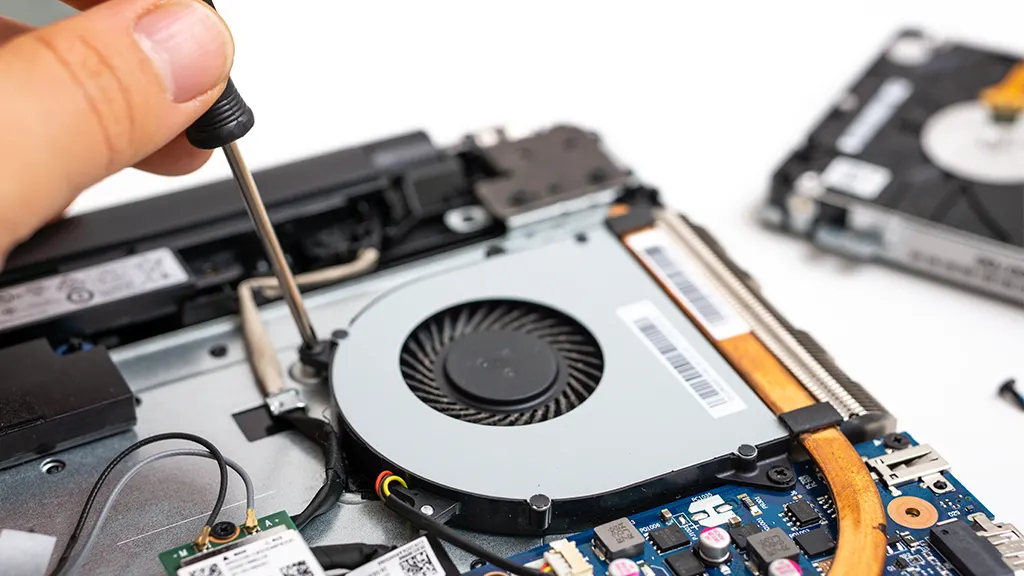
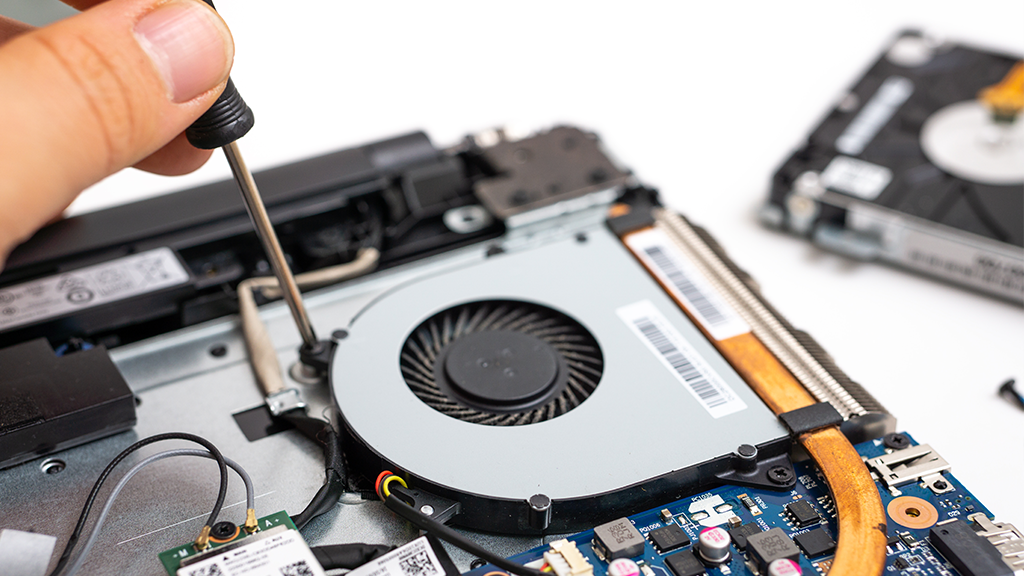
- Clean fan blades gently if you open the case. Use a soft brush and a can of compressed air.
- Keep the laptop on a flat, hard surface. Soft surfaces block vents and raise temps.
Thermal paste and hardware
- Replace thermal paste if your laptop is 3–5 years old and runs hot. Fresh paste improves heat transfer from CPU/GPU to heatsink.
- Inspect the fan for noise from bearings. If the fan rattles, consider replacing it.
- Tighten loose screws and ensure heatsinks are seated properly.
Cooling aids and settings
- Use a cooling pad to add airflow under the laptop.
- Limit background syncs and scheduled tasks during heavy use.
- For advanced users, consider undervolting the CPU to reduce heat. This requires care and testing.
When to reset system controllers
- On Macs, reset SMC to fix fan speed issues after software updates.
- On Windows laptops, a full power cycle sometimes clears fan control glitches. Shut down, unplug, and hold power for 20 seconds.
Safety notes
- If you open your laptop, follow your model’s service manual. Work in a static-free area.
- If you are unsure about thermal paste or fan replacement, seek professional help.
Preventive maintenance to keep fans quiet
Regular care prevents loud fans. Do these tasks every 3–12 months depending on use.
- Clean vents and fans with compressed air.
- Update your OS and drivers regularly.
- Monitor temperatures and CPU load occasionally.
- Avoid using the laptop on soft surfaces like beds or couches.
- Keep vents unobstructed and use the laptop on a hard, flat surface.
- Use a cooling pad for heavy workloads like gaming or video editing.
Doing small tasks often saves you from bigger repairs later. A light cleaning every few months keeps the fan from becoming loud on laptop.

When to seek professional repair
If noise persists after cleaning and software fixes, get expert help. Signs you need a technician:
- Grinding or scraping sounds that suggest broken fan bearings.
- Fans running full speed with low CPU usage and normal temperatures.
- Physical damage or spilled liquid inside the laptop.
- You are unsure how to replace thermal paste or the fan safely.
A technician can test fan RPM, replace parts, and safely reapply thermal paste. This avoids damage and restores quiet performance.

Personal experience and practical lessons
I once worked on an older laptop where the fan was loud on laptop even during light browsing. Cleaning and replacing the thermal paste dropped temps by 15°C. The loud noise stopped. I learned to check software first, then hardware.
Mistakes to avoid
- Don’t spin the fan by hand with compressed air; this can generate electricity and damage bearings.
- Don’t apply too much thermal paste; a pea-sized amount is usually enough.
- Don’t ignore small noises; they often get worse.
Practical tip
- Keep a small can of compressed air and a soft brush in your kit. It’s the quickest way to quiet a noisy fan on short notice.

Frequently Asked Questions of fan is loud on laptop
Why is my fan suddenly loud on laptop?
A sudden loud fan usually points to a spike in CPU or GPU usage, dust blocking airflow, or a background update. Check Task Manager or Activity Monitor and clean vents.
Will cleaning the vents stop the fan from being loud on laptop?
Cleaning vents often reduces fan noise because airflow improves and the fan doesn’t need to spin as fast. Regular cleaning is a quick, effective fix.
Can software settings cause the fan to be loud on laptop?
Yes. Power plans, drivers, and runaway processes can cause high CPU use and loud fans. Adjust power settings and close heavy apps to reduce noise.
Is it safe to open my laptop to fix a loud fan?
Yes, if you follow your model’s service guide and take anti-static precautions. If unsure, a technician is safer.
How long will a noisy fan last before it needs replacement?
It depends on use and dust. Some fans last many years. If noise is from worn bearings or persistent overheating, replacement is often required.
Conclusion
A loud fan on laptop is usually fixable with simple checks and maintenance. Start with software and cleaning steps, then move to hardware fixes if needed. Regular upkeep keeps your laptop quiet and extends its life. Try the tips here, and if the problem continues, seek professional repair. Leave a comment with your laptop model and symptoms for tailored advice or subscribe for more troubleshooting guides.